Kids Place Remote Control and Monitoring

Kids Place Remote Control and Monitoring

Tools

| kiddoware

Play on PC with BlueStacks or from our cloud

  • Overview
  • How to Download

Page Modified On: August 01, 2025

Run Kids Place Remote Control and Monitoring on PC or Mac

Let BlueStacks turn your PC, Mac, or laptop into the perfect home for Kids Place Remote Control and Monitoring, a fun Tools app from kiddoware.

About the App

Ever wish you could keep an eye on your child’s device without having to borrow it every five minutes? Kids Place Remote Control and Monitoring by kiddoware lets you check in from a distance, helping you manage your child’s digital world directly from your own device or computer. Whether you’re a tech-savvy parent or just looking for simple tools, this app makes parental controls and monitoring straightforward—no deep dives into settings required.

App Features

  • Cloud-Based Management
    Control and update Kids Place settings on your child’s device without needing to have it in your hands. Everything’s accessible through an online dashboard, making life smoother for busy parents.

  • Remote App Management
    Add or remove apps from Kids Place on the go, so you can give or take away access without lengthy conversations or device swaps.

  • Simple Configuration Sharing
    Export and import Kids Place configurations for multiple devices, making it a breeze if you’re handling more than one child’s setup or need to swap out devices.

  • Geolocation Tracking
    Keep tabs on where your child’s device is located at all times—handy for park trips, sleepovers, or just everyday peace of mind.

  • Screen Time and Usage Reports
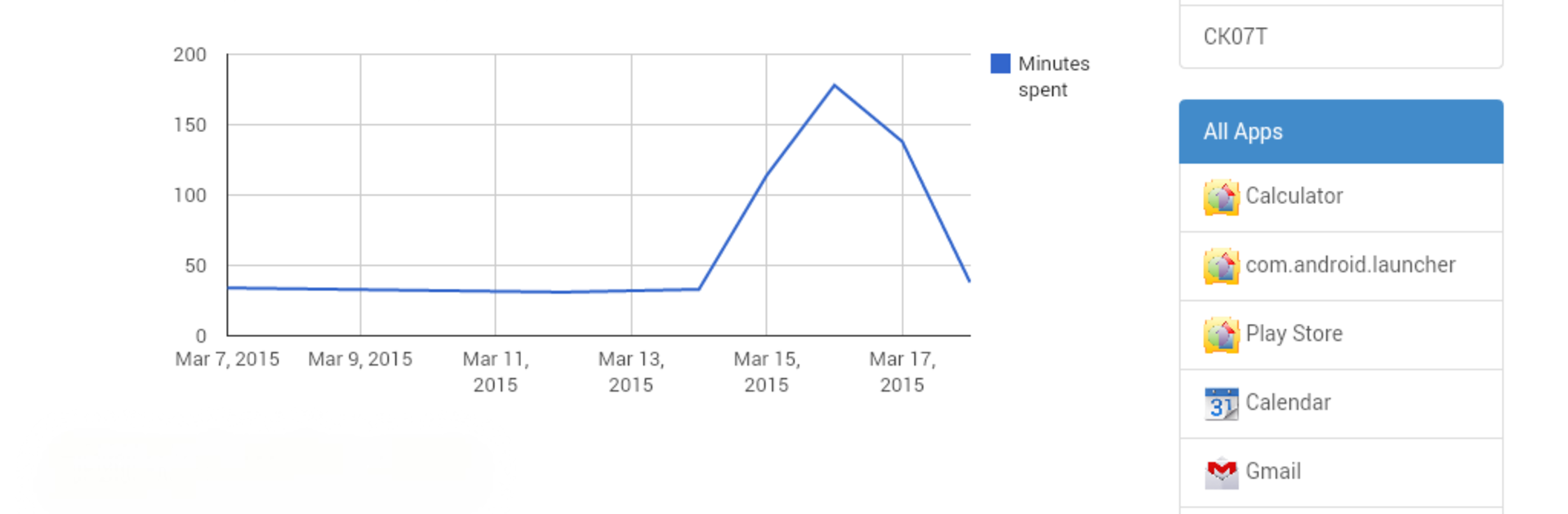
    Wondering which apps your child gravitates toward and for how long? The reporting dashboard lays it all out in a way that’s easy to understand.

  • Remote Device Lock and Wipe
    Need to lock or wipe a device remotely in case of loss, safety, or just to get everyone to the dinner table? Those options are ready and waiting if you choose to use them.

  • Web-Based Console
    Access features and reports from nearly any browser—on your phone, laptop, or even with BlueStacks if you want more flexibility.

  • Easy Start with Free Trial
    Get hands-on experience with a complimentary 15-day trial, so you can try out the robust suite of tools before making any decisions.

Kids Place Remote Control and Monitoring puts you in control, the easy way, straight from the cloud.

BlueStacks brings your apps to life on a bigger screen—seamless and straightforward.

How to Download and Run Kids Place Remote Control and Monitoring on PC or Mac

  • Download and install BlueStacks on your PC or Mac

  • Complete Google sign-in to access the Play Store, or do it later

  • Look for Kids Place Remote Control and Monitoring in the search bar at the top right corner

  • Click to install Kids Place Remote Control and Monitoring from the search results

  • Complete Google sign-in (if you skipped step 2) to install Kids Place Remote Control and Monitoring

  • Click the Kids Place Remote Control and Monitoring icon on the home screen to start playing

video
Watch Video

Minimum System Requirements

With BlueStacks 5, you can get started on a PC that fulfills the following requirements.

  • Operating System

    Microsoft Windows 7 or above, macOS 11 (Big Sur) or above

  • Processor

    Intel, AMD or Apple Silicon Processor

  • RAM

    at least 4GB

  • HDD

    10GB Free Disk Space

Note:

* You must be an Administrator on your PC. Up to date graphics drivers from Microsoft or the chipset vendor.

Kids Place Remote Control and Monitoring - FAQs

  • How to Run Kids Place Remote Control and Monitoring on Windows PC & Mac?

    Run Kids Place Remote Control and Monitoring on your PC or Mac by following these simple steps.

    • Click on ‘Download Kids Place Remote Control and Monitoring on PC’ to download BlueStacks
    • Install it and log-in to Google Play Store
    • Launch and run the app.
  • Why is BlueStacks the fastest and safest platform to play games on PC?

    BlueStacks respects your privacy and is always safe and secure to use. It does not carry any malware, spyware, or any sort of additional software that could harm your PC.

    It is engineered to optimize speed and performance for a seamless gaming experience.

  • What are Kids Place Remote Control and Monitoring PC requirements?

    Minimum requirement to run Kids Place Remote Control and Monitoring on your PC

    • OS: Microsoft Windows 7 and above:
    • Processor: Intel or AMD Processor:
    • RAM: Your PC must have at least 2GB of RAM. (Note that having 2GB or more disk space is not a substitute for RAM):
    • HDD: 5GB Free Disk Space.
    • You must be an Administrator on your PC.