MonokaiToolkit Pro
MonokaiToolkit Pro

MonokaiToolkit Pro

Tools

| NorthStudio

Play on PC with BlueStacks or from our cloud

  • Overview
  • How to Download

Page Modified On: November 03, 2025

Run MonokaiToolkit Pro on PC or Mac

Get freedom from your phone’s obvious limitations. Use MonokaiToolkit Pro, made by NorthStudio, a Tools app on your PC or Mac with BlueStacks, and level up your experience.

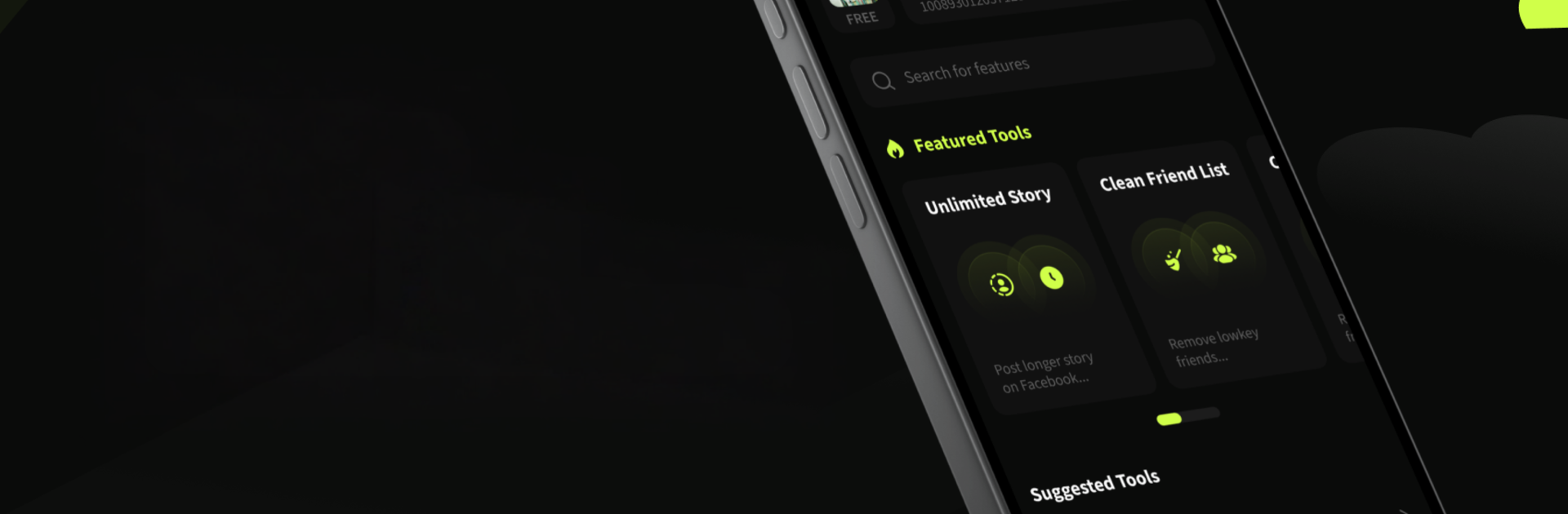
MonokaiToolkit Pro feels like a tidy control panel for social accounts, the kind that makes routine stuff less of a mess. The layout is simple, nothing confusing, and it keeps the useful tools in reach. On a PC with BlueStacks, it works like a desktop dashboard, so scrolling through stories, clicking through lists, and doing batch actions feels quicker and less cramped. The Story Explorer is the standout, since it lets someone browse, save, and react to stories in one place, which makes catching up less scattered than hopping around different screens.

The friend list cleaner is practical too. It flags inactive or deactivated profiles so someone can trim things down without guessing who is still around. There is a broadcast message option that sends one note to multiple friends at once, which helps for quick updates. Premium adds a video saver for keeping clips to watch later, plus an avatar guard that discourages people from messing with profile pictures. There are insights and some automation, like scheduling posts or importing lists, which suits anyone managing a big network or a page. Nothing feels risky or spammy, it leans on control and clarity. It is not flashy, more of a utility that keeps social stuff organized, and it suits people who want a calmer way to manage everything, especially when running it in BlueStacks on a bigger screen.

BlueStacks brings your apps to life on a bigger screen—seamless and straightforward.

How to Download and Run MonokaiToolkit Pro on PC or Mac

  • Download and install BlueStacks on your PC or Mac

  • Complete Google sign-in to access the Play Store, or do it later

  • Look for MonokaiToolkit Pro in the search bar at the top right corner

  • Click to install MonokaiToolkit Pro from the search results

  • Complete Google sign-in (if you skipped step 2) to install MonokaiToolkit Pro

  • Click the MonokaiToolkit Pro icon on the home screen to start playing

video
Watch Video

Minimum System Requirements

With BlueStacks 5, you can get started on a PC that fulfills the following requirements.

  • Operating System

    Microsoft Windows 7 or above, macOS 11 (Big Sur) or above

  • Processor

    Intel, AMD or Apple Silicon Processor

  • RAM

    at least 4GB

  • HDD

    10GB Free Disk Space

Note:

* You must be an Administrator on your PC. Up to date graphics drivers from Microsoft or the chipset vendor.

MonokaiToolkit Pro - FAQs

  • How to Run MonokaiToolkit Pro on Windows PC & Mac?

    Run MonokaiToolkit Pro on your PC or Mac by following these simple steps.

    • Click on ‘Download MonokaiToolkit Pro on PC’ to download BlueStacks
    • Install it and log-in to Google Play Store
    • Launch and run the app.
  • Why is BlueStacks the fastest and safest platform to play games on PC?

    BlueStacks respects your privacy and is always safe and secure to use. It does not carry any malware, spyware, or any sort of additional software that could harm your PC.

    It is engineered to optimize speed and performance for a seamless gaming experience.

  • What are MonokaiToolkit Pro PC requirements?

    Minimum requirement to run MonokaiToolkit Pro on your PC

    • OS: Microsoft Windows 7 and above:
    • Processor: Intel or AMD Processor:
    • RAM: Your PC must have at least 2GB of RAM. (Note that having 2GB or more disk space is not a substitute for RAM):
    • HDD: 5GB Free Disk Space.
    • You must be an Administrator on your PC.