Service Reports+
Service Reports+

Service Reports+

Tools

| Simão Lúcio

Play on PC with BlueStacks or from our cloud

  • Overview
  • How to Download

Page Modified On: September 12, 2025

Run Service Reports+ on PC or Mac

Let BlueStacks turn your PC, Mac, or laptop into the perfect home for Service Reports+, a fun Tools app from Simão Lúcio.

About the App

Service Reports+ by Simão Lúcio is a clean, no-fuss Tools app built to help Jehovah’s Witnesses keep field service records straight without juggling spreadsheets or notes. It’s quick to learn, accurate, and flexible enough for personal use or congregation responsibilities. Prefer a bigger screen for organizing reports? It works great on BlueStacks too.

App Features

  • Quick reporting: Send your monthly report by SMS, email, or through popular messaging apps like WhatsApp with just a couple taps.
  • Built-in stopwatch: Start a timer during service and let the tool handle the math for you—no manual tracking needed.
  • Goals for pioneers: Set monthly or yearly goals and keep an eye on progress at a glance.
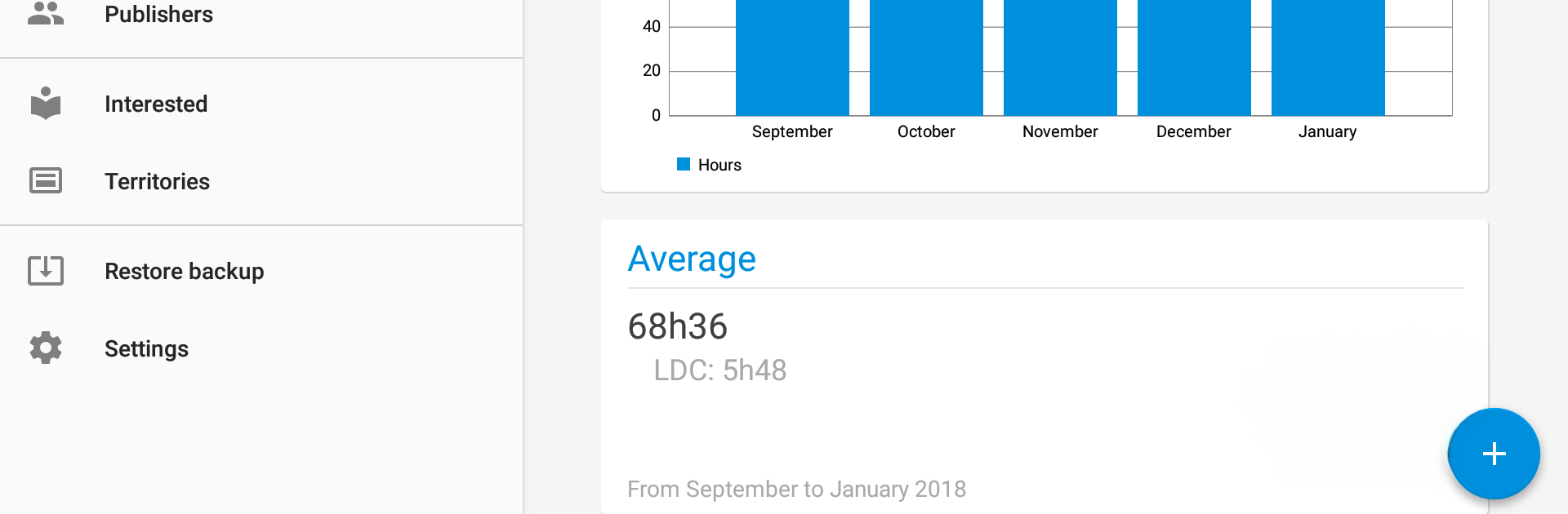
  • LDC time: Track LDC time separately when you need it (toggle in Settings).
  • Automatic study count: Bible studies are tallied for you, so totals stay consistent.
  • Smart hour rounding: Choose whether to round hours up or down at the end of the month.
  • Works offline: Capture everything anywhere—no connection required. Sync or back up later.
  • Return visits organizer: Log return visits, add notes, and schedule follow-ups in one place.
  • Multi-publisher support: Keep separate profiles for multiple publishers—handy for families or shared devices.
  • Google Drive backups: Back up and restore your data securely with Drive support.
  • Tools for secretaries and overseers: Track irregular or inactive publishers, spot overdue reports, view totals and averages, record meeting attendance, and review congregation analysis.
  • Form autofill: Automatically fills S-21, S-1, S-4, and S-88. Official PDF forms aren’t included—you’ll need your own copies.
  • Translation helper: Want to contribute a translation? Head to Settings > Language to generate the list of terms.

Ready to experience Service Reports+ on a bigger screen, in all its glory? Download BlueStacks now.


How to Download and Run Service Reports+ on PC or Mac

  • Download and install BlueStacks on your PC or Mac

  • Complete Google sign-in to access the Play Store, or do it later

  • Look for Service Reports+ in the search bar at the top right corner

  • Click to install Service Reports+ from the search results

  • Complete Google sign-in (if you skipped step 2) to install Service Reports+

  • Click the Service Reports+ icon on the home screen to start playing

video
Watch Video

Minimum System Requirements

With BlueStacks 5, you can get started on a PC that fulfills the following requirements.

  • Operating System

    Microsoft Windows 7 or above, macOS 11 (Big Sur) or above

  • Processor

    Intel, AMD or Apple Silicon Processor

  • RAM

    at least 4GB

  • HDD

    10GB Free Disk Space

Note:

* You must be an Administrator on your PC. Up to date graphics drivers from Microsoft or the chipset vendor.

Service Reports+ - FAQs

  • How to Run Service Reports+ on Windows PC & Mac?

    Run Service Reports+ on your PC or Mac by following these simple steps.

    • Click on ‘Download Service Reports+ on PC’ to download BlueStacks
    • Install it and log-in to Google Play Store
    • Launch and run the app.
  • Why is BlueStacks the fastest and safest platform to play games on PC?

    BlueStacks respects your privacy and is always safe and secure to use. It does not carry any malware, spyware, or any sort of additional software that could harm your PC.

    It is engineered to optimize speed and performance for a seamless gaming experience.

  • What are Service Reports+ PC requirements?

    Minimum requirement to run Service Reports+ on your PC

    • OS: Microsoft Windows 7 and above:
    • Processor: Intel or AMD Processor:
    • RAM: Your PC must have at least 2GB of RAM. (Note that having 2GB or more disk space is not a substitute for RAM):
    • HDD: 5GB Free Disk Space.
    • You must be an Administrator on your PC.