TCL TV Remote Control

TCL TV Remote Control

Tools

| Mobile Tools Shop

Play on PC with BlueStacks or from our cloud

  • Overview
  • How to Download

Page Modified On: December 15, 2025

Run TCL TV Remote Control on PC or Mac

What’s better than using TCL TV Remote Control by Mobile Tools Shop? Well, try it on a big screen, on your PC or Mac, with BlueStacks to see the difference.

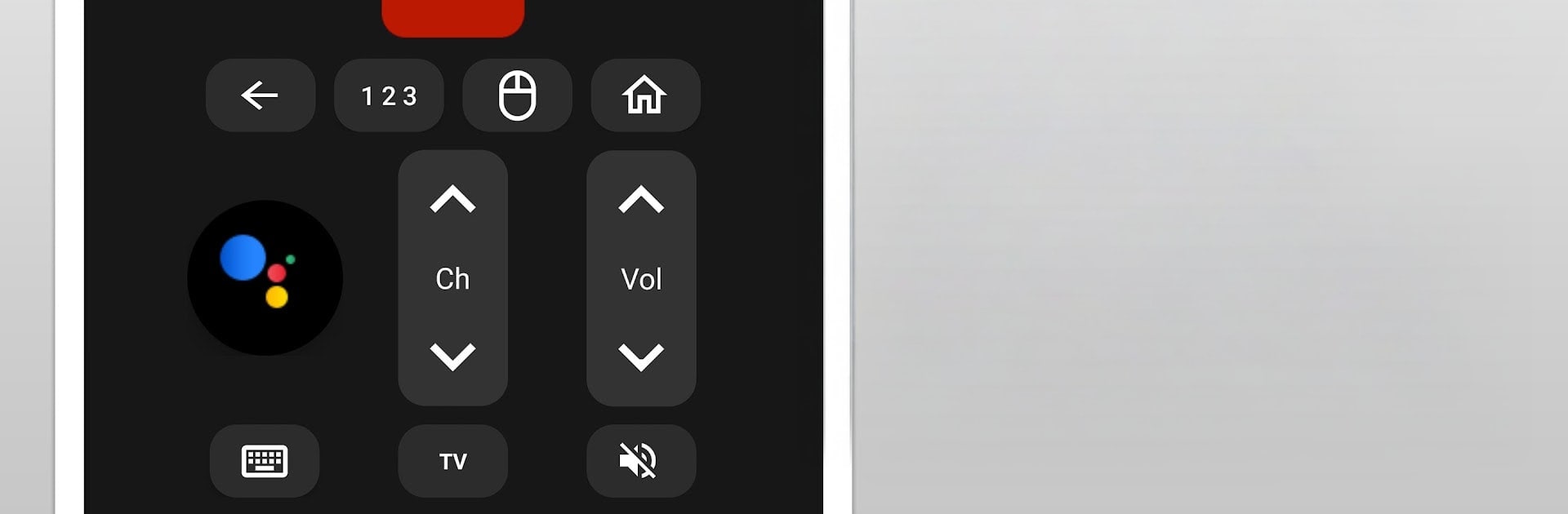
TCL TV Remote Control feels like a simple spare remote that lives on the screen. It works with most TCL sets, including TCL Android TV and TCL Roku TV, and even some older infrared models. The layout is clean and easy to read, with the usual stuff up front like volume, channels, input, home, arrows, and back. There is a trackpad-style panel that lets the user glide through menus with swipes and quick taps, which makes app rows and on-screen keyboards less annoying. A voice button is there too, so quick searches are possible if the mic is allowed. For Smart TVs it needs the TV and the device on the same Wi-Fi, then it usually finds the set and pairs in a few seconds. Roku models may pop a small confirmation on the TV the first time, Android TV models just accept network control.

Running it on a PC with BlueStacks is surprisingly handy. The bigger screen makes every button easy to hit, and typing a movie title with a keyboard is faster than any phone keyboard. Just a heads up, IR control only works if the hardware has an IR blaster, so on a computer it is Wi-Fi only. There are minor differences per TV type, but the app keeps it consistent enough that no one needs a manual. It is unofficial, so do not expect TCL branding everywhere, but the basics are solid and it gets out of the way so the show can start.

Big screen. Bigger performance. Use BlueStacks on your PC or Mac to run your favorite apps.

How to Download and Run TCL TV Remote Control on PC or Mac

  • Download and install BlueStacks on your PC or Mac

  • Complete Google sign-in to access the Play Store, or do it later

  • Look for TCL TV Remote Control in the search bar at the top right corner

  • Click to install TCL TV Remote Control from the search results

  • Complete Google sign-in (if you skipped step 2) to install TCL TV Remote Control

  • Click the TCL TV Remote Control icon on the home screen to start playing

video
Watch Video

Minimum System Requirements

With BlueStacks 5, you can get started on a PC that fulfills the following requirements.

  • Operating System

    Microsoft Windows 7 or above, macOS 11 (Big Sur) or above

  • Processor

    Intel, AMD or Apple Silicon Processor

  • RAM

    at least 4GB

  • HDD

    10GB Free Disk Space

Note:

* You must be an Administrator on your PC. Up to date graphics drivers from Microsoft or the chipset vendor.

TCL TV Remote Control - FAQs

  • How to Run TCL TV Remote Control on Windows PC & Mac?

    Run TCL TV Remote Control on your PC or Mac by following these simple steps.

    • Click on ‘Download TCL TV Remote Control on PC’ to download BlueStacks
    • Install it and log-in to Google Play Store
    • Launch and run the app.
  • Why is BlueStacks the fastest and safest platform to play games on PC?

    BlueStacks respects your privacy and is always safe and secure to use. It does not carry any malware, spyware, or any sort of additional software that could harm your PC.

    It is engineered to optimize speed and performance for a seamless gaming experience.

  • What are TCL TV Remote Control PC requirements?

    Minimum requirement to run TCL TV Remote Control on your PC

    • OS: Microsoft Windows 7 and above:
    • Processor: Intel or AMD Processor:
    • RAM: Your PC must have at least 2GB of RAM. (Note that having 2GB or more disk space is not a substitute for RAM):
    • HDD: 5GB Free Disk Space.
    • You must be an Administrator on your PC.