

Multitask effortlessly on your PC or Mac as you try out Hide Photos in Photo Locker, a Video Players & Editors app by Handy Apps on BlueStacks.
About the App
Ever feel like your phone’s gallery isn’t the safest place for your personal photos? Hide Photos in Photo Locker makes it easy to keep those pics under wraps, just for your eyes. Whether you’re organizing sensitive snapshots or keeping memories private, this app by Handy Apps gives you simple, hands-on control over your privacy. It’s straightforward, a little bit clever, and definitely built to make sure your photos stay secure.
App Features
-
Secure Photo Vault
Lock away your photos behind a secret PIN code—nobody gets in unless you say so. -
Strong Encryption
Each hidden picture is protected with AES 128-bit encryption. Even if someone grabs your files, they’re staying locked down. -
Easy Hiding Options
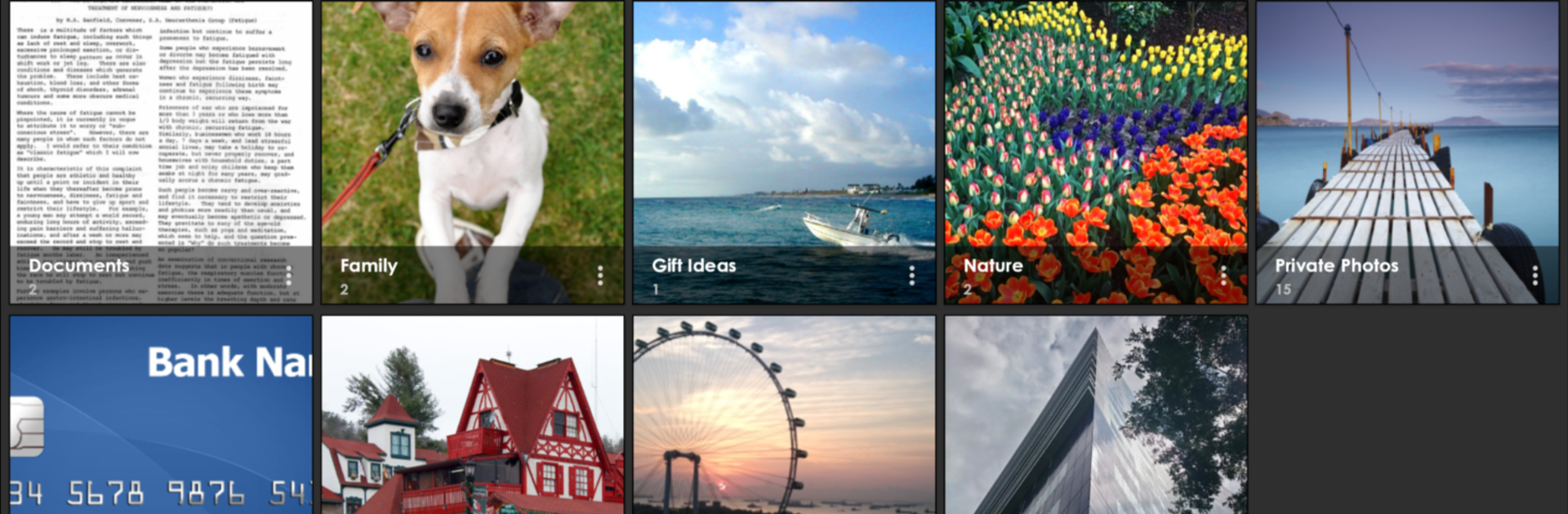
Want to move photos into your private stash? Just pick them from your main gallery, or send them straight to Hide Photos in Photo Locker. No fuss. -
Bulk Hide
Got a lot to tuck away? Hide hundreds of photos at once with a couple of taps. -
Lock Individual Albums
Only want to show one secret album? Keep the rest locked up tight—each folder gets its own lock. -
Full-Quality Viewing
Zoom in or out using multi-touch, rotate photos left and right, and enjoy pics at their full resolution. This app doesn’t shrink your memories. -
Slideshow Mode
Want to relive hidden memories? Watch your private photos in slideshow view, and pick how fast—or slow—they play. -
Discreet Design
Hide Photos in Photo Locker won’t show up in your recent apps list, so nobody stumbles upon it by accident. -
Auto-Lock on Sleep
If your device goes to sleep, the app automatically locks—so you’re always covered, even if you forget to close it. -
Tablet-Ready Layout
Looks and works great on both phones and tablets. Nice and smooth either way. -
PIN Recovery
Forgot your code? There’s an optional PIN recovery, so you don’t lose access to your stuff. -
Quick Unhide
Change your mind? Just as simply, send photos back to your main gallery and pick exactly where they go. -
Premium Features
- Stealth Mode: The app icon can disappear from your drawer, and you get access through a calculator widget (kind of sneaky, right?).
- Fingerprint Login: Use your fingerprint for even quicker, secure access.
- Ad-Free Experience: Premium means no ads.
- Shared Premium: Upgrade one app (Photo Locker or Video Locker) and you get premium for both, as long as both stay installed.
If you want to check out your private gallery on a bigger screen, Hide Photos in Photo Locker also works seamlessly with BlueStacks.
Eager to take your app experience to the next level? Start right away by downloading BlueStacks on your PC or Mac.