Video Converter - Remux

Video Converter - Remux

Video Players & Editors

| REMUX TECH PRIVATE LIMITED

Play on PC with BlueStacks or from our cloud

  • Overview
  • How to Download

Page Modified On: January 05, 2026

Run Video Converter - Remux on PC or Mac

Multitask effortlessly on your PC or Mac as you try out Video Converter – Remux, a Video Players & Editors app by REMUX TECH PRIVATE LIMITED on BlueStacks.

Video Converter – Remux feels like having a desktop encoder packed into a simple mobile app. It opens to a clean layout, pick a file, choose a format, and hit convert. It handles the usual stuff like MP4 and MOV, plus WebM, MKV, HEVC, AVI, WMV, even GIF if someone wants quick loops. There is an audio extractor too, so pulling MP3, M4A, WAV, or FLAC from a video takes a couple taps. The codec support is solid, with H.264, H.265, AV1, VP9, AAC, and FLAC, so files come out compatible with most players and editors.

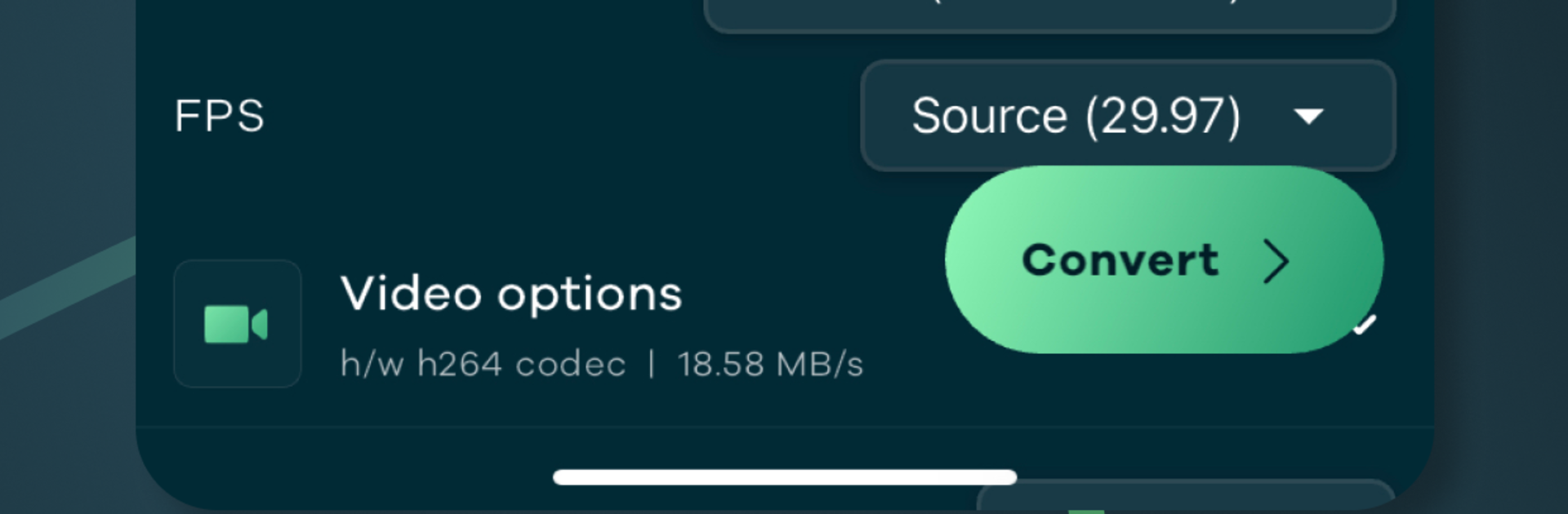
The presets help a lot. There are profiles that favor quality, others that push speed, options for older devices, and even ones tuned for editing that keep the alpha channel for overlays. For anyone who likes to tinker, every knob is there anyway, from bitrate and codecs to resolution, FPS, pixel format, audio tracks, cropping, rotation, trim, and flip. Batch conversion works well, so a whole folder of clips can be compressed or converted in one go. The compressor keeps file sizes down while holding onto the look of the original better than expected.

On a PC using BlueStacks, dragging in big files and letting batch jobs run in the background feels easy, and it behaves like a friendly front end to something powerful under the hood without needing command lines. It is straightforward to use, three steps mostly, but it still has the depth to fix a weird format from an old camera, prep clips for social, or turn a long video into a tidy MP3 playlist. Waiting time depends on the device, but progress is clear and the results are consistent.

BlueStacks brings your apps to life on a bigger screen—seamless and straightforward.

How to Download and Run Video Converter - Remux on PC or Mac

  • Download and install BlueStacks on your PC or Mac

  • Complete Google sign-in to access the Play Store, or do it later

  • Look for Video Converter - Remux in the search bar at the top right corner

  • Click to install Video Converter - Remux from the search results

  • Complete Google sign-in (if you skipped step 2) to install Video Converter - Remux

  • Click the Video Converter - Remux icon on the home screen to start playing

video
Watch Video

Minimum System Requirements

With BlueStacks 5, you can get started on a PC that fulfills the following requirements.

  • Operating System

    Microsoft Windows 7 or above, macOS 11 (Big Sur) or above

  • Processor

    Intel, AMD or Apple Silicon Processor

  • RAM

    at least 4GB

  • HDD

    10GB Free Disk Space

Note:

* You must be an Administrator on your PC. Up to date graphics drivers from Microsoft or the chipset vendor.

Video Converter - Remux - FAQs

  • How to Run Video Converter - Remux on Windows PC & Mac?

    Run Video Converter - Remux on your PC or Mac by following these simple steps.

    • Click on ‘Download Video Converter - Remux on PC’ to download BlueStacks
    • Install it and log-in to Google Play Store
    • Launch and run the app.
  • Why is BlueStacks the fastest and safest platform to play games on PC?

    BlueStacks respects your privacy and is always safe and secure to use. It does not carry any malware, spyware, or any sort of additional software that could harm your PC.

    It is engineered to optimize speed and performance for a seamless gaming experience.

  • What are Video Converter - Remux PC requirements?

    Minimum requirement to run Video Converter - Remux on your PC

    • OS: Microsoft Windows 7 and above:
    • Processor: Intel or AMD Processor:
    • RAM: Your PC must have at least 2GB of RAM. (Note that having 2GB or more disk space is not a substitute for RAM):
    • HDD: 5GB Free Disk Space.
    • You must be an Administrator on your PC.