VR Theater for Cardboard

VR Theater for Cardboard

Video Players & Editors

| Couch Games Software

Play on PC with BlueStacks or from our cloud

  • Overview
  • How to Download

Page Modified On: January 02, 2026

Run VR Theater for Cardboard on PC or Mac

Why limit yourself to your small screen on the phone? Run VR Theater for Cardboard, an app by Couch Games Software, best experienced on your PC or Mac with BlueStacks, the world’s #1 Android emulator.

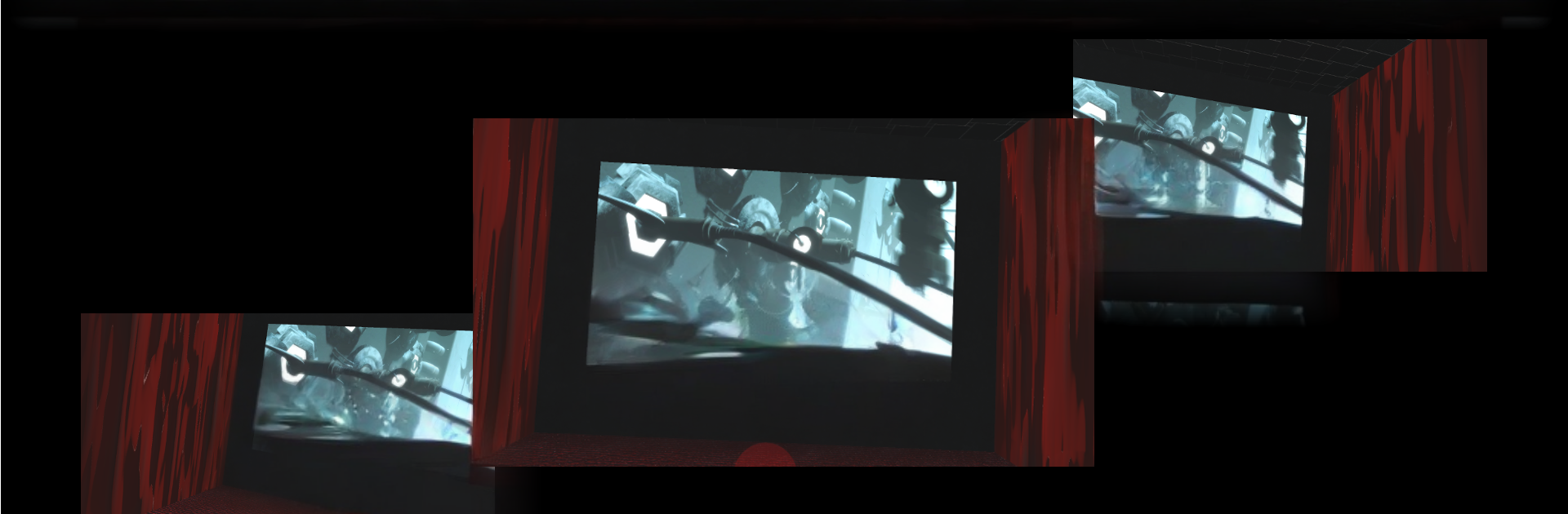
VR Theater for Cardboard feels like a homemade virtual cinema that just lets someone watch their own videos in a headset without a lot of fluff. It drops the viewer into a theater-style screen where they can look around, pick from two simple 3D rooms and a bunch of photo backdrops, and play regular 2D movies or 3D formats like side by side, over under, and even old school red cyan. It also handles panoramic 360 and 180 clips, which is neat when they just want to sit and look around a bit. The catch is, it is rough. The menus are awkward, instructions are thin, the graphics are basic, and controls feel clumsy until they figure out where things are. Expect bugs here and there, and movie format support is mostly mp4, with other files sometimes working if luck is on their side.

There are no ads or in-app payments, and it does not require headset buttons, so gaze and on-screen controls do the job. The Options menu is where the real value hides, since they can tweak screen size, distance, and a few viewing tweaks to make it comfortable. It can open files from local storage and can play streams from the web or other apps. Running it on a PC through BlueStacks is handy for testing files, clicking through menus with a mouse, and sorting a library, even if the split screen view is meant for a phone in a viewer. It is a spare-time project from one person, not actively developed, but bumped occasionally to keep working, so expectations should stay modest.

Ready to experience VR Theater for Cardboard on a bigger screen, in all its glory? Download BlueStacks now.


How to Download and Run VR Theater for Cardboard on PC or Mac

  • Download and install BlueStacks on your PC or Mac

  • Complete Google sign-in to access the Play Store, or do it later

  • Look for VR Theater for Cardboard in the search bar at the top right corner

  • Click to install VR Theater for Cardboard from the search results

  • Complete Google sign-in (if you skipped step 2) to install VR Theater for Cardboard

  • Click the VR Theater for Cardboard icon on the home screen to start playing

video
Watch Video

Minimum System Requirements

With BlueStacks 5, you can get started on a PC that fulfills the following requirements.

  • Operating System

    Microsoft Windows 7 or above, macOS 11 (Big Sur) or above

  • Processor

    Intel, AMD or Apple Silicon Processor

  • RAM

    at least 4GB

  • HDD

    10GB Free Disk Space

Note:

* You must be an Administrator on your PC. Up to date graphics drivers from Microsoft or the chipset vendor.

VR Theater for Cardboard - FAQs

  • How to Run VR Theater for Cardboard on Windows PC & Mac?

    Run VR Theater for Cardboard on your PC or Mac by following these simple steps.

    • Click on ‘Download VR Theater for Cardboard on PC’ to download BlueStacks
    • Install it and log-in to Google Play Store
    • Launch and run the app.
  • Why is BlueStacks the fastest and safest platform to play games on PC?

    BlueStacks respects your privacy and is always safe and secure to use. It does not carry any malware, spyware, or any sort of additional software that could harm your PC.

    It is engineered to optimize speed and performance for a seamless gaming experience.

  • What are VR Theater for Cardboard PC requirements?

    Minimum requirement to run VR Theater for Cardboard on your PC

    • OS: Microsoft Windows 7 and above:
    • Processor: Intel or AMD Processor:
    • RAM: Your PC must have at least 2GB of RAM. (Note that having 2GB or more disk space is not a substitute for RAM):
    • HDD: 5GB Free Disk Space.
    • You must be an Administrator on your PC.