Hexa Word Connect
Hexa Word Connect

Hexa Word Connect

Word

| TopNotch Games

Play on PC with BlueStacks or from our cloud

  • Overview
  • Game Features
  • How to Play

Page Modified On: August 24, 2026

Play Hexa Word Connect on PC or Mac

Hexa Word Connect by TopNotch Games has plenty to keep you busy. BlueStacks lets you play it on PC or Mac with more screen space, better control, and fewer mobile limits.

About the Game

Hexa Word Connect blends vocabulary and logic into a calm, satisfying puzzle you can pick up anytime. This Word game has you spotting hidden relationships and sorting words on a hex grid until everything clicks into place. It’s relaxed but smart, perfect for quick breaks or longer sessions—and it feels especially comfortable on a bigger screen with BlueStacks.

Game Features

  • Hex Grid Strategy: Arrange word tiles on a hex-shaped board where placement and grouping make all the difference.
  • Smart Connections: Spot the common thread—themes, categories, or tricky overlaps—and bundle words into tidy sets without getting fooled by near-misses.
  • Two-Theme Boards: Work through layouts built around twin ideas that intersect in clever ways, rewarding a second look and a bit of lateral thinking.
  • Calm, No Countdown: Play at your own pace with no stressful timers; enjoy that steady stream of “aha” moments without the rush.
  • Wide-Ranging Topics: Tackle word sets drawn from many subjects, keeping your brain engaged and your vocabulary growing.
  • Visual Rewards: Unlock fresh color palettes and stylish backdrops as you progress, giving the board a new look as your skills improve.
  • Plenty to Solve: Explore hundreds of handcrafted puzzles that range from easy warm-ups to more thoughtful brain teasers.
  • BlueStacks Friendly: Prefer a larger display and precise cursor control? Hexa Word Connect runs smoothly on PC with BlueStacks for a clean, comfy setup.

BlueStacks gives you more room to focus on the game and less time adjusting around mobile limitations.
Game Features

Enhancements

  • Macros
  • Multi Instance
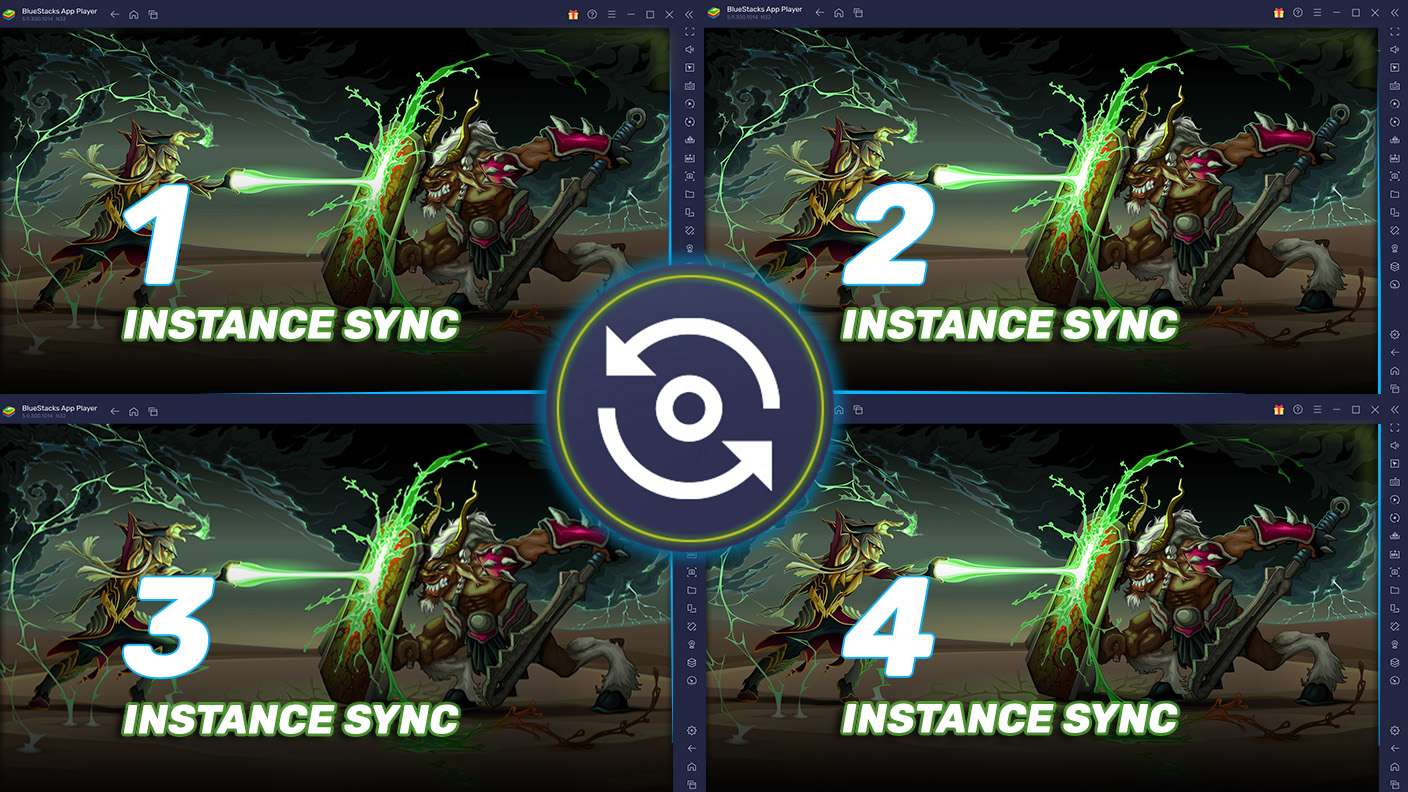
  • Multi Instance Sync
  • Script
  • Enhancements
Macros

Macros

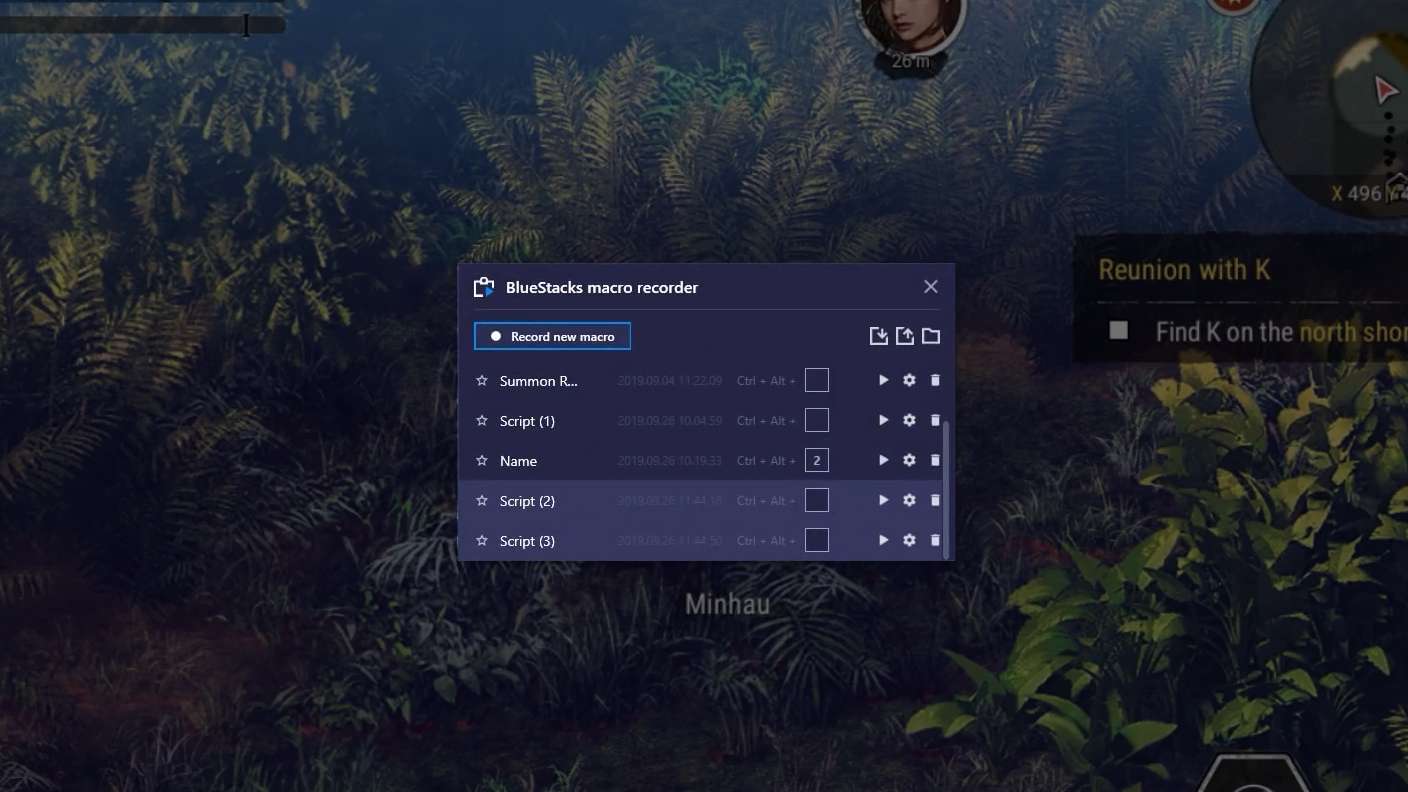
Automate the predictable in Hexa Word Connect and transform your gameplay with Macros. Get access to inventive Macros in the BlueStacks Macro Community
Multi Instance

Multi Instance

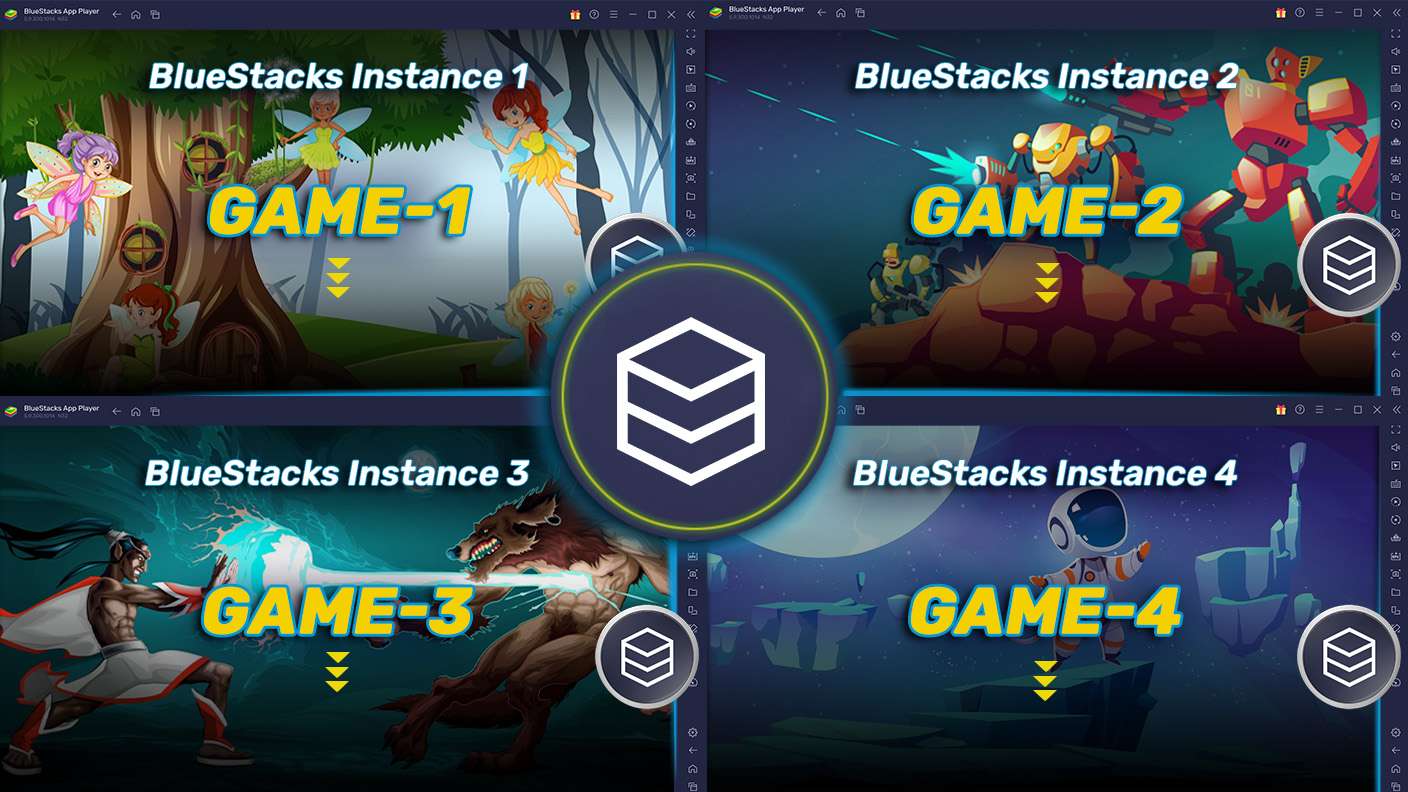
Play Hexa Word Connect on one window. And chat with your friend on the other. Press CTRL + Shift + 8 to open the Multi-Instance Manager. And start creating fresh instances or clone an existing one.
Multi Instance Sync

Multi Instance Sync

Play Hexa Word Connect with the power of Multi-Instance Sync. Replicate what you are doing on the main instance on all other instances. Level up faster, play more.
Script

Script

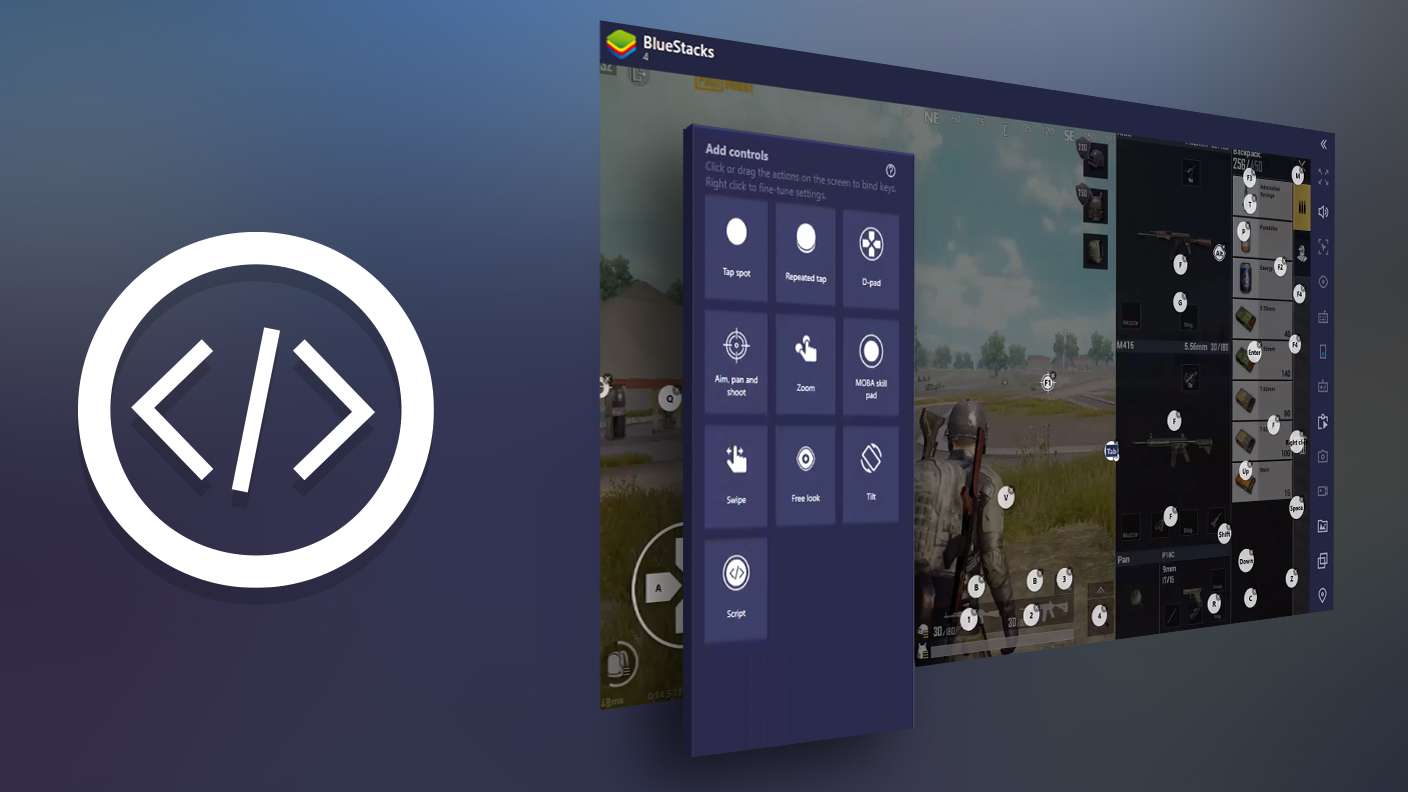
Script your way to gaming glory in Hexa Word Connect with BlueStacks Script. Write and run a set of commands to automate repeated tasks. Trigger the command by assigning it to any key.
Read More

How to Download and Play Hexa Word Connect on PC or Mac

  • Download and install BlueStacks on your PC or Mac

  • Complete Google sign-in to access the Play Store, or do it later

  • Look for Hexa Word Connect in the search bar at the top right corner

  • Click to install Hexa Word Connect from the search results

  • Complete Google sign-in (if you skipped step 2) to install Hexa Word Connect

  • Click the Hexa Word Connect icon on the home screen to start playing

video
Watch Video

Minimum System Requirements

With BlueStacks 5, you can get started on a PC that fulfills the following requirements.

  • Operating System

    Microsoft Windows 7 or above, macOS 11 (Big Sur) or above

  • Processor

    Intel, AMD or Apple Silicon Processor

  • RAM

    at least 4GB

  • HDD

    10GB Free Disk Space

Note:

* You must be an Administrator on your PC. Up to date graphics drivers from Microsoft or the chipset vendor.

Hexa Word Connect - FAQs

  • How to play Hexa Word Connect on Windows PC & Mac?

    Play Hexa Word Connect on your PC or Mac by following these simple steps.

    • Click on 'Play Hexa Word Connect on PC’ to download BlueStacks
    • Install it and log-in to Google Play Store
    • Launch and play the game.
  • Why is BlueStacks the fastest and safest platform to play games on PC?

    BlueStacks respects your privacy and is always safe and secure to use. It does not carry any malware, spyware, or any sort of additional software that could harm your PC.

    It is engineered to optimize speed and performance for a seamless gaming experience.

  • What are Hexa Word Connect PC requirements?

    Minimum requirement to run Hexa Word Connect on your PC

    • OS: Microsoft Windows 7 or above MacOS 11 (Big Sur) or above
    • Processor: Intel, AMD or Apple Silicon Processor
    • RAM: Your PC must have at least 4GB of RAM. (Note that having 4GB or more disk space is not a substitute for RAM)
    • HDD: 10GB Free Disk Space.
    • You must be an Administrator on your PC.