Classic Car Games Simulator 3d

Classic Car Games Simulator 3d

Adventure

| Spartans Gaming Zone

Play on PC with BlueStacks or from our cloud

  • Overview
  • Game Features
  • How to Play

Page Modified On: January 06, 2026

Play Classic Car Games Simulator 3d on PC or Mac

Join millions to experience Classic Car Games Simulator 3d, an exciting Adventure game from Spartans Gaming Zone. With BlueStacks App Player, you are always a step ahead of your opponent, ready to outplay them with faster gameplay and better control with the mouse and keyboard on your PC or Mac.

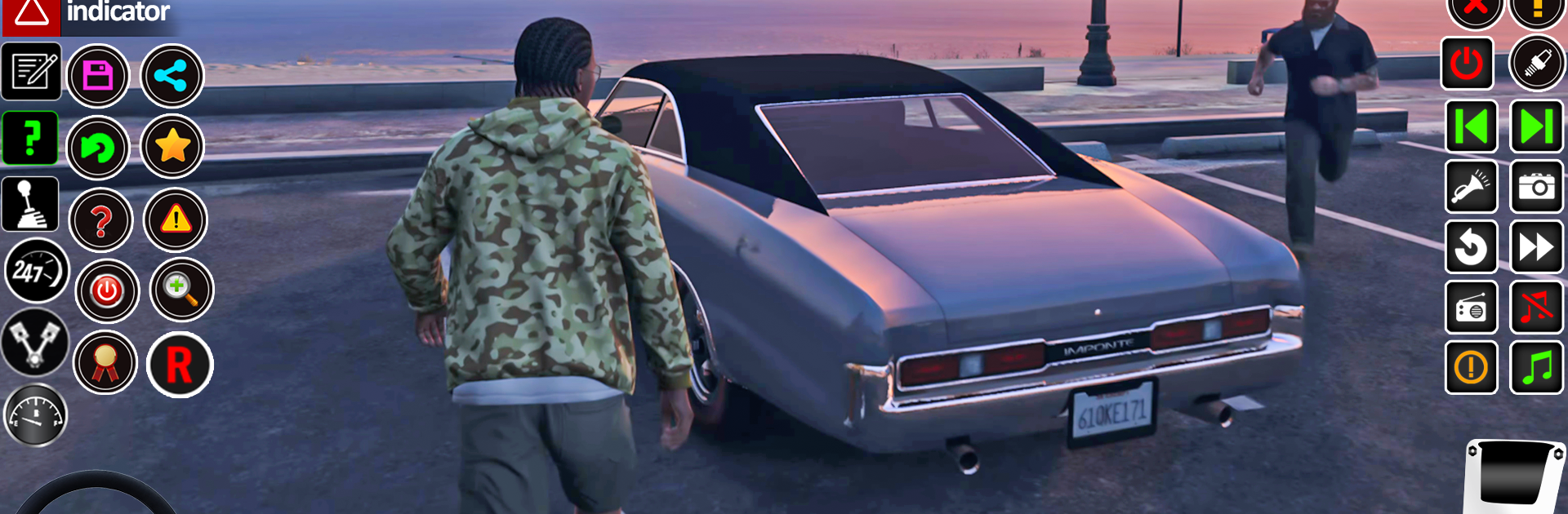
Classic Car Games Simulator 3d is a straight-up parking and precision driving game that leans into tight turns, cones, barriers, and those little moments where a bumper could kiss a wall if the wheel turns a bit too far. It mixes classic American-style cars with newer luxury rides and a few chunkier SUVs, so the handling shifts from light and twitchy to heavy and slow, which actually suits the whole parking challenge angle. Levels stack up with rules and checkpoints, and the game keeps things strict. Hit a cone, nudge a curb, mess up the line, and it sends the run back. Beat a stage quickly to earn coins, then use those to unlock more cars, so there is a light grind that pushes cleaner, faster runs.

There is a versus mode where two drivers try to finish a parking route before the other, with random hurdles on the track to throw everyone off rhythm. Visuals are bright and clean, the cars are shiny, and the engine and brake sounds do enough to sell the slow-speed tension without being loud or annoying. Playing on PC with BlueStacks helps a lot, since arrow keys or WASD give steadier steering than a thumb on glass, and the mouse camera fixes those awkward blind angles when lining up a snug reverse park. It runs offline, and it feels more like a chill puzzle driver than an all-out racing game, with the fun coming from nailing a perfect park after a few retries.

Slay your opponents with your epic moves. Play it your way on BlueStacks and dominate the battlefield.


Game Features

Enhancements

  • Macros
  • Multi Instance
  • Multi Instance Sync
  • Script
  • Enhancements
Macros

Macros

Automate the predictable in Classic Car Games Simulator 3d and transform your gameplay with Macros. Get access to inventive Macros in the BlueStacks Macro Community
Multi Instance

Multi Instance

Play Classic Car Games Simulator 3d on one window. And chat with your friend on the other. Press CTRL + Shift + 8 to open the Multi-Instance Manager. And start creating fresh instances or clone an existing one.
Multi Instance Sync

Multi Instance Sync

Play Classic Car Games Simulator 3d with the power of Multi-Instance Sync. Replicate what you are doing on the main instance on all other instances. Level up faster, play more.
Script

Script

Script your way to gaming glory in Classic Car Games Simulator 3d with BlueStacks Script. Write and run a set of commands to automate repeated tasks. Trigger the command by assigning it to any key.
Read More

How to Download and Play Classic Car Games Simulator 3d on PC or Mac

  • Download and install BlueStacks on your PC or Mac

  • Complete Google sign-in to access the Play Store, or do it later

  • Look for Classic Car Games Simulator 3d in the search bar at the top right corner

  • Click to install Classic Car Games Simulator 3d from the search results

  • Complete Google sign-in (if you skipped step 2) to install Classic Car Games Simulator 3d

  • Click the Classic Car Games Simulator 3d icon on the home screen to start playing

video
Watch Video

Minimum System Requirements

With BlueStacks 5, you can get started on a PC that fulfills the following requirements.

  • Operating System

    Microsoft Windows 7 or above, macOS 11 (Big Sur) or above

  • Processor

    Intel, AMD or Apple Silicon Processor

  • RAM

    at least 4GB

  • HDD

    10GB Free Disk Space

Note:

* You must be an Administrator on your PC. Up to date graphics drivers from Microsoft or the chipset vendor.

Classic Car Games Simulator 3d - FAQs

  • How to play Classic Car Games Simulator 3d on Windows PC & Mac?

    Play Classic Car Games Simulator 3d on your PC or Mac by following these simple steps.

    • Click on 'Play Classic Car Games Simulator 3d on PC’ to download BlueStacks
    • Install it and log-in to Google Play Store
    • Launch and play the game.
  • Why is BlueStacks the fastest and safest platform to play games on PC?

    BlueStacks respects your privacy and is always safe and secure to use. It does not carry any malware, spyware, or any sort of additional software that could harm your PC.

    It is engineered to optimize speed and performance for a seamless gaming experience.

  • What are Classic Car Games Simulator 3d PC requirements?

    Minimum requirement to run Classic Car Games Simulator 3d on your PC

    • OS: Microsoft Windows 7 or above MacOS 11 (Big Sur) or above
    • Processor: Intel, AMD or Apple Silicon Processor
    • RAM: Your PC must have at least 4GB of RAM. (Note that having 4GB or more disk space is not a substitute for RAM)
    • HDD: 10GB Free Disk Space.
    • You must be an Administrator on your PC.