Tricky Choices: John's Story

Tricky Choices: John's Story

Adventure

| Bean Games Studio

Play on PC with BlueStacks or from our cloud

  • Overview
  • Game Features
  • How to Play

Page Modified On: August 17, 2026

Play Tricky Choices: John's Story on PC or Mac

Play Tricky Choices: John’s Story by Bean Games Studio on PC or Mac with BlueStacks. Use a bigger screen, mouse and keyboard controls, and smoother performance while you play.

About the Game

Tricky Choices: John’s Story drops you into John’s chaotic life and hands you the tough calls. It’s an Adventure that blends brain-teasing puzzles with a lighthearted, story-driven format, so every scene asks you to think fast and think sideways. Expect quirky situations, visual gags, and those “no way that actually worked” moments as your decisions steer what happens next.

Game Features

  • Smart Decisions, Wild Outcomes: Pick between tricky options in each scene. One tap can save the day, spark a mess, or unlock a hilariously unexpected result.
  • Puzzles with a Twist: Nothing is as obvious as it looks. Read the scene, spot the clue, and use a bit of lateral thinking to crack each challenge.
  • Pick-up-and-Play Controls: Super simple to interact with, but the solutions love to zig when you expect them to zag.
  • Loads of Bite-Size Levels: Short, snappy stages you can finish in a minute or two, with fresh setups that keep the brainwork—and the laughs—coming.
  • Your Calls, Their Consequences: Your choices shape what happens to John and the folks around him, from small mishaps to big turning points.
  • Playful Cartoon Vibe: Bright visuals and cheeky animations keep the tone fun, even when the puzzles get sneaky.
  • Great on PC with BlueStacks: Prefer a bigger view and smooth performance? It runs nicely on PC with BlueStacks for comfy sessions and crisp details.

Start your journey now. Download the game on BlueStacks, invite your friends, and march on a new adventure.
Game Features

Enhancements

  • Macros
  • Multi Instance
  • Multi Instance Sync
  • Script
  • Enhancements
Macros

Macros

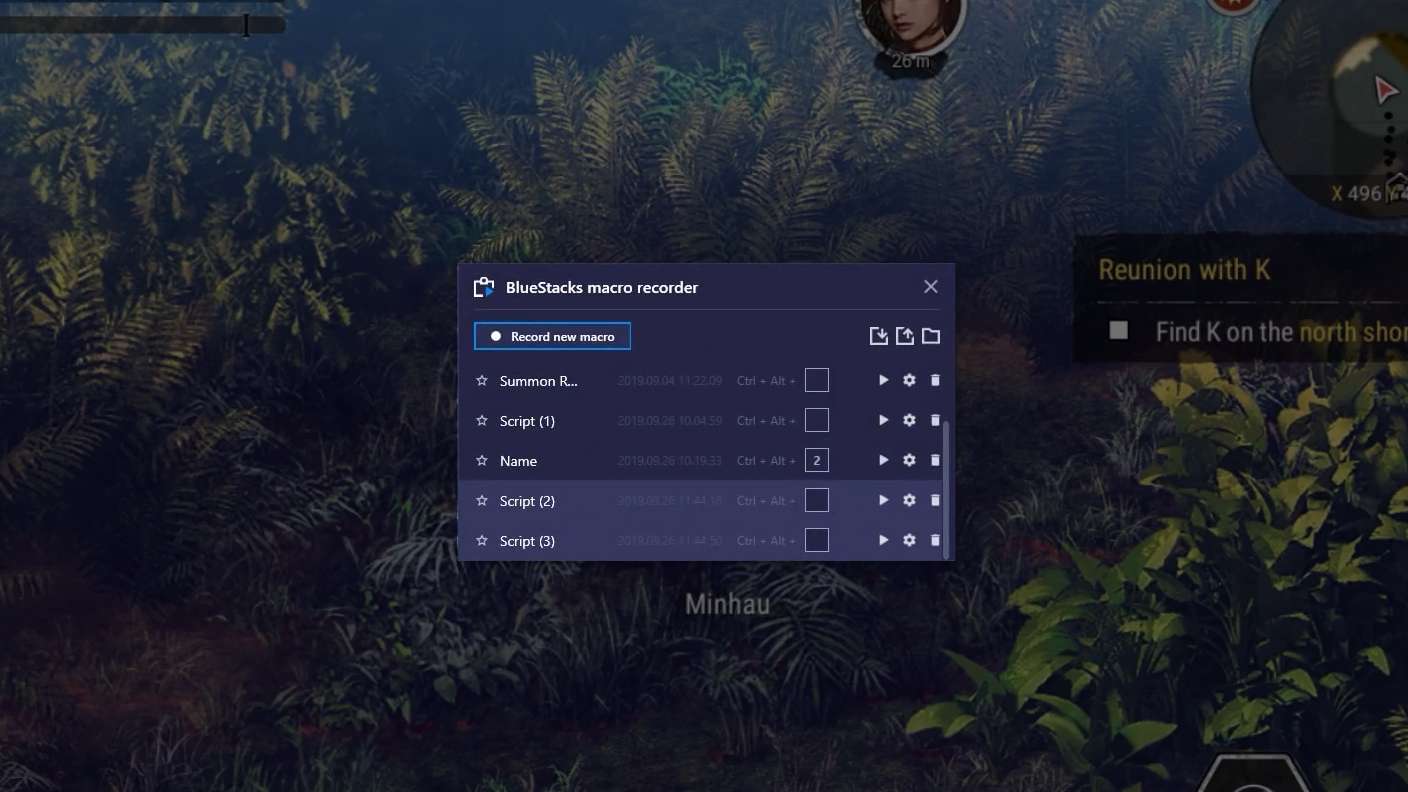
Automate the predictable in Tricky Choices: John's Story and transform your gameplay with Macros. Get access to inventive Macros in the BlueStacks Macro Community
Multi Instance

Multi Instance

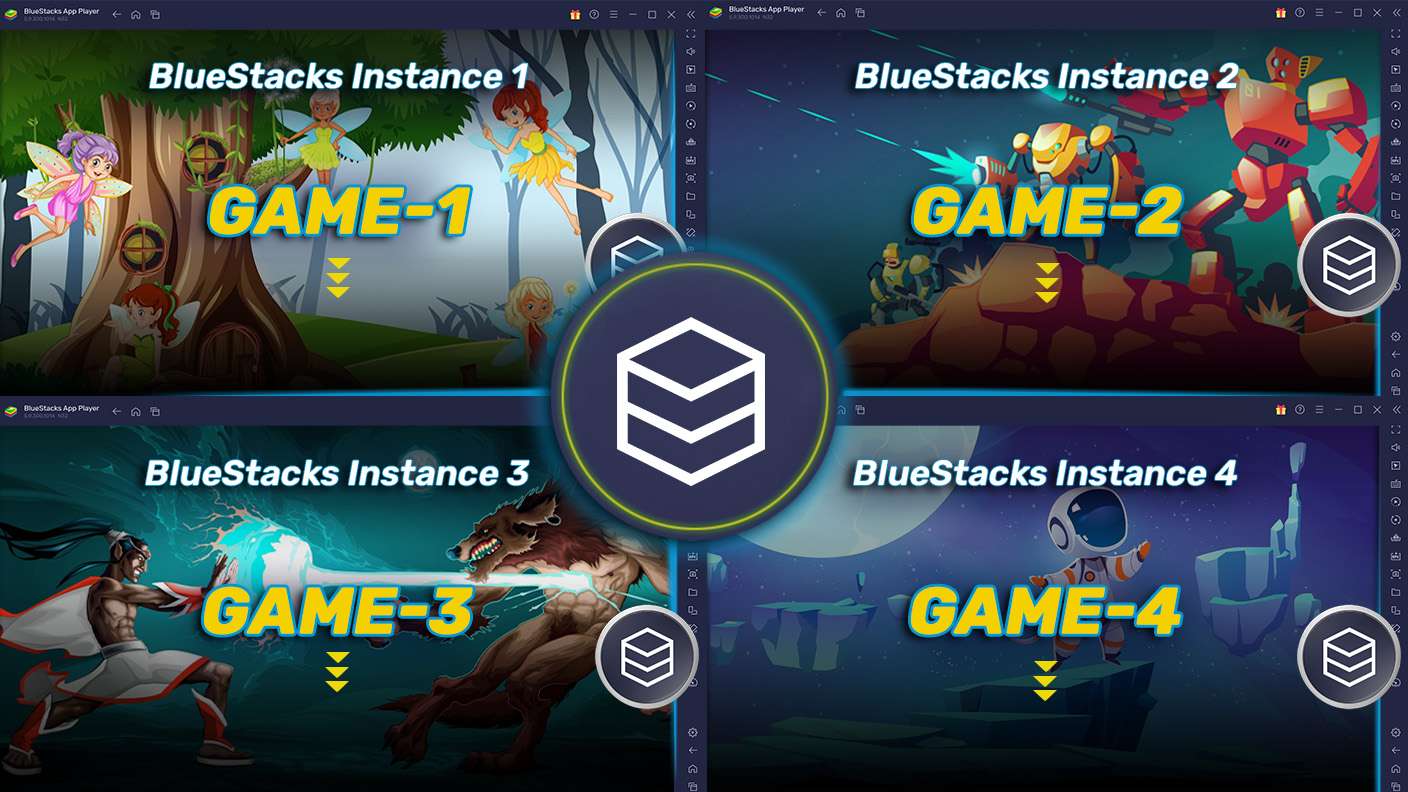
Play Tricky Choices: John's Story on one window. And chat with your friend on the other. Press CTRL + Shift + 8 to open the Multi-Instance Manager. And start creating fresh instances or clone an existing one.
Multi Instance Sync

Multi Instance Sync

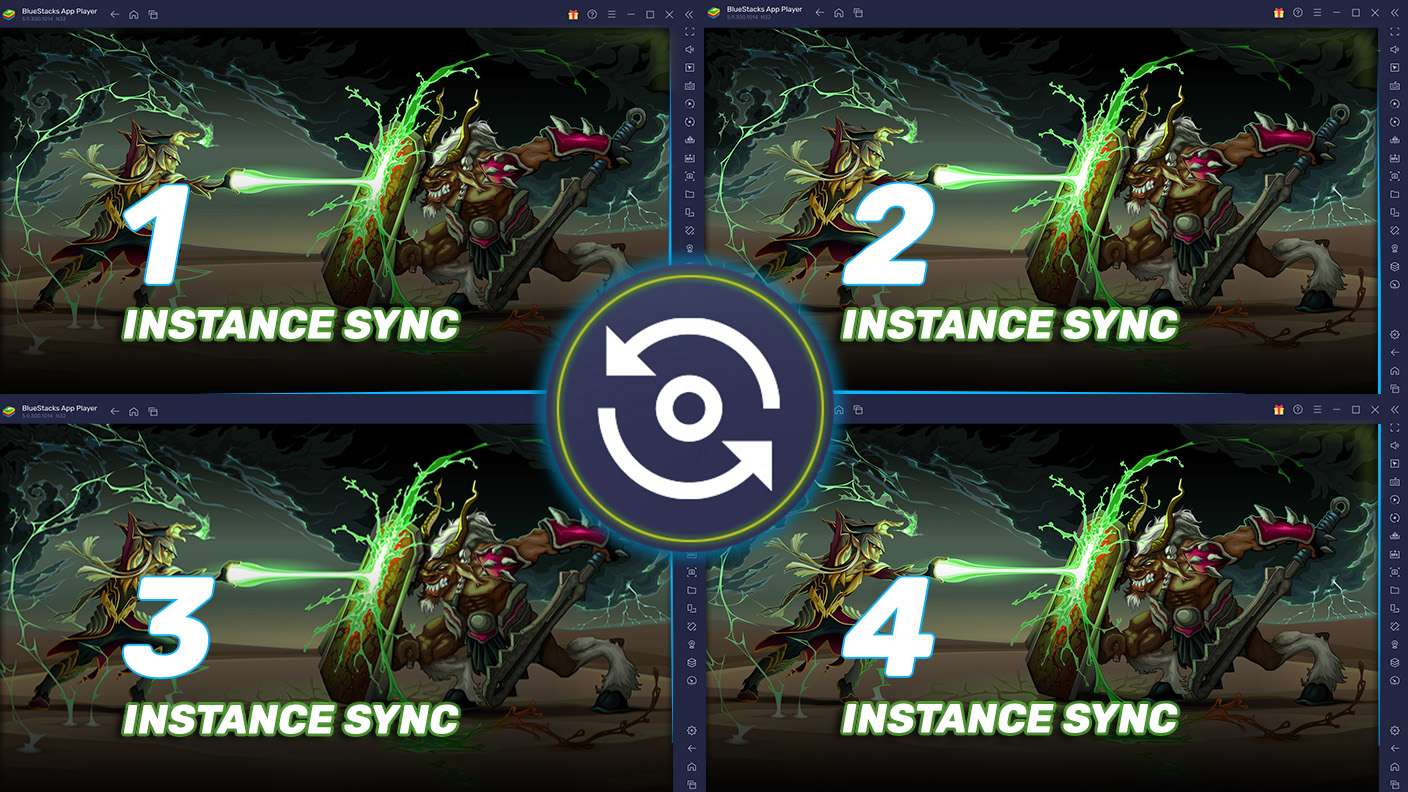
Play Tricky Choices: John's Story with the power of Multi-Instance Sync. Replicate what you are doing on the main instance on all other instances. Level up faster, play more.
Script

Script

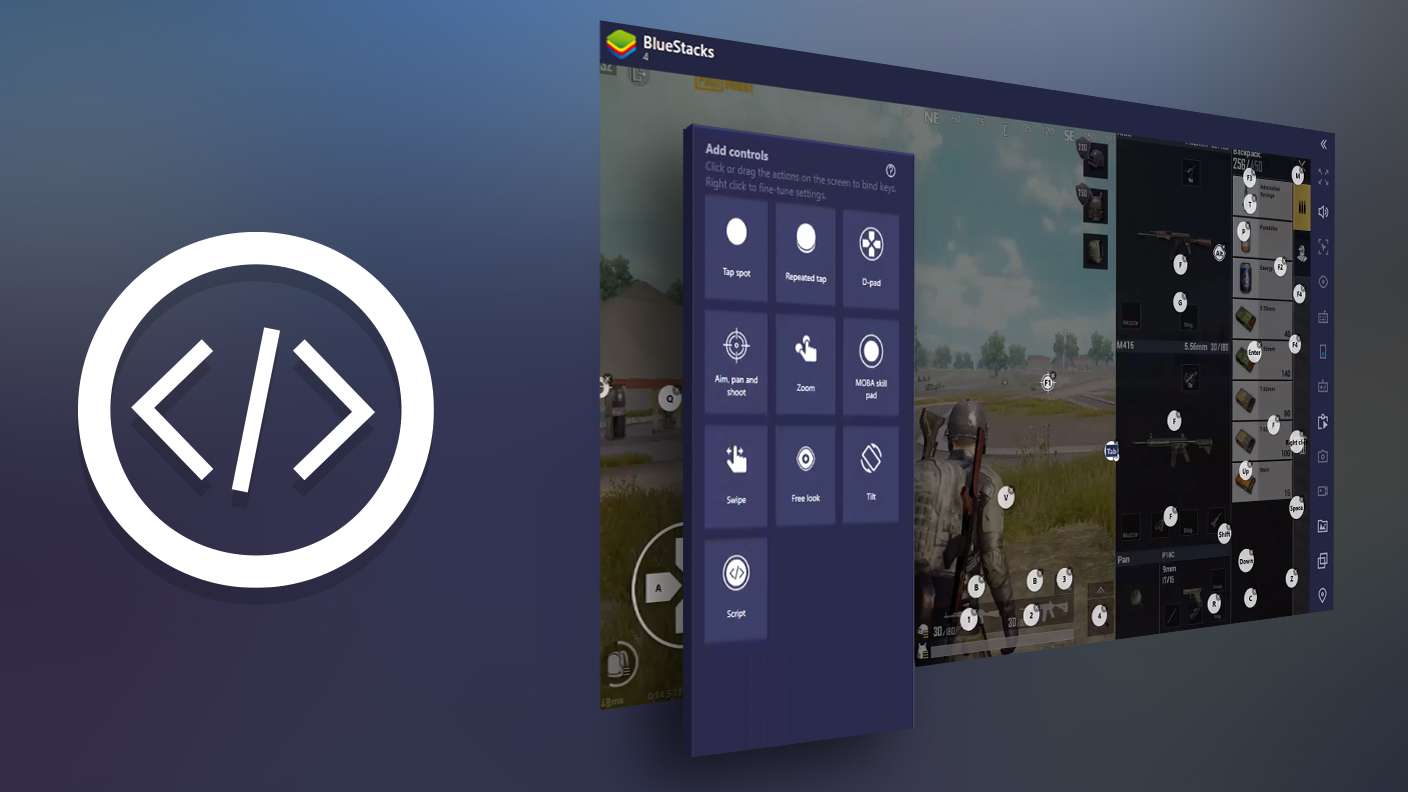
Script your way to gaming glory in Tricky Choices: John's Story with BlueStacks Script. Write and run a set of commands to automate repeated tasks. Trigger the command by assigning it to any key.
Read More

How to Download and Play Tricky Choices: John's Story on PC or Mac

  • Download and install BlueStacks on your PC or Mac

  • Complete Google sign-in to access the Play Store, or do it later

  • Look for Tricky Choices: John's Story in the search bar at the top right corner

  • Click to install Tricky Choices: John's Story from the search results

  • Complete Google sign-in (if you skipped step 2) to install Tricky Choices: John's Story

  • Click the Tricky Choices: John's Story icon on the home screen to start playing

video
Watch Video

Minimum System Requirements

With BlueStacks 5, you can get started on a PC that fulfills the following requirements.

  • Operating System

    Microsoft Windows 7 or above, macOS 11 (Big Sur) or above

  • Processor

    Intel, AMD or Apple Silicon Processor

  • RAM

    at least 4GB

  • HDD

    10GB Free Disk Space

Note:

* You must be an Administrator on your PC. Up to date graphics drivers from Microsoft or the chipset vendor.

Tricky Choices: John's Story - FAQs

  • How to play Tricky Choices: John's Story on Windows PC & Mac?

    Play Tricky Choices: John's Story on your PC or Mac by following these simple steps.

    • Click on 'Play Tricky Choices: John's Story on PC’ to download BlueStacks
    • Install it and log-in to Google Play Store
    • Launch and play the game.
  • Why is BlueStacks the fastest and safest platform to play games on PC?

    BlueStacks respects your privacy and is always safe and secure to use. It does not carry any malware, spyware, or any sort of additional software that could harm your PC.

    It is engineered to optimize speed and performance for a seamless gaming experience.

  • What are Tricky Choices: John's Story PC requirements?

    Minimum requirement to run Tricky Choices: John's Story on your PC

    • OS: Microsoft Windows 7 or above MacOS 11 (Big Sur) or above
    • Processor: Intel, AMD or Apple Silicon Processor
    • RAM: Your PC must have at least 4GB of RAM. (Note that having 4GB or more disk space is not a substitute for RAM)
    • HDD: 10GB Free Disk Space.
    • You must be an Administrator on your PC.