MyNorthampton
MyNorthampton

MyNorthampton

Education

| myday

Play on PC with BlueStacks or from our cloud

  • Overview
  • How to Download

Page Modified On: November 03, 2025

Run MyNorthampton on PC or Mac

Upgrade your experience. Try MyNorthampton, the fantastic Education app from myday, from the comfort of your laptop, PC, or Mac, only on BlueStacks.

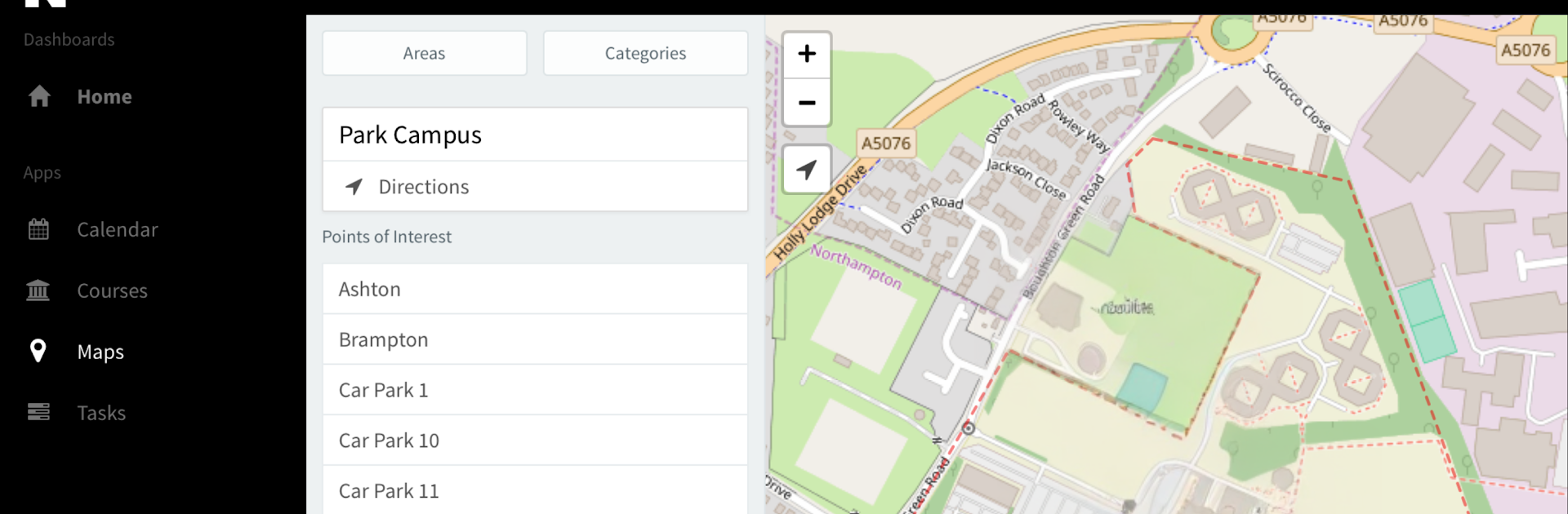
MyNorthampton feels like a simple hub for student life at Northampton, the kind that keeps a busy week from sliding off the rails. It pulls the main bits into one place: class timetable, university email, campus map, and even UNO bus times so a student knows if there is time to grab coffee before the next ride. There is a small currency converter tucked in, handy for international students sorting costs. The Students’ Union feed brings news and updates, plus a live social stream that shows what is actually happening on campus today, not last week. There is a staff directory too, so tracking down a lecturer or the right office does not turn into a scavenger hunt.

The part that stands out is Learning Development support being right there. Booking a drop in for essay structure, dissertation planning, critical analysis, presentation skills, or maths and statistics takes a couple taps and removes a lot of stress. Notifications are adjustable, so a student can let timetable alerts through and mute the noise they do not need. On BlueStacks, it works nicely on a bigger screen; the calendar is easier to scan, email is less cramped, and the map is actually readable while planning a route across campus. It is not flashy, it is just practical, and that is the point.

Ready to experience MyNorthampton on a bigger screen, in all its glory? Download BlueStacks now.

How to Download and Run MyNorthampton on PC or Mac

  • Download and install BlueStacks on your PC or Mac

  • Complete Google sign-in to access the Play Store, or do it later

  • Look for MyNorthampton in the search bar at the top right corner

  • Click to install MyNorthampton from the search results

  • Complete Google sign-in (if you skipped step 2) to install MyNorthampton

  • Click the MyNorthampton icon on the home screen to start playing

video
Watch Video

Minimum System Requirements

With BlueStacks 5, you can get started on a PC that fulfills the following requirements.

  • Operating System

    Microsoft Windows 7 or above, macOS 11 (Big Sur) or above

  • Processor

    Intel, AMD or Apple Silicon Processor

  • RAM

    at least 4GB

  • HDD

    10GB Free Disk Space

Note:

* You must be an Administrator on your PC. Up to date graphics drivers from Microsoft or the chipset vendor.

MyNorthampton - FAQs

  • How to Run MyNorthampton on Windows PC & Mac?

    Run MyNorthampton on your PC or Mac by following these simple steps.

    • Click on ‘Download MyNorthampton on PC’ to download BlueStacks
    • Install it and log-in to Google Play Store
    • Launch and run the app.
  • Why is BlueStacks the fastest and safest platform to play games on PC?

    BlueStacks respects your privacy and is always safe and secure to use. It does not carry any malware, spyware, or any sort of additional software that could harm your PC.

    It is engineered to optimize speed and performance for a seamless gaming experience.

  • What are MyNorthampton PC requirements?

    Minimum requirement to run MyNorthampton on your PC

    • OS: Microsoft Windows 7 and above:
    • Processor: Intel or AMD Processor:
    • RAM: Your PC must have at least 2GB of RAM. (Note that having 2GB or more disk space is not a substitute for RAM):
    • HDD: 5GB Free Disk Space.
    • You must be an Administrator on your PC.