123 Kids Learn to Count Games

123 Kids Learn to Count Games

Educational

| Vina Kids

Play on PC with BlueStacks or from our cloud

  • Overview
  • Game Features
  • How to Play

Page Modified On: January 05, 2026

Play 123 Kids Learn to Count Games on PC or Mac

Step into the World of 123 Kids Learn to Count Games, a thrilling Educational game from the house of Vina Kids. Play this Android game on BlueStacks App Player and experience immersive gaming on PC or Mac.

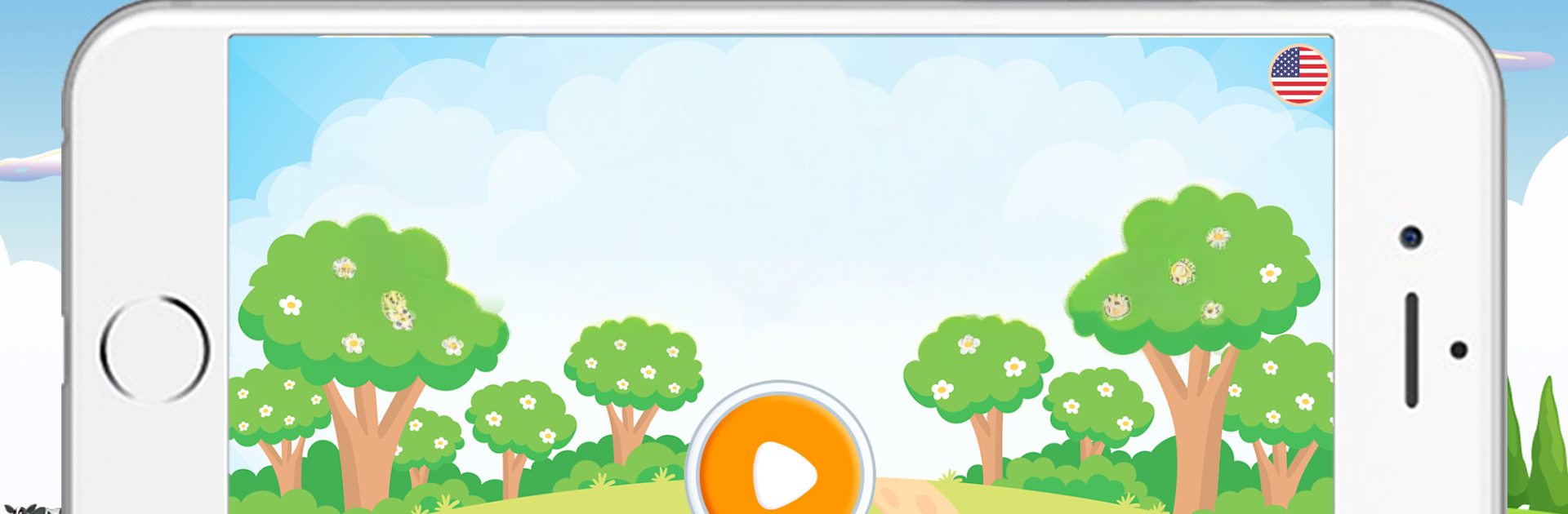
123 Kids Learn to Count Games is a bright, simple bundle of mini games that teaches numbers 1 through 20 in a really hands on way. It feels calm and cheerful, with big buttons, chunky shapes, and playful sounds that nudge kids to count out loud. Each activity is short and clear, so attention does not drift. One round might be rainbow coloring where each color matches a number, then it swaps to fishing, catching fireflies, harvesting fruit, tapping little bugs, feeding animals, growing flowers, or finding hidden animals. The counting voice is clean and easy to understand, and the silly animations pop just enough to keep a smile without getting overwhelming.

On PC with BlueStacks, it works like a click-to-play picture book, the larger screen makes numbers and objects easier to see, and a mouse tap is very precise for tiny targets. There is support for 12 languages, which is handy for bilingual homes or anyone practicing number words in another language. There is no real timer pressure or complicated scoring, so it stays gentle and mistake friendly. The art is colorful and soft, and the feedback feels instant, kids press a thing and something responds. It focuses on early counting only, up to twenty, so perfect for toddlers and preschoolers who are just starting, less so for kids who already zoom past twenty and want harder puzzles.

Get ready for a buttery smooth, high-performance gaming action only on BlueStacks.

Game Features

Enhancements

  • Macros
  • Multi Instance
  • Multi Instance Sync
  • Script
  • Enhancements
Macros

Macros

Automate the predictable in 123 Kids Learn to Count Games and transform your gameplay with Macros. Get access to inventive Macros in the BlueStacks Macro Community
Multi Instance

Multi Instance

Play 123 Kids Learn to Count Games on one window. And chat with your friend on the other. Press CTRL + Shift + 8 to open the Multi-Instance Manager. And start creating fresh instances or clone an existing one.
Multi Instance Sync

Multi Instance Sync

Play 123 Kids Learn to Count Games with the power of Multi-Instance Sync. Replicate what you are doing on the main instance on all other instances. Level up faster, play more.
Script

Script

Script your way to gaming glory in 123 Kids Learn to Count Games with BlueStacks Script. Write and run a set of commands to automate repeated tasks. Trigger the command by assigning it to any key.
Read More

How to Download and Play 123 Kids Learn to Count Games on PC or Mac

  • Download and install BlueStacks on your PC or Mac

  • Complete Google sign-in to access the Play Store, or do it later

  • Look for 123 Kids Learn to Count Games in the search bar at the top right corner

  • Click to install 123 Kids Learn to Count Games from the search results

  • Complete Google sign-in (if you skipped step 2) to install 123 Kids Learn to Count Games

  • Click the 123 Kids Learn to Count Games icon on the home screen to start playing

video
Watch Video

Minimum System Requirements

With BlueStacks 5, you can get started on a PC that fulfills the following requirements.

  • Operating System

    Microsoft Windows 7 or above, macOS 11 (Big Sur) or above

  • Processor

    Intel, AMD or Apple Silicon Processor

  • RAM

    at least 4GB

  • HDD

    10GB Free Disk Space

Note:

* You must be an Administrator on your PC. Up to date graphics drivers from Microsoft or the chipset vendor.

123 Kids Learn to Count Games - FAQs

  • How to play 123 Kids Learn to Count Games on Windows PC & Mac?

    Play 123 Kids Learn to Count Games on your PC or Mac by following these simple steps.

    • Click on 'Play 123 Kids Learn to Count Games on PC’ to download BlueStacks
    • Install it and log-in to Google Play Store
    • Launch and play the game.
  • Why is BlueStacks the fastest and safest platform to play games on PC?

    BlueStacks respects your privacy and is always safe and secure to use. It does not carry any malware, spyware, or any sort of additional software that could harm your PC.

    It is engineered to optimize speed and performance for a seamless gaming experience.

  • What are 123 Kids Learn to Count Games PC requirements?

    Minimum requirement to run 123 Kids Learn to Count Games on your PC

    • OS: Microsoft Windows 7 or above MacOS 11 (Big Sur) or above
    • Processor: Intel, AMD or Apple Silicon Processor
    • RAM: Your PC must have at least 4GB of RAM. (Note that having 4GB or more disk space is not a substitute for RAM)
    • HDD: 10GB Free Disk Space.
    • You must be an Administrator on your PC.