Univer Video
Univer Video

Univer Video

Entertainment

| Unipro Editora

Play on PC with BlueStacks or from our cloud

  • Overview
  • How to Download

Page Modified On: October 23, 2025

Run Univer Video on PC or Mac

Let BlueStacks turn your PC, Mac, or laptop into the perfect home for Univer Video, a fun Entertainment app from Unipro Editora.

About the App

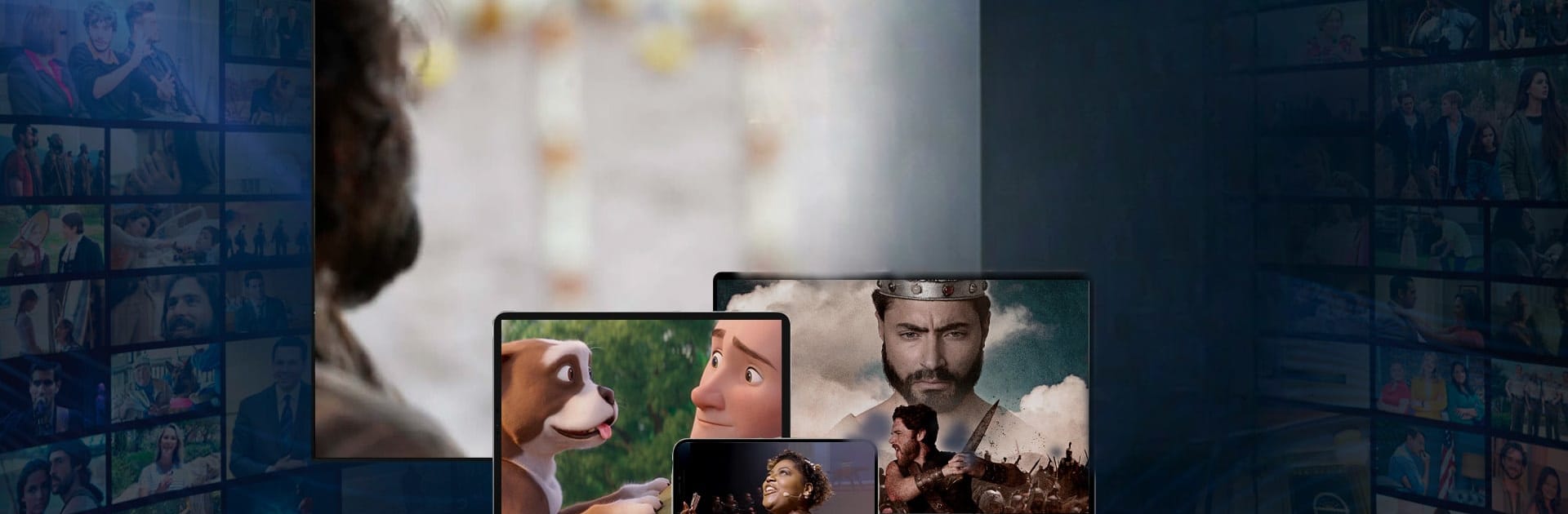
Univer Video brings a faith-first streaming experience for anyone who wants uplifting stories, teachings, and live services in one place. Built by Unipro Editora, this Entertainment app keeps your screen focused on content that strengthens your spiritual life—without the guesswork. Expect thoughtful originals, beloved dramas, and global broadcasts you can watch in your language and on your schedule.

App Features

  • Fresh, cleaner design: A renewed interface makes it easier to browse, find what you want, and start watching fast—no clutter, no fuss.
  • Curated for your faith: Every title is reviewed so you can press play with confidence, whether you’re watching alone or with family.
  • Originals and exclusives: Access programs you won’t find elsewhere, including Meditation of the Word with Cristiane Cardoso, plus series like Eu Sou Segundo and Alberto featuring Dr. Alberto Rivera.
  • Record TV favorites: Stream popular dramas such as Apocalipse, Reis, and Jezabel, ready to watch whenever you are.
  • Live from Solomon’s Temple: Join services and special meetings in real time with simultaneous translation in English and Spanish, then revisit the messages on demand.
  • Global events: Follow international meetings and special transmissions from more than eight countries—all gathered in one place.
  • Watch your way: Prefer a bigger screen? You can enjoy Univer Video on your computer using BlueStacks while keeping your mobile free for on‑the‑go viewing.

Switch to BlueStacks and make the most of your apps on your PC or Mac.

How to Download and Run Univer Video on PC or Mac

  • Download and install BlueStacks on your PC or Mac

  • Complete Google sign-in to access the Play Store, or do it later

  • Look for Univer Video in the search bar at the top right corner

  • Click to install Univer Video from the search results

  • Complete Google sign-in (if you skipped step 2) to install Univer Video

  • Click the Univer Video icon on the home screen to start playing

video
Watch Video

Minimum System Requirements

With BlueStacks 5, you can get started on a PC that fulfills the following requirements.

  • Operating System

    Microsoft Windows 7 or above, macOS 11 (Big Sur) or above

  • Processor

    Intel, AMD or Apple Silicon Processor

  • RAM

    at least 4GB

  • HDD

    10GB Free Disk Space

Note:

* You must be an Administrator on your PC. Up to date graphics drivers from Microsoft or the chipset vendor.

Univer Video - FAQs

  • How to Run Univer Video on Windows PC & Mac?

    Run Univer Video on your PC or Mac by following these simple steps.

    • Click on ‘Download Univer Video on PC’ to download BlueStacks
    • Install it and log-in to Google Play Store
    • Launch and run the app.
  • Why is BlueStacks the fastest and safest platform to play games on PC?

    BlueStacks respects your privacy and is always safe and secure to use. It does not carry any malware, spyware, or any sort of additional software that could harm your PC.

    It is engineered to optimize speed and performance for a seamless gaming experience.

  • What are Univer Video PC requirements?

    Minimum requirement to run Univer Video on your PC

    • OS: Microsoft Windows 7 and above:
    • Processor: Intel or AMD Processor:
    • RAM: Your PC must have at least 2GB of RAM. (Note that having 2GB or more disk space is not a substitute for RAM):
    • HDD: 5GB Free Disk Space.
    • You must be an Administrator on your PC.