Radio ZU
Radio ZU

Radio ZU

Music & Audio

| GMC RADIO

Play on PC with BlueStacks or from our cloud

  • Overview
  • How to Download

Page Modified On: January 10, 2026

Run Radio ZU on PC or Mac

Multitask effortlessly on your PC or Mac as you try out Radio ZU, a Music & Audio app by GMC RADIO on BlueStacks.

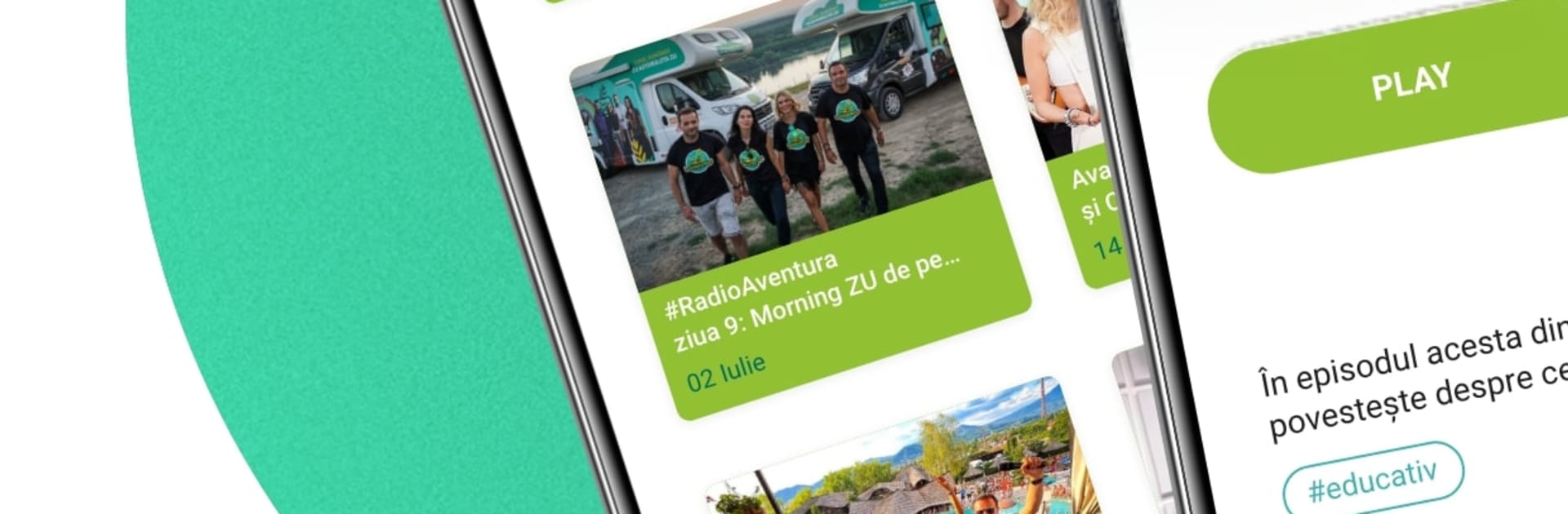
Radio ZU feels like having a friendly station open on the desk. Press play and it starts the live stream, and there is a visual radio option so the studio camera is on too. Seeing the hosts talk while the music runs gives it a laid back, real-time feel. The app keeps a running list of recently played songs, so when a track hits, the title and artist are right there without digging around. There are short news headlines inside the app as well, quick reads that pop in between songs if someone wants a skim of what is going on.

Notifications are kept to the useful stuff, like special guests, events, or schedule shifts, and they can be ignored if someone just wants continuous music. On PC with BlueStacks it behaves nicely, sits in the corner while other tasks happen, and keeps playing when switching windows. Mouse and keyboard make the simple layout even easier to tap through. Big buttons, readable text, no clutter, and the stream quality stays steady on a normal connection with only rare hiccups. This is very much a live radio experience rather than a giant on-demand library, which gives it a relaxed, always-on rhythm. It does what a radio app should do, without extra fuss, and that is exactly the point.

Eager to take your app experience to the next level? Start right away by downloading BlueStacks on your PC or Mac.

How to Download and Run Radio ZU on PC or Mac

  • Download and install BlueStacks on your PC or Mac

  • Complete Google sign-in to access the Play Store, or do it later

  • Look for Radio ZU in the search bar at the top right corner

  • Click to install Radio ZU from the search results

  • Complete Google sign-in (if you skipped step 2) to install Radio ZU

  • Click the Radio ZU icon on the home screen to start playing

video
Watch Video

Minimum System Requirements

With BlueStacks 5, you can get started on a PC that fulfills the following requirements.

  • Operating System

    Microsoft Windows 7 or above, macOS 11 (Big Sur) or above

  • Processor

    Intel, AMD or Apple Silicon Processor

  • RAM

    at least 4GB

  • HDD

    10GB Free Disk Space

Note:

* You must be an Administrator on your PC. Up to date graphics drivers from Microsoft or the chipset vendor.

Radio ZU - FAQs

  • How to Run Radio ZU on Windows PC & Mac?

    Run Radio ZU on your PC or Mac by following these simple steps.

    • Click on ‘Download Radio ZU on PC’ to download BlueStacks
    • Install it and log-in to Google Play Store
    • Launch and run the app.
  • Why is BlueStacks the fastest and safest platform to play games on PC?

    BlueStacks respects your privacy and is always safe and secure to use. It does not carry any malware, spyware, or any sort of additional software that could harm your PC.

    It is engineered to optimize speed and performance for a seamless gaming experience.

  • What are Radio ZU PC requirements?

    Minimum requirement to run Radio ZU on your PC

    • OS: Microsoft Windows 7 and above:
    • Processor: Intel or AMD Processor:
    • RAM: Your PC must have at least 2GB of RAM. (Note that having 2GB or more disk space is not a substitute for RAM):
    • HDD: 5GB Free Disk Space.
    • You must be an Administrator on your PC.