Easy Uninstaller App Uninstall

Easy Uninstaller App Uninstall

Productivity

| INFOLIFE LLC

Play on PC with BlueStacks or from our cloud

  • Overview
  • How to Download

Page Modified On: August 25, 2025

Run Easy Uninstaller App Uninstall on PC or Mac

What’s better than using Easy Uninstaller App Uninstall by INFOLIFE LLC? Well, try it on a big screen, on your PC or Mac, with BlueStacks to see the difference.

About the App

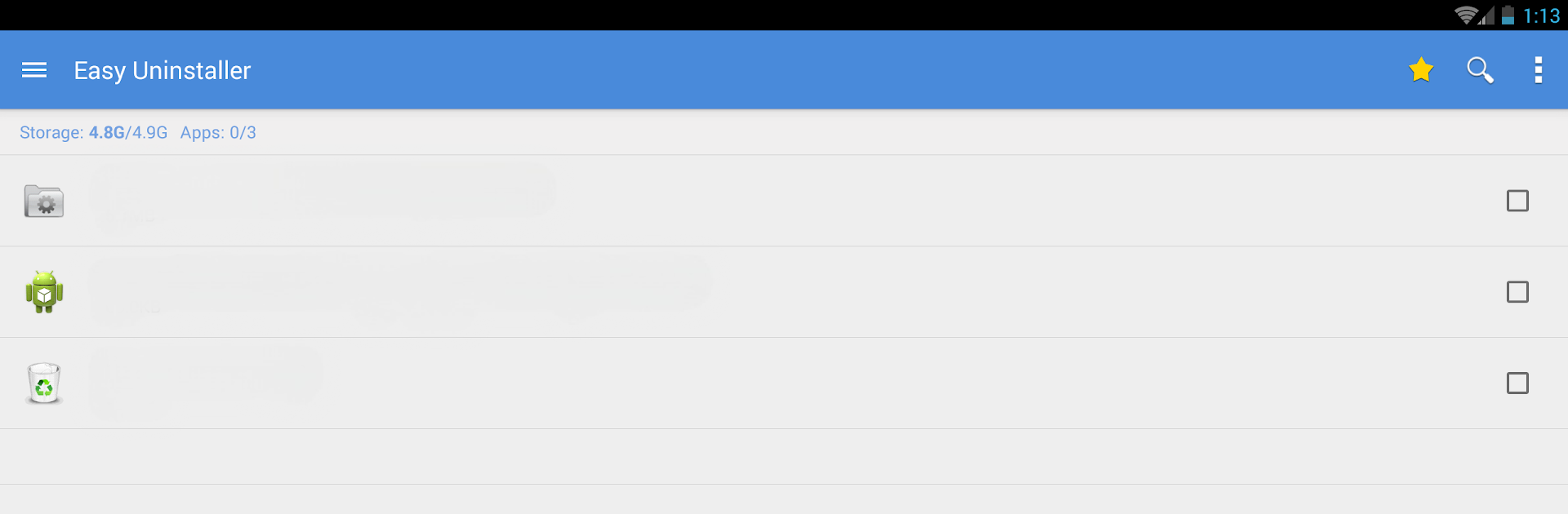
Ever wish cleaning up your phone was as quick and painless as deleting a few files on your computer? With Easy Uninstaller App Uninstall from INFOLIFE LLC, managing your Android apps suddenly feels a whole lot easier. Whether you’re looking to clear out space, track what’s hogging your battery, or just keep your apps organized without the mess, this tool’s got your back.

App Features

  • Batch Remove Apps
    Pick several apps at once and remove them all in one go—no more uninstalling one by one.

  • Quick & Simple Uninstall
    One tap and an app is gone. It really is that straightforward.

  • App Organization
    Want to see all your installed apps in one place? Sort them by name, size, update time, and more. There’s even a search bar if you’re dealing with a long list.

  • Usage & Battery Insights
    Find out which apps are draining your battery most and which ones you use the least. It makes deciding what to delete a lot easier.

  • App Sharing & Market Lookup
    Send your favorite apps to friends or jump straight to Google Play to look up more info—no jumping through hoops.

  • Uninstall History (Recycle Bin)
    Ever deleted something and realized you want it back? Keep track of what you’ve uninstalled and review your removal history.

  • App2SD Support
    If your device supports moving apps to SD card, Easy Uninstaller App Uninstall helps manage that too.

  • Handy Customization
    You control notifications. Don’t want the icon sitting in your notification bar? Just turn it off in settings.

You can run this handy Productivity app on a phone, tablet, or even using BlueStacks if you prefer managing things from your computer. No more clutter, pointless tapping, or hidden apps—just a cleaner device, and maybe even a little peace of mind.

BlueStacks gives you the much-needed freedom to experience your favorite apps on a bigger screen. Get it now.


How to Download and Run Easy Uninstaller App Uninstall on PC or Mac

  • Download and install BlueStacks on your PC or Mac

  • Complete Google sign-in to access the Play Store, or do it later

  • Look for Easy Uninstaller App Uninstall in the search bar at the top right corner

  • Click to install Easy Uninstaller App Uninstall from the search results

  • Complete Google sign-in (if you skipped step 2) to install Easy Uninstaller App Uninstall

  • Click the Easy Uninstaller App Uninstall icon on the home screen to start playing

video
Watch Video

Minimum System Requirements

With BlueStacks 5, you can get started on a PC that fulfills the following requirements.

  • Operating System

    Microsoft Windows 7 or above, macOS 11 (Big Sur) or above

  • Processor

    Intel, AMD or Apple Silicon Processor

  • RAM

    at least 4GB

  • HDD

    10GB Free Disk Space

Note:

* You must be an Administrator on your PC. Up to date graphics drivers from Microsoft or the chipset vendor.

Easy Uninstaller App Uninstall - FAQs

  • How to Run Easy Uninstaller App Uninstall on Windows PC & Mac?

    Run Easy Uninstaller App Uninstall on your PC or Mac by following these simple steps.

    • Click on ‘Download Easy Uninstaller App Uninstall on PC’ to download BlueStacks
    • Install it and log-in to Google Play Store
    • Launch and run the app.
  • Why is BlueStacks the fastest and safest platform to play games on PC?

    BlueStacks respects your privacy and is always safe and secure to use. It does not carry any malware, spyware, or any sort of additional software that could harm your PC.

    It is engineered to optimize speed and performance for a seamless gaming experience.

  • What are Easy Uninstaller App Uninstall PC requirements?

    Minimum requirement to run Easy Uninstaller App Uninstall on your PC

    • OS: Microsoft Windows 7 and above:
    • Processor: Intel or AMD Processor:
    • RAM: Your PC must have at least 2GB of RAM. (Note that having 2GB or more disk space is not a substitute for RAM):
    • HDD: 5GB Free Disk Space.
    • You must be an Administrator on your PC.