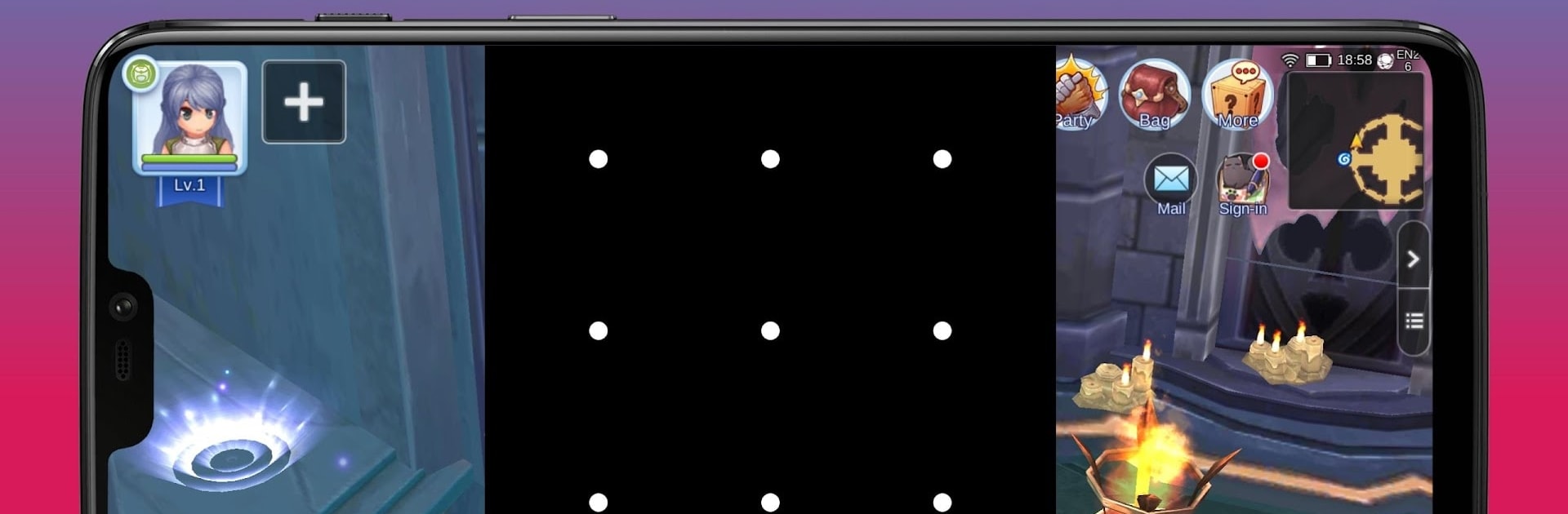
Play Lock: Gamers tool

Play Lock: Gamers tool

Productivity

| Brink Technologies

Play on PC with BlueStacks or from our cloud

  • Overview
  • How to Download

Page Modified On: October 23, 2025

Run Play Lock: Gamers tool on PC or Mac

Let BlueStacks turn your PC, Mac, or laptop into the perfect home for Play Lock: Gamers tool, a fun Productivity app from Brink Technologies.

Play Lock: Gamers tool is basically a screen lock that lets games keep running while the display is off and the buttons are disabled. It is made for those times when a game is auto farming, hatching, or tapping away with an automation tool, so the screen does not need to stay on wasting energy or picking up stray touches. Think AR walking, long MMORPG grind sessions, or idle simulators that just need time. On a phone it saves a lot of battery and pocket accidents. On PC with BlueStacks, battery saving matters less, but the lock layer is still useful because it blocks random clicks and keeps the game humming while someone steps away from the keyboard.

The flow is simple. While a game is open, a quick tap on the Play Lock notification brings a lock overlay up front, and the game continues in the background. On phones, covering the top of the screen triggers a true screen off via the proximity sensor. Uncover, then double tap the small unlock button in the top right. A pattern can be added for safety. Fingerprint unlock works on some devices, but not all Android versions. There is an Auto mode to limit it to selected apps, and a paid Pro tier removes ads and adds an inactivity timer that locks after a set delay. It can also keep the display awake while locked for titles that do not do it themselves, and it hides navigation keys so video players or music keep going without accidental exits. On BlueStacks there is no pocket or sensor, so players just use the on-screen lock and double tap to get back in, which still does the job well enough.

Big screen. Bigger performance. Use BlueStacks on your PC or Mac to run your favorite apps.

How to Download and Run Play Lock: Gamers tool on PC or Mac

  • Download and install BlueStacks on your PC or Mac

  • Complete Google sign-in to access the Play Store, or do it later

  • Look for Play Lock: Gamers tool in the search bar at the top right corner

  • Click to install Play Lock: Gamers tool from the search results

  • Complete Google sign-in (if you skipped step 2) to install Play Lock: Gamers tool

  • Click the Play Lock: Gamers tool icon on the home screen to start playing

video
Watch Video

Minimum System Requirements

With BlueStacks 5, you can get started on a PC that fulfills the following requirements.

  • Operating System

    Microsoft Windows 7 or above, macOS 11 (Big Sur) or above

  • Processor

    Intel, AMD or Apple Silicon Processor

  • RAM

    at least 4GB

  • HDD

    10GB Free Disk Space

Note:

* You must be an Administrator on your PC. Up to date graphics drivers from Microsoft or the chipset vendor.

Play Lock: Gamers tool - FAQs

  • How to Run Play Lock: Gamers tool on Windows PC & Mac?

    Run Play Lock: Gamers tool on your PC or Mac by following these simple steps.

    • Click on ‘Download Play Lock: Gamers tool on PC’ to download BlueStacks
    • Install it and log-in to Google Play Store
    • Launch and run the app.
  • Why is BlueStacks the fastest and safest platform to play games on PC?

    BlueStacks respects your privacy and is always safe and secure to use. It does not carry any malware, spyware, or any sort of additional software that could harm your PC.

    It is engineered to optimize speed and performance for a seamless gaming experience.

  • What are Play Lock: Gamers tool PC requirements?

    Minimum requirement to run Play Lock: Gamers tool on your PC

    • OS: Microsoft Windows 7 and above:
    • Processor: Intel or AMD Processor:
    • RAM: Your PC must have at least 2GB of RAM. (Note that having 2GB or more disk space is not a substitute for RAM):
    • HDD: 5GB Free Disk Space.
    • You must be an Administrator on your PC.