SHIFTAR: Work schedule planner

SHIFTAR: Work schedule planner

Productivity

| Kosuke Hamada

Play on PC with BlueStacks or from our cloud

  • Overview
  • How to Download

Page Modified On: October 13, 2025

Run SHIFTAR: Work schedule planner on PC or Mac

What’s better than using SHIFTAR: Work schedule planner by Kosuke Hamada? Well, try it on a big screen, on your PC or Mac, with BlueStacks to see the difference.

About the App

SHIFTAR: Work schedule planner keeps your shifts and personal plans together so your days actually make sense at a glance. It’s super simple—tap to add shifts, jot down plans, and see what’s coming up without digging through menus. Built by Kosuke Hamada in the Productivity genre, it feels as straightforward as scribbling on a paper calendar, just a lot faster. Prefer a bigger screen sometimes? You can also run it on your computer with BlueStacks.

App Features

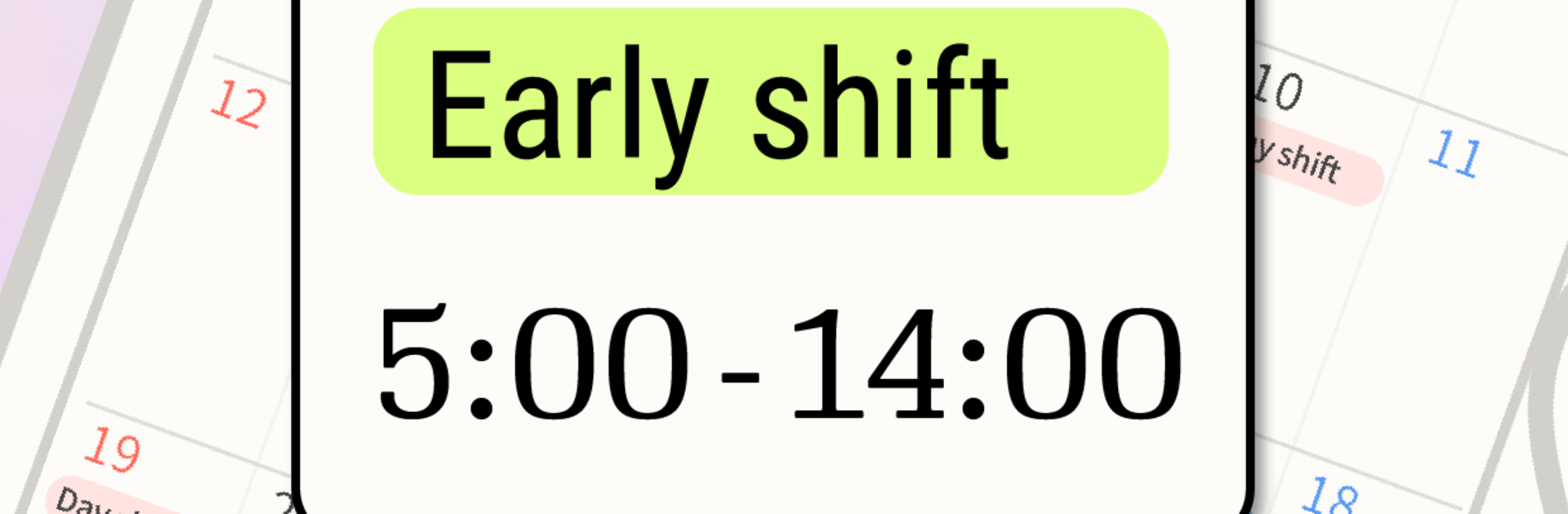
  • Fast shift entry: Tap preset buttons for early, late, day, night, and more to drop shifts onto your calendar. Planning a whole month takes seconds, not hours.
  • Paycheck tracking: See an up‑to‑date running total for what you’ve earned and get a heads-up on your next paycheck so budgeting isn’t a guessing game.
  • Google Calendar sync: Already using a calendar elsewhere? Pull your events right in—no complicated setup.
  • Work + life in one place: Keep shifts and personal plans together, with clean color coding that makes your week easy to scan.
  • Widgets (Premium): Peek at today’s or this week’s schedule from your home screen without opening the app.
  • Automatic backups (Premium): Your data saves itself in the background, so you can restore it if you switch phones, delete the app by accident, or something unexpected happens.
  • More colors (Premium): Unlock extra color options to tag different shift patterns and personal events the way you like.
  • Ad‑free view (Premium): Remove ads for a cleaner calendar and easier tapping, especially on busy days.

Big screen. Bigger performance. Use BlueStacks on your PC or Mac to run your favorite apps.

How to Download and Run SHIFTAR: Work schedule planner on PC or Mac

  • Download and install BlueStacks on your PC or Mac

  • Complete Google sign-in to access the Play Store, or do it later

  • Look for SHIFTAR: Work schedule planner in the search bar at the top right corner

  • Click to install SHIFTAR: Work schedule planner from the search results

  • Complete Google sign-in (if you skipped step 2) to install SHIFTAR: Work schedule planner

  • Click the SHIFTAR: Work schedule planner icon on the home screen to start playing

video
Watch Video

Minimum System Requirements

With BlueStacks 5, you can get started on a PC that fulfills the following requirements.

  • Operating System

    Microsoft Windows 7 or above, macOS 11 (Big Sur) or above

  • Processor

    Intel, AMD or Apple Silicon Processor

  • RAM

    at least 4GB

  • HDD

    10GB Free Disk Space

Note:

* You must be an Administrator on your PC. Up to date graphics drivers from Microsoft or the chipset vendor.

SHIFTAR: Work schedule planner - FAQs

  • How to Run SHIFTAR: Work schedule planner on Windows PC & Mac?

    Run SHIFTAR: Work schedule planner on your PC or Mac by following these simple steps.

    • Click on ‘Download SHIFTAR: Work schedule planner on PC’ to download BlueStacks
    • Install it and log-in to Google Play Store
    • Launch and run the app.
  • Why is BlueStacks the fastest and safest platform to play games on PC?

    BlueStacks respects your privacy and is always safe and secure to use. It does not carry any malware, spyware, or any sort of additional software that could harm your PC.

    It is engineered to optimize speed and performance for a seamless gaming experience.

  • What are SHIFTAR: Work schedule planner PC requirements?

    Minimum requirement to run SHIFTAR: Work schedule planner on your PC

    • OS: Microsoft Windows 7 and above:
    • Processor: Intel or AMD Processor:
    • RAM: Your PC must have at least 2GB of RAM. (Note that having 2GB or more disk space is not a substitute for RAM):
    • HDD: 5GB Free Disk Space.
    • You must be an Administrator on your PC.