Ember Ruin
Ember Ruin

Ember Ruin

Role Playing

| Proficient City Hong Kong

BlueStacks Verified

Play on PC with BlueStacks or from our cloud

  • Overview
  • Game Features
  • How to Play

Page Modified On: January 07, 2026

Play Ember Ruin on PC or Mac

Ember Ruin is a Role Playing game developed by Proficient City Hong Kong. BlueStacks app player is the best platform to play this Android game on your PC or Mac for an immersive gaming experience.

Enter into a world where danger and opportunities lie side by side. You have to deal with the monsters and curses that the ancient powers inflicted on the lands of Ember Ruin. Rise amidst chaos and power to become a legendary warrior and uncover the dark mysteries ahead. 

About the Game

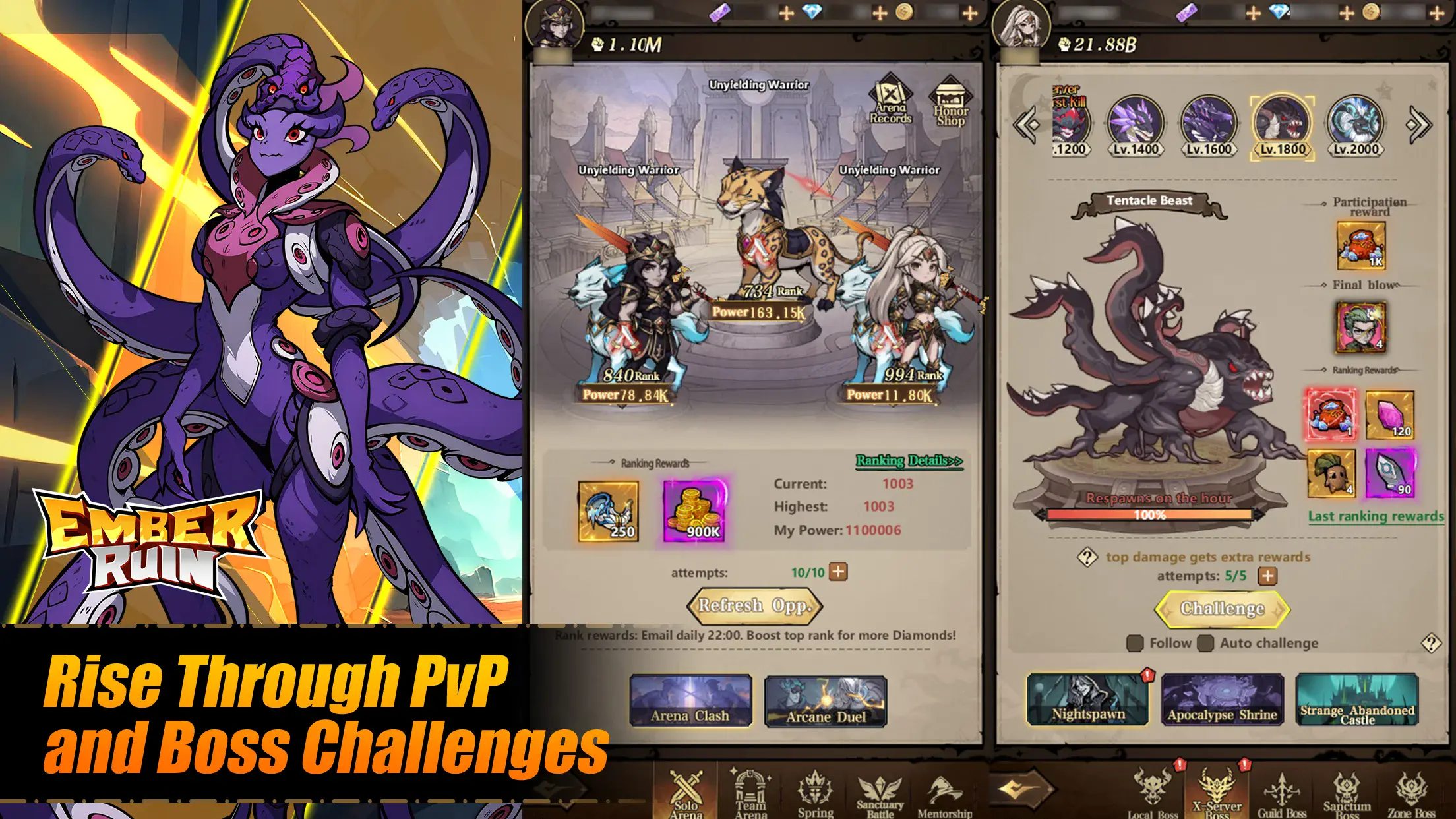
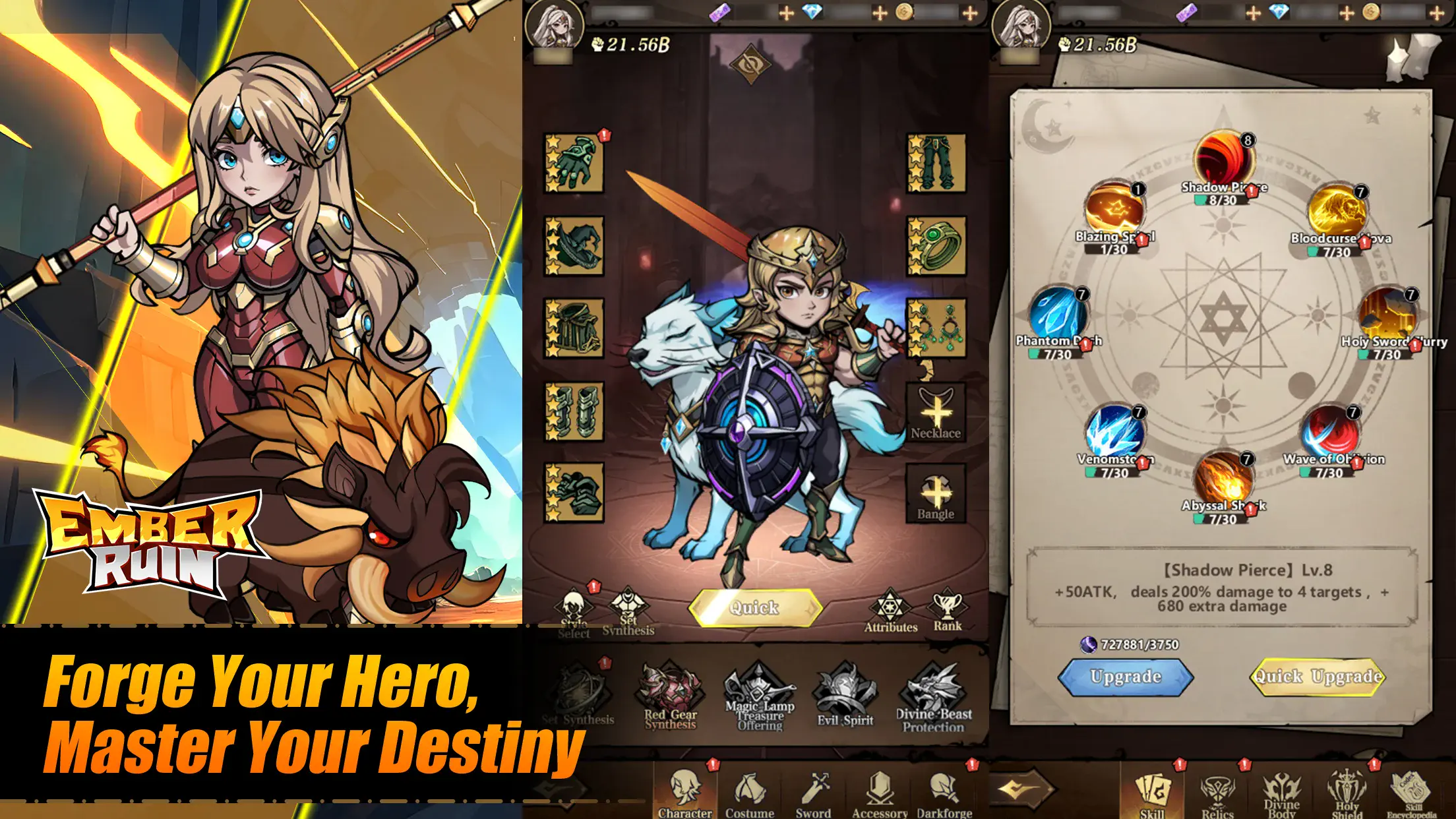
Ember Ruin immerses you into a dark world where you need to be strategic. It gives you access to rare gear and mystical artifacts to boost your hero’s chances in battle. You can go up against other players in tactical battles or team up with them for dungeon raids and more.  

Gameplay Overview

Every decision you make in this game matters. So, you need to be careful and precise to outsmart your enemies and conquer the battlefield. Build a team that suits your strategy and train your heroes from time to time to enhance their skills. 

Game Features

  • Competitive guild wars
  • Anime-themed graphics
  • Intuitive maps

How to Play? 

Download Ember Ruin for free from the Google Play Store using the BlueStacks app player.

Game Features

Enhancements

  • Macros
  • Rerolling
  • Eco Mode
  • Multi Instance Sync
  • Enhancements
Macros

Macros

Focus more on the fun part of the game, skip the tedious aspects. Master Ember Ruin with Macros. Record yourself completing the monotonous tasks you wish to automate and replay them later with just one keypress.
Rerolling

Rerolling

Speed up the rerolling process in Ember Ruin. Perform multiple summons and keep looking for the best Heroes. Use Multi-Instance sync to replicate the rerolling mechanism in all instances.
Eco Mode

Eco Mode

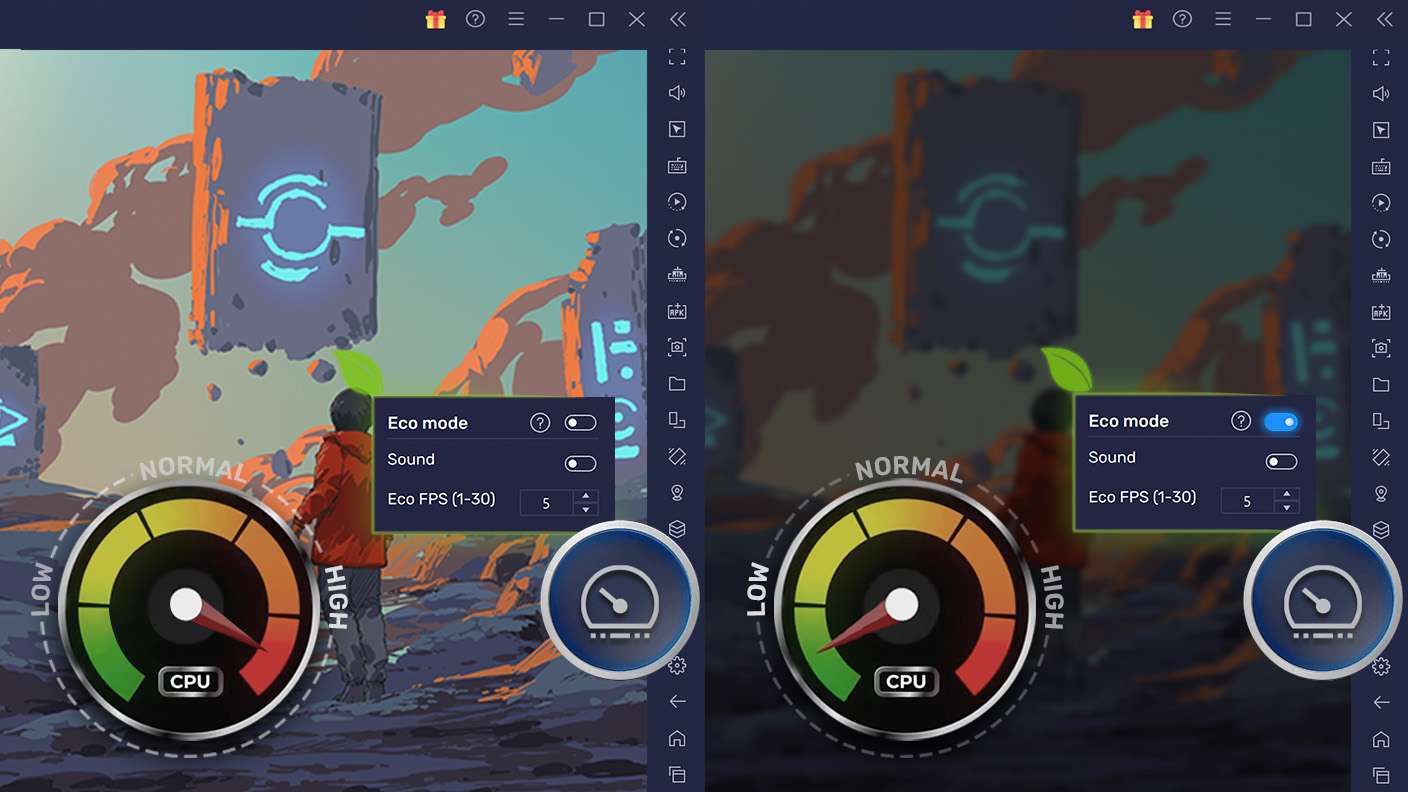
Farm in-game resources with ease in Ember Ruin. Enable the Eco Mode when running the game in multiple instances. And lower your PC's resource consumption.
Multi Instance Sync

Multi Instance Sync

With the Multi-instance Sync, you can do even more in Ember Ruin. Sync the action of the main instance and repeat them in real time for all other instances. Sync and sit back, let the game progress unfold.
Read More

How to Download and Play Ember Ruin on PC or Mac

  • Download and install BlueStacks on your PC or Mac

  • Complete Google sign-in to access the Play Store, or do it later

  • Look for Ember Ruin in the search bar at the top right corner

  • Click to install Ember Ruin from the search results

  • Complete Google sign-in (if you skipped step 2) to install Ember Ruin

  • Click the Ember Ruin icon on the home screen to start playing

video
Watch Video

Minimum System Requirements

With BlueStacks 5, you can get started on a PC that fulfills the following requirements.

  • Operating System

    Microsoft Windows 7 or above, macOS 11 (Big Sur) or above

  • Processor

    Intel, AMD or Apple Silicon Processor

  • RAM

    at least 4GB

  • HDD

    10GB Free Disk Space

Note:

* You must be an Administrator on your PC. Up to date graphics drivers from Microsoft or the chipset vendor.

Ember Ruin - FAQs

  • How to play Ember Ruin on Windows PC & Mac?

    Play Ember Ruin on your PC or Mac by following these simple steps.

    • Click on 'Play Ember Ruin on PC’ to download BlueStacks
    • Install it and log-in to Google Play Store
    • Launch and play the game.
  • Why is BlueStacks the fastest and safest platform to play games on PC?

    BlueStacks respects your privacy and is always safe and secure to use. It does not carry any malware, spyware, or any sort of additional software that could harm your PC.

    It is engineered to optimize speed and performance for a seamless gaming experience.

  • What are Ember Ruin PC requirements?

    Minimum requirement to run Ember Ruin on your PC

    • OS: Microsoft Windows 7 or above MacOS 11 (Big Sur) or above
    • Processor: Intel, AMD or Apple Silicon Processor
    • RAM: Your PC must have at least 4GB of RAM. (Note that having 4GB or more disk space is not a substitute for RAM)
    • HDD: 10GB Free Disk Space.
    • You must be an Administrator on your PC.