College Basketball Radio

College Basketball Radio

Sports

| Brady Software LLC

Play on PC with BlueStacks or from our cloud

  • Overview
  • How to Download

Page Modified On: October 21, 2026

Run College Basketball Radio on PC or Mac

What’s better than using College Basketball Radio by Brady Software LLC? Well, try it on a big screen, on your PC or Mac, with BlueStacks to see the difference.

About the App

College Basketball Radio brings the sounds and stories of college hoops together in one spot. Find a live game call fast, keep an eye on scores and standings as they change, and follow your teams all season long. It’s a straightforward Sports app made for fans who love radio play-by-play and quick updates—plus, you can run it with BlueStacks if you prefer listening on your computer.

App Features

  • Live game radio: Jump into real-time broadcasts for NCAA matchups and switch stations in seconds to catch the call you want.
  • Real-time scores and standings: Watch scores refresh as they happen, with conference standings and rankings that keep pace with the action.
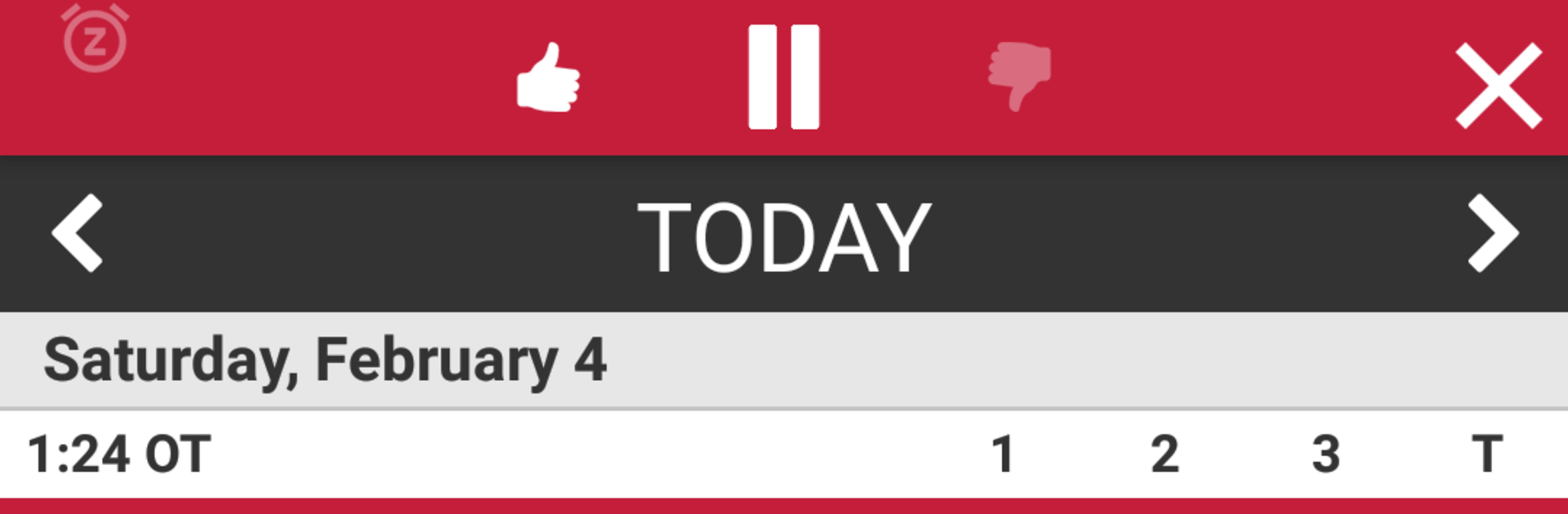
  • Quick schedules view: Scan today’s slate, peek at what’s coming up, and review recent results so you never wonder who plays next.
  • Favorites hub: Star your teams and see their games and results lined up on one clean page for easy checking.
  • Power conferences covered: Follow programs across the ACC, Big 12, Big Ten, Pac-12, SEC—and even Independent favorite Notre Dame.
  • Smart, simple layout: Everything’s easy to find, from streams to standings, so you can get in, listen, and get back to the game.
  • On-the-go listening: Whether you’re traveling or at home, find your team’s broadcast in just a few taps and stay connected to the action.
  • Fresh updates and news: Get timely rankings and snippets of news organized alongside the scores you’re already watching.

Switch to BlueStacks and make the most of your apps on your PC or Mac.
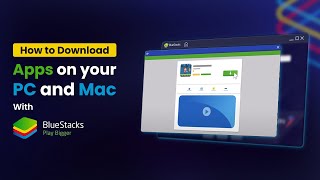
How to Download and Run College Basketball Radio on PC or Mac

  • Download and install BlueStacks on your PC or Mac

  • Complete Google sign-in to access the Play Store, or do it later

  • Look for College Basketball Radio in the search bar at the top right corner

  • Click to install College Basketball Radio from the search results

  • Complete Google sign-in (if you skipped step 2) to install College Basketball Radio

  • Click the College Basketball Radio icon on the home screen to start playing

video
Watch Video

Minimum System Requirements

With BlueStacks 5, you can get started on a PC that fulfills the following requirements.

  • Operating System

    Microsoft Windows 7 or above, macOS 11 (Big Sur) or above

  • Processor

    Intel, AMD or Apple Silicon Processor

  • RAM

    at least 4GB

  • HDD

    10GB Free Disk Space

Note:

* You must be an Administrator on your PC. Up to date graphics drivers from Microsoft or the chipset vendor.

College Basketball Radio - FAQs

  • How to Run College Basketball Radio on Windows PC & Mac?

    Run College Basketball Radio on your PC or Mac by following these simple steps.

    • Click on ‘Download College Basketball Radio on PC’ to download BlueStacks
    • Install it and log-in to Google Play Store
    • Launch and run the app.
  • Why is BlueStacks the fastest and safest platform to play games on PC?

    BlueStacks respects your privacy and is always safe and secure to use. It does not carry any malware, spyware, or any sort of additional software that could harm your PC.

    It is engineered to optimize speed and performance for a seamless gaming experience.

  • What are College Basketball Radio PC requirements?

    Minimum requirement to run College Basketball Radio on your PC

    • OS: Microsoft Windows 7 and above:
    • Processor: Intel or AMD Processor:
    • RAM: Your PC must have at least 2GB of RAM. (Note that having 2GB or more disk space is not a substitute for RAM):
    • HDD: 5GB Free Disk Space.
    • You must be an Administrator on your PC.