Audio Earbud Test & Equalizer

Audio Earbud Test & Equalizer

Tools

| RP Developers

Play on PC with BlueStacks or from our cloud

  • Overview
  • How to Download

Page Modified On: September 12, 2025

Run Audio Earbud Test & Equalizer on PC or Mac

Upgrade your experience. Try Audio Earbud Test & Equalizer, the fantastic Tools app from RP Developers, from the comfort of your laptop, PC, or Mac, only on BlueStacks.

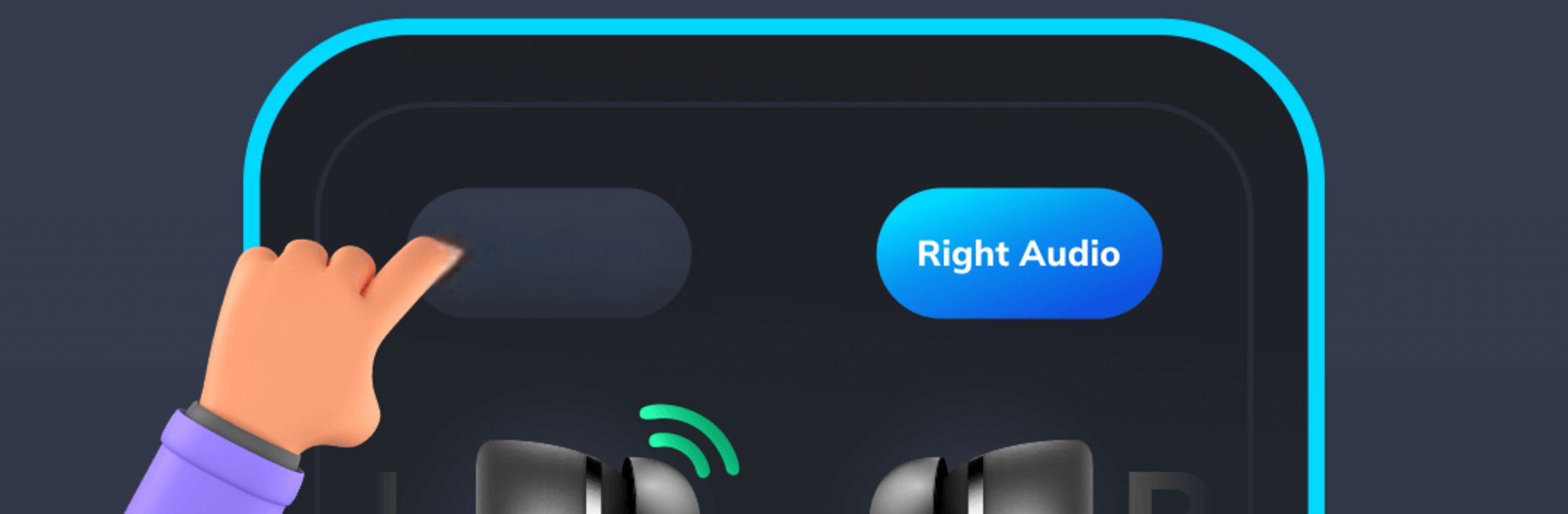
Audio Earbud Test & Equalizer comes off like a simple toolbox for figuring out what is going on with earbuds and headphones. It runs quick tone tests that sweep through high and low frequencies, plus stereo checks, a golden frequency test, and even binaural tones. The idea is to spot rattles, dead spots, or a channel that is not pulling its weight. There is a left and right test that pings each side one at a time, and it can confirm if a wired set is actually connected. It also looks at the headset microphone and whether inline buttons still respond, which is handy when a cable has been tugged one too many times. Nothing confusing in the layout, just clear buttons and prompts.

The equalizer is the other half. Five bands with sliders, a virtualizer, Bass Boost, Volume Boost, and a 3D effect. Start some music, open the EQ, nudge the sliders, and the change is instant. It feels practical for tuning a tinny pair into something warmer, or pulling down harsh treble that gets tiring. On a PC with BlueStacks, the bigger window and mouse control make the sliders easy to fine tune, and the frequency tests are easier to follow on screen. Volume Boost can push things a bit too far, so small steps help. Results still depend on the hardware, but for troubleshooting and quick tuning, this is very no-fuss and direct.

BlueStacks gives you the much-needed freedom to experience your favorite apps on a bigger screen. Get it now.


How to Download and Run Audio Earbud Test & Equalizer on PC or Mac

  • Download and install BlueStacks on your PC or Mac

  • Complete Google sign-in to access the Play Store, or do it later

  • Look for Audio Earbud Test & Equalizer in the search bar at the top right corner

  • Click to install Audio Earbud Test & Equalizer from the search results

  • Complete Google sign-in (if you skipped step 2) to install Audio Earbud Test & Equalizer

  • Click the Audio Earbud Test & Equalizer icon on the home screen to start playing

video
Watch Video

Minimum System Requirements

With BlueStacks 5, you can get started on a PC that fulfills the following requirements.

  • Operating System

    Microsoft Windows 7 or above, macOS 11 (Big Sur) or above

  • Processor

    Intel, AMD or Apple Silicon Processor

  • RAM

    at least 4GB

  • HDD

    10GB Free Disk Space

Note:

* You must be an Administrator on your PC. Up to date graphics drivers from Microsoft or the chipset vendor.

Audio Earbud Test & Equalizer - FAQs

  • How to Run Audio Earbud Test & Equalizer on Windows PC & Mac?

    Run Audio Earbud Test & Equalizer on your PC or Mac by following these simple steps.

    • Click on ‘Download Audio Earbud Test & Equalizer on PC’ to download BlueStacks
    • Install it and log-in to Google Play Store
    • Launch and run the app.
  • Why is BlueStacks the fastest and safest platform to play games on PC?

    BlueStacks respects your privacy and is always safe and secure to use. It does not carry any malware, spyware, or any sort of additional software that could harm your PC.

    It is engineered to optimize speed and performance for a seamless gaming experience.

  • What are Audio Earbud Test & Equalizer PC requirements?

    Minimum requirement to run Audio Earbud Test & Equalizer on your PC

    • OS: Microsoft Windows 7 and above:
    • Processor: Intel or AMD Processor:
    • RAM: Your PC must have at least 2GB of RAM. (Note that having 2GB or more disk space is not a substitute for RAM):
    • HDD: 5GB Free Disk Space.
    • You must be an Administrator on your PC.