Cloud File Manager
Cloud File Manager

Cloud File Manager

Tools

| DriveHQ.com & CameraFTP.com Cloud Services

Play on PC with BlueStacks or from our cloud

  • Overview
  • How to Download

Page Modified On: November 10, 2025

Run Cloud File Manager on PC or Mac

What’s better than using Cloud File Manager by DriveHQ.com & CameraFTP.com Cloud Services? Well, try it on a big screen, on your PC or Mac, with BlueStacks to see the difference.

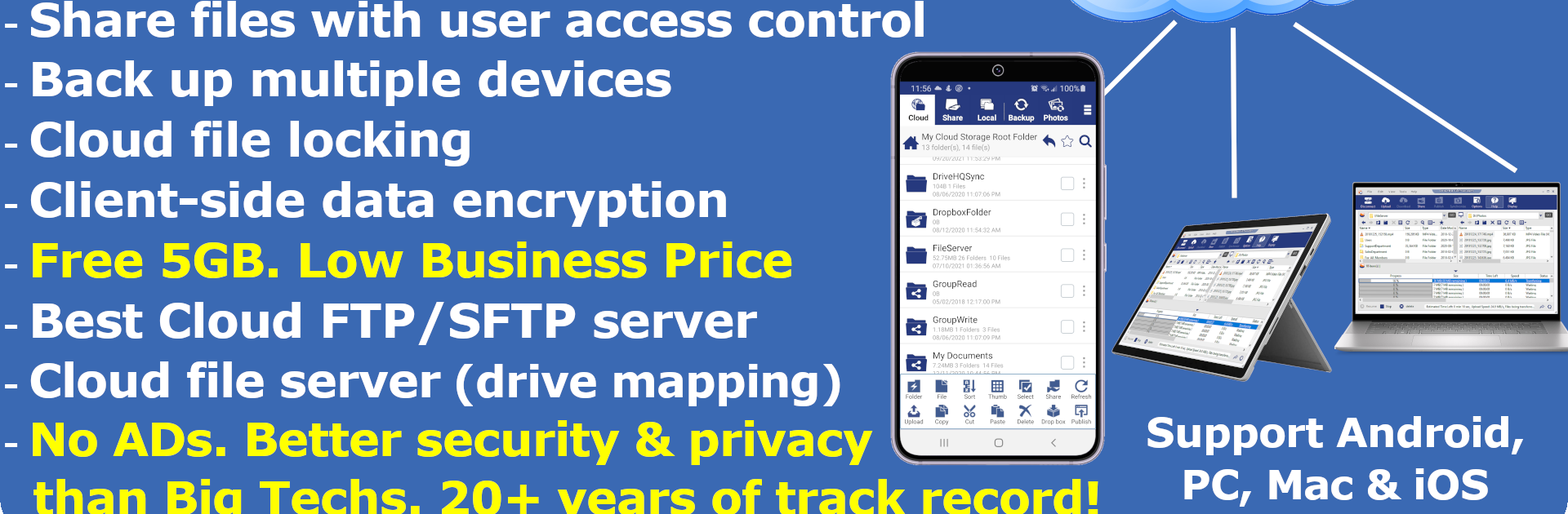
Cloud File Manager feels like a straight up file explorer that also reaches into the cloud. It shows local folders and cloud folders side by side, so moving things around is simple. Copy, cut, paste, delete, open, edit, it all works the way a normal file manager does, just with the option to upload or download entire folders without drama. Backups for photos, videos, or any files can run quietly, and sharing does not stop at a single public link. Permissions can be set so certain people only view, others can edit, and it actually respects those rules.

What stands out is how it edits cloud files directly and saves them back without forcing a sync folder. For teams, file locking keeps someone else from overwriting changes mid-work, which saves alot of headache. Privacy is handled with client side encryption, so files are encrypted with a personal key before upload. More advanced folks will like the WebDAV drive mapping and FTP or SFTP support, so it can act like a cloud file server without being stuck in one device. There are extras like scheduled backups, folder sync, and group management that make it feel more like a toolkit than a single feature app.

Running it on a PC with BlueStacks makes it feel closer to a desktop file browser. The big screen and mouse help when selecting a bunch of files, organizing big folders, or editing documents right in place. It is practical, not flashy, and focuses on getting files where they need to be without fuss.

Eager to take your app experience to the next level? Start right away by downloading BlueStacks on your PC or Mac.


How to Download and Run Cloud File Manager on PC or Mac

  • Download and install BlueStacks on your PC or Mac

  • Complete Google sign-in to access the Play Store, or do it later

  • Look for Cloud File Manager in the search bar at the top right corner

  • Click to install Cloud File Manager from the search results

  • Complete Google sign-in (if you skipped step 2) to install Cloud File Manager

  • Click the Cloud File Manager icon on the home screen to start playing

video
Watch Video

Minimum System Requirements

With BlueStacks 5, you can get started on a PC that fulfills the following requirements.

  • Operating System

    Microsoft Windows 7 or above, macOS 11 (Big Sur) or above

  • Processor

    Intel, AMD or Apple Silicon Processor

  • RAM

    at least 4GB

  • HDD

    10GB Free Disk Space

Note:

* You must be an Administrator on your PC. Up to date graphics drivers from Microsoft or the chipset vendor.

Cloud File Manager - FAQs

  • How to Run Cloud File Manager on Windows PC & Mac?

    Run Cloud File Manager on your PC or Mac by following these simple steps.

    • Click on ‘Download Cloud File Manager on PC’ to download BlueStacks
    • Install it and log-in to Google Play Store
    • Launch and run the app.
  • Why is BlueStacks the fastest and safest platform to play games on PC?

    BlueStacks respects your privacy and is always safe and secure to use. It does not carry any malware, spyware, or any sort of additional software that could harm your PC.

    It is engineered to optimize speed and performance for a seamless gaming experience.

  • What are Cloud File Manager PC requirements?

    Minimum requirement to run Cloud File Manager on your PC

    • OS: Microsoft Windows 7 and above:
    • Processor: Intel or AMD Processor:
    • RAM: Your PC must have at least 2GB of RAM. (Note that having 2GB or more disk space is not a substitute for RAM):
    • HDD: 5GB Free Disk Space.
    • You must be an Administrator on your PC.