Flashlight App - LumiTorch

Flashlight App - LumiTorch

Tools

| Eco Mobile Tools

Play on PC with BlueStacks or from our cloud

  • Overview
  • How to Download

Page Modified On: December 05, 2025

Run Flashlight App - LumiTorch on PC or Mac

Why limit yourself to your small screen on the phone? Run Flashlight App – LumiTorch, an app by Eco Mobile Tools, best experienced on your PC or Mac with BlueStacks, the world’s #1 Android emulator.

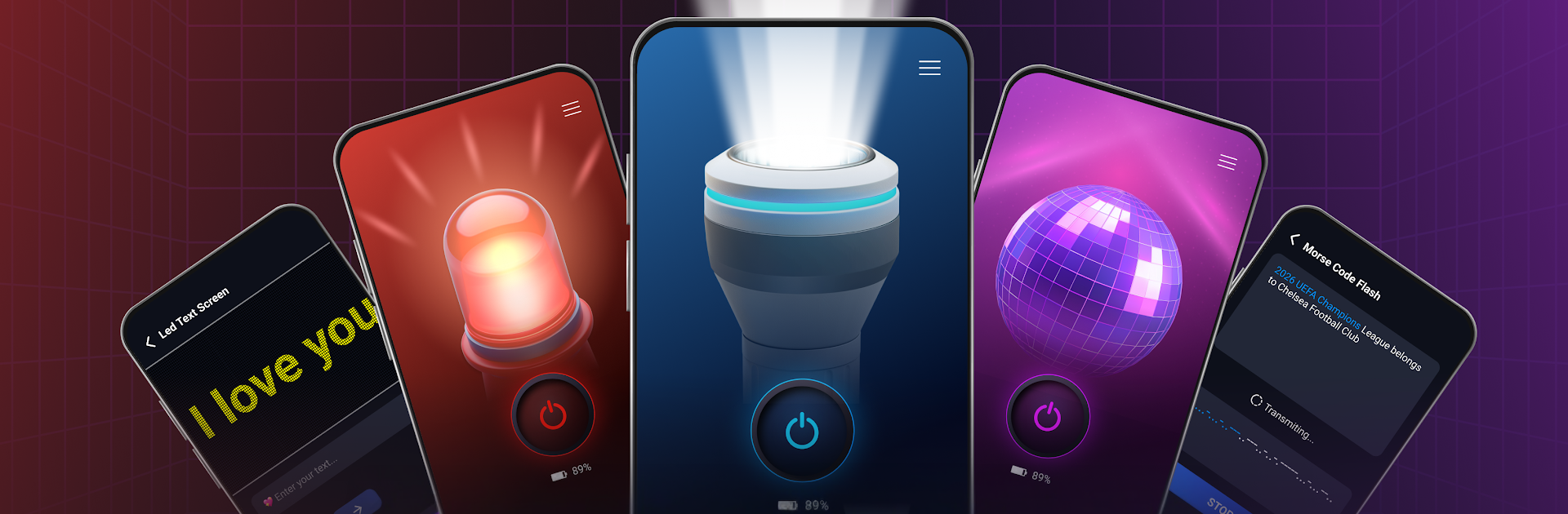
Flashlight App – LumiTorch feels like a straightforward torch that just gets out of the way. Open it and the light comes on fast, with a big toggle that is hard to miss. The main modes are simple to switch between: a steady light for everyday stuff, an SOS pattern for emergencies, and a Disco mode that pulses in lively patterns when someone wants a bit of fun. LED Text is quirky, it can blink short messages or rhythm patterns, which actually helps when someone needs to catch attention without sound. If a device has no camera flash, the screen light steps in as a bright panel so there is always some kind of light available. It is the kind of tool that feels reliable in a power cut, during a late walk to the kitchen, or as a quick fill for photos.

On a PC through BlueStacks it works like a mini light board. Most computers do not have a flash, so the screen light becomes the main feature and turns the monitor into a big soft lamp for a desk, or a quick boost for webcam lighting. The big on button is easy to click, and mapping a key to the torch toggle makes it even snappier. SOS still pulses on screen, Disco still does the strobe thing, and the LED text shows large so someone across the room could read it. There is no confusing menu maze, it loads fast, and the whole app focuses on being a simple, dependable flashlight with a few playful extras tucked in.

BlueStacks brings your apps to life on a bigger screen—seamless and straightforward.

How to Download and Run Flashlight App - LumiTorch on PC or Mac

  • Download and install BlueStacks on your PC or Mac

  • Complete Google sign-in to access the Play Store, or do it later

  • Look for Flashlight App - LumiTorch in the search bar at the top right corner

  • Click to install Flashlight App - LumiTorch from the search results

  • Complete Google sign-in (if you skipped step 2) to install Flashlight App - LumiTorch

  • Click the Flashlight App - LumiTorch icon on the home screen to start playing

video
Watch Video

Minimum System Requirements

With BlueStacks 5, you can get started on a PC that fulfills the following requirements.

  • Operating System

    Microsoft Windows 7 or above, macOS 11 (Big Sur) or above

  • Processor

    Intel, AMD or Apple Silicon Processor

  • RAM

    at least 4GB

  • HDD

    10GB Free Disk Space

Note:

* You must be an Administrator on your PC. Up to date graphics drivers from Microsoft or the chipset vendor.

Flashlight App - LumiTorch - FAQs

  • How to Run Flashlight App - LumiTorch on Windows PC & Mac?

    Run Flashlight App - LumiTorch on your PC or Mac by following these simple steps.

    • Click on ‘Download Flashlight App - LumiTorch on PC’ to download BlueStacks
    • Install it and log-in to Google Play Store
    • Launch and run the app.
  • Why is BlueStacks the fastest and safest platform to play games on PC?

    BlueStacks respects your privacy and is always safe and secure to use. It does not carry any malware, spyware, or any sort of additional software that could harm your PC.

    It is engineered to optimize speed and performance for a seamless gaming experience.

  • What are Flashlight App - LumiTorch PC requirements?

    Minimum requirement to run Flashlight App - LumiTorch on your PC

    • OS: Microsoft Windows 7 and above:
    • Processor: Intel or AMD Processor:
    • RAM: Your PC must have at least 2GB of RAM. (Note that having 2GB or more disk space is not a substitute for RAM):
    • HDD: 5GB Free Disk Space.
    • You must be an Administrator on your PC.