Hamro Nepali Keyboard

Hamro Nepali Keyboard

Tools

| Hamro Patro

Play on PC with BlueStacks or from our cloud

  • Overview
  • How to Download

Page Modified On: January 06, 2026

Run Hamro Nepali Keyboard on PC or Mac

Why limit yourself to your small screen on the phone? Run Hamro Nepali Keyboard, an app by Hamro Patro, best experienced on your PC or Mac with BlueStacks, the world’s #1 Android emulator.

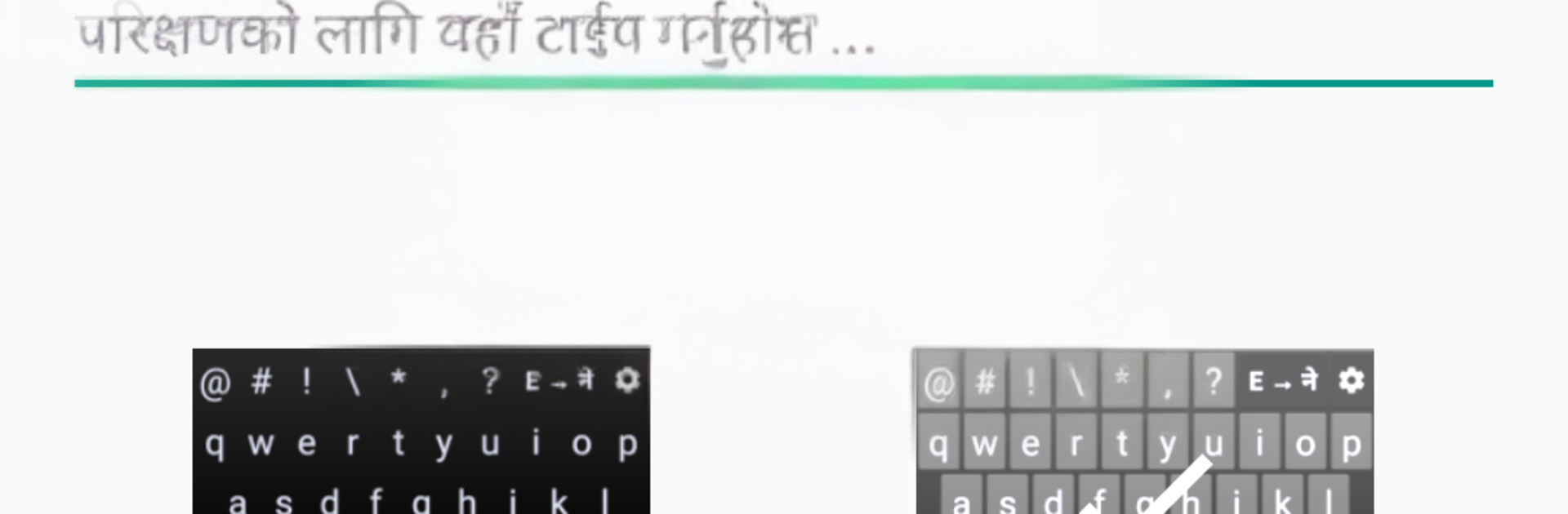
Hamro Nepali Keyboard keeps things simple. It lets a person type in Nepali anywhere without copying from a separate tool, so chat, posts, notes, all work straight away. There are three typing styles to choose from, which is the big hook. One is a direct Nepali layout for those who know the keys by heart. Another is a Unicode transliteration mode where someone types with English letters and the app turns it into Nepali script on the fly. The third is an MPP style Romanized layout that feels a bit more traditional for long time users. Switching layouts is quick, so it does not slow anyone down.

The extras feel thoughtful instead of noisy. There is emoji support, a neat numeric keypad, and a bunch of Nepali themed sticker packs that drop nicely into WhatsApp, Messenger, Telegram, Facebook, wherever. The stickers lean on local flavor, with sets for New Year, friends, and fun characters like Kanchha and Kanchhi. Themes are clean too. Dark and light are both there, which is enough for daily use. On PC with BlueStacks, the transliteration mode shines because a physical keyboard makes fast Nepali typing feel natural, and swapping to English for names or numbers is painless. No fancy setup, it just gets out of the way and lets the person type.

Eager to take your app experience to the next level? Start right away by downloading BlueStacks on your PC or Mac.


How to Download and Run Hamro Nepali Keyboard on PC or Mac

  • Download and install BlueStacks on your PC or Mac

  • Complete Google sign-in to access the Play Store, or do it later

  • Look for Hamro Nepali Keyboard in the search bar at the top right corner

  • Click to install Hamro Nepali Keyboard from the search results

  • Complete Google sign-in (if you skipped step 2) to install Hamro Nepali Keyboard

  • Click the Hamro Nepali Keyboard icon on the home screen to start playing

video
Watch Video

Minimum System Requirements

With BlueStacks 5, you can get started on a PC that fulfills the following requirements.

  • Operating System

    Microsoft Windows 7 or above, macOS 11 (Big Sur) or above

  • Processor

    Intel, AMD or Apple Silicon Processor

  • RAM

    at least 4GB

  • HDD

    10GB Free Disk Space

Note:

* You must be an Administrator on your PC. Up to date graphics drivers from Microsoft or the chipset vendor.

Hamro Nepali Keyboard - FAQs

  • How to Run Hamro Nepali Keyboard on Windows PC & Mac?

    Run Hamro Nepali Keyboard on your PC or Mac by following these simple steps.

    • Click on ‘Download Hamro Nepali Keyboard on PC’ to download BlueStacks
    • Install it and log-in to Google Play Store
    • Launch and run the app.
  • Why is BlueStacks the fastest and safest platform to play games on PC?

    BlueStacks respects your privacy and is always safe and secure to use. It does not carry any malware, spyware, or any sort of additional software that could harm your PC.

    It is engineered to optimize speed and performance for a seamless gaming experience.

  • What are Hamro Nepali Keyboard PC requirements?

    Minimum requirement to run Hamro Nepali Keyboard on your PC

    • OS: Microsoft Windows 7 and above:
    • Processor: Intel or AMD Processor:
    • RAM: Your PC must have at least 2GB of RAM. (Note that having 2GB or more disk space is not a substitute for RAM):
    • HDD: 5GB Free Disk Space.
    • You must be an Administrator on your PC.