Pangu
Pangu

Pangu

Tools

| dineshinet

Play on PC with BlueStacks or from our cloud

  • Overview
  • How to Download

Page Modified On: October 23, 2025

Run Pangu on PC or Mac

Upgrade your experience. Try Pangu, the fantastic Tools app from dineshinet, from the comfort of your laptop, PC, or Mac, only on BlueStacks.

About the App

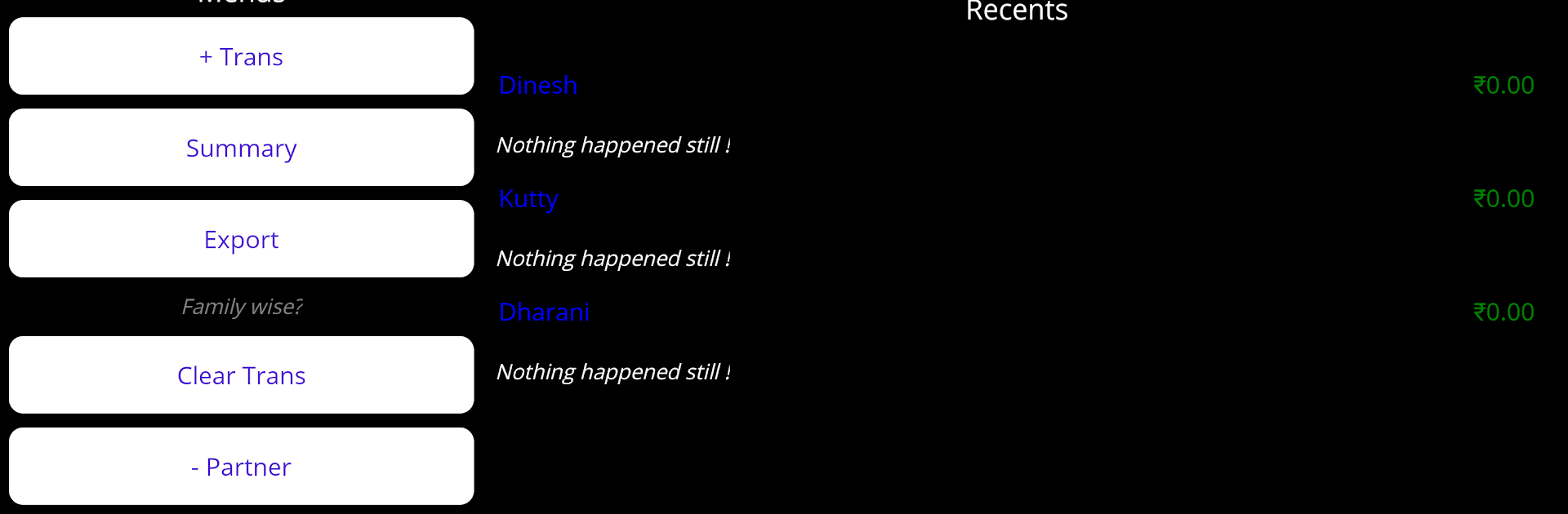
Pangu takes the headache out of splitting bills and tracking who owes what. Planning a trip, managing a family budget, or settling a group dinner? Log expenses, see fair shares, and settle up without spreadsheets. The name fits too—Pangu means “share” in Tamil. It’s a thoughtful Tools app from dineshinet that keeps group money stuff simple and organized. Prefer handling things on your computer? It also runs smoothly on BlueStacks.

App Features

  • Partners and dependents: Add partners to a group and include dependents or sponsored members so their costs are tracked correctly without messing up the split.
  • Clear recent activity: View your latest transactions at a glance and see running balances so you know exactly who needs to settle.
  • Person view breakdown: Tap a partner to see their personal vs. dependent expenses, plus totals and current balance in one tidy place.
  • Flexible splits: Record who paid, what it was for, and who it should be shared with—limit it to contributors only or include everyone as needed.
  • Settlement and loans: Mark settlements or log loan-type expenses when money changes hands, keeping your ledger honest.
  • Spend and income summaries: Get a simple snapshot of how much each person spent and any money coming in, filtered to just what you need.
  • Archive snapshots: Save the current state before a new event, restore an old snapshot later, or clean up older archives when you’re done.
  • Easy export by email: Export the current context or an archive as a JSON attachment and share it for backup or review.
  • Manage the group: Remove partners when they’re no longer part of the event, or reset everything by clearing all transactions to start fresh.

Ready to experience Pangu on a bigger screen, in all its glory? Download BlueStacks now.

How to Download and Run Pangu on PC or Mac

  • Download and install BlueStacks on your PC or Mac

  • Complete Google sign-in to access the Play Store, or do it later

  • Look for Pangu in the search bar at the top right corner

  • Click to install Pangu from the search results

  • Complete Google sign-in (if you skipped step 2) to install Pangu

  • Click the Pangu icon on the home screen to start playing

video
Watch Video

Minimum System Requirements

With BlueStacks 5, you can get started on a PC that fulfills the following requirements.

  • Operating System

    Microsoft Windows 7 or above, macOS 11 (Big Sur) or above

  • Processor

    Intel, AMD or Apple Silicon Processor

  • RAM

    at least 4GB

  • HDD

    10GB Free Disk Space

Note:

* You must be an Administrator on your PC. Up to date graphics drivers from Microsoft or the chipset vendor.

Pangu - FAQs

  • How to Run Pangu on Windows PC & Mac?

    Run Pangu on your PC or Mac by following these simple steps.

    • Click on ‘Download Pangu on PC’ to download BlueStacks
    • Install it and log-in to Google Play Store
    • Launch and run the app.
  • Why is BlueStacks the fastest and safest platform to play games on PC?

    BlueStacks respects your privacy and is always safe and secure to use. It does not carry any malware, spyware, or any sort of additional software that could harm your PC.

    It is engineered to optimize speed and performance for a seamless gaming experience.

  • What are Pangu PC requirements?

    Minimum requirement to run Pangu on your PC

    • OS: Microsoft Windows 7 and above:
    • Processor: Intel or AMD Processor:
    • RAM: Your PC must have at least 2GB of RAM. (Note that having 2GB or more disk space is not a substitute for RAM):
    • HDD: 5GB Free Disk Space.
    • You must be an Administrator on your PC.