Kiki Auto
Kiki Auto

Kiki Auto

Tools

| Zalo Group

Play on PC with BlueStacks or from our cloud

  • Overview
  • How to Download

Page Modified On: October 04, 2025

Run Kiki Auto on PC or Mac

Why limit yourself to your small screen on the phone? Run Kiki Auto, an app by Zalo Group, best experienced on your PC or Mac with BlueStacks, the world’s #1 Android emulator.

About the App

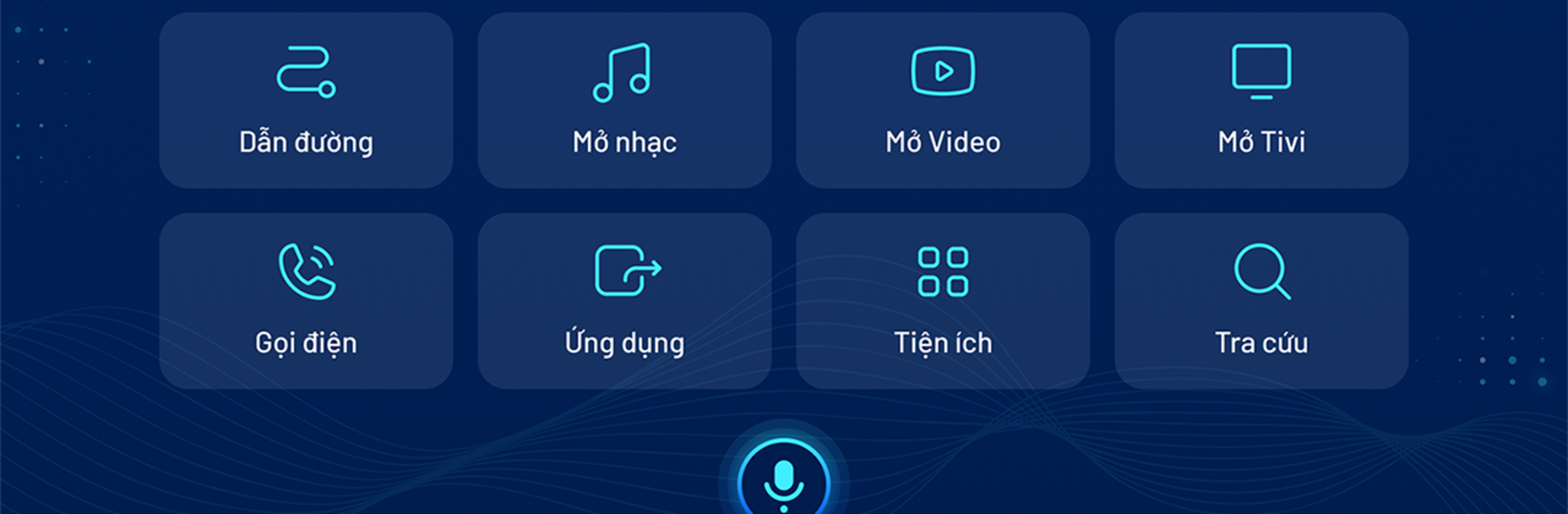
Kiki Auto is your in-car voice assistant from Zalo Group, built to make driving feel smoother and safer. It’s a Tools app that lets you talk, not tap—ask for directions, play music, place calls, and more while keeping your hands on the wheel. Prefer to check things out on a computer first? You can explore its voice features on your PC with BlueStacks, too.

App Features

  • Hands-free control: Speak naturally to get things done. Simple voice commands handle the basics so you don’t have to fumble with your phone.
  • Smart navigation: Ask for turn-by-turn directions to a specific address or well-known places, or quickly find the nearest gas station when you’re running low.
  • Music on demand: Request a song, artist, or genre and let Kiki Auto handle the playlist. Skip, pause, or switch styles without taking your eyes off the road.
  • Calls and dialing: Say “Call Mom” or read out a phone number to start a call instantly—no scrolling through contacts required.
  • Video and TV playback: In parked moments, open YouTube videos by name or jump to TV channels like VTV1 or VTV2 with a quick command.
  • Quick info, fast answers: Check tomorrow’s weather, ask for the date (including lunar calendar details), do quick math, or get general knowledge answers on the spot.
  • Driving-friendly convenience: Designed around comfort, convenience, and safety, Kiki Auto helps reduce distractions and keeps essential tasks voice-first.

Ready to experience Kiki Auto on a bigger screen, in all its glory? Download BlueStacks now.

How to Download and Run Kiki Auto on PC or Mac

  • Download and install BlueStacks on your PC or Mac

  • Complete Google sign-in to access the Play Store, or do it later

  • Look for Kiki Auto in the search bar at the top right corner

  • Click to install Kiki Auto from the search results

  • Complete Google sign-in (if you skipped step 2) to install Kiki Auto

  • Click the Kiki Auto icon on the home screen to start playing

video
Watch Video

Minimum System Requirements

With BlueStacks 5, you can get started on a PC that fulfills the following requirements.

  • Operating System

    Microsoft Windows 7 or above, macOS 11 (Big Sur) or above

  • Processor

    Intel, AMD or Apple Silicon Processor

  • RAM

    at least 4GB

  • HDD

    10GB Free Disk Space

Note:

* You must be an Administrator on your PC. Up to date graphics drivers from Microsoft or the chipset vendor.

Kiki Auto - FAQs

  • How to Run Kiki Auto on Windows PC & Mac?

    Run Kiki Auto on your PC or Mac by following these simple steps.

    • Click on ‘Download Kiki Auto on PC’ to download BlueStacks
    • Install it and log-in to Google Play Store
    • Launch and run the app.
  • Why is BlueStacks the fastest and safest platform to play games on PC?

    BlueStacks respects your privacy and is always safe and secure to use. It does not carry any malware, spyware, or any sort of additional software that could harm your PC.

    It is engineered to optimize speed and performance for a seamless gaming experience.

  • What are Kiki Auto PC requirements?

    Minimum requirement to run Kiki Auto on your PC

    • OS: Microsoft Windows 7 and above:
    • Processor: Intel or AMD Processor:
    • RAM: Your PC must have at least 2GB of RAM. (Note that having 2GB or more disk space is not a substitute for RAM):
    • HDD: 5GB Free Disk Space.
    • You must be an Administrator on your PC.