Messenger
Messenger

Messenger

Tools

| CloudMind

Play on PC with BlueStacks or from our cloud

  • Overview
  • How to Download

Page Modified On: December 10, 2025

Run Messenger on PC or Mac

Upgrade your experience. Try Messenger, the fantastic Tools app from CloudMind, from the comfort of your laptop, PC, or Mac, only on BlueStacks.

About the App

Messenger brings your favorite chats and social spots together so you can jump between them without juggling a dozen apps. It’s a handy Tools app from CloudMind that keeps conversations, news, and even shopping within easy reach. Prefer typing on a keyboard or a bigger screen? Messenger works smoothly on BlueStacks as well.

App Features

  • One hub for your socials: Open popular services like Facebook, WhatsApp, Instagram, Snapchat, Twitter, Line, Viber, Pinterest, and more from one clean, organized place.
  • Texts, groups, and video: Send quick messages, drop photos and emoji, or start a group or video chat when you need face time.
  • News and shopping without extra installs: Catch up on headlines and browse stores inside Messenger, helping you avoid clutter from too many separate apps.
  • Storage-friendly launcher: Keep things light by using one shortcut instead of a whole grid of icons.
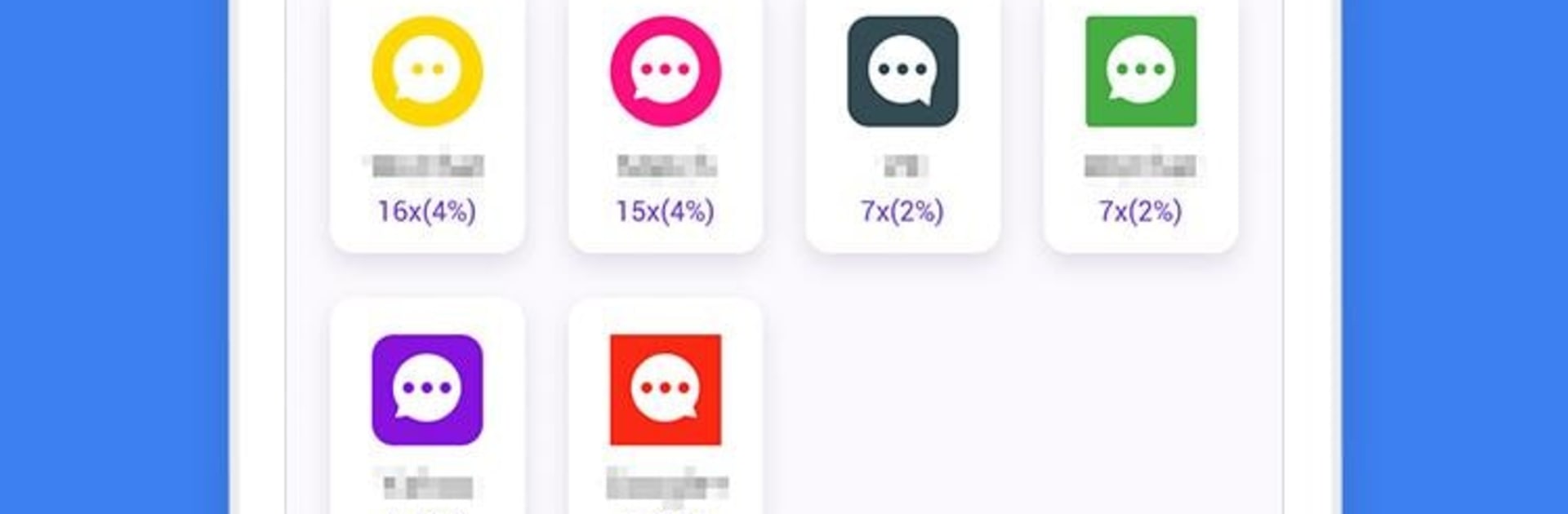
  • Usage insights you’ll actually read: Track how often and how long you use your chat and social apps with simple charts. Turn on the Accessibility permission to enable stats—Messenger uses it only for timing and totals, not your personal content.
  • Lonely Planet (anonymous chats): Send a message on a “rocket,” get replies from around the world, and chat with new people—no login needed. You can launch up to five rockets daily for free.
  • Clean, quick design: A straightforward layout that gets you into conversations fast, without extra taps or fuss.

Big screen. Bigger performance. Use BlueStacks on your PC or Mac to run your favorite apps.

How to Download and Run Messenger on PC or Mac

  • Download and install BlueStacks on your PC or Mac

  • Complete Google sign-in to access the Play Store, or do it later

  • Look for Messenger in the search bar at the top right corner

  • Click to install Messenger from the search results

  • Complete Google sign-in (if you skipped step 2) to install Messenger

  • Click the Messenger icon on the home screen to start playing

video
Watch Video

Minimum System Requirements

With BlueStacks 5, you can get started on a PC that fulfills the following requirements.

  • Operating System

    Microsoft Windows 7 or above, macOS 11 (Big Sur) or above

  • Processor

    Intel, AMD or Apple Silicon Processor

  • RAM

    at least 4GB

  • HDD

    10GB Free Disk Space

Note:

* You must be an Administrator on your PC. Up to date graphics drivers from Microsoft or the chipset vendor.

Messenger - FAQs

  • How to Run Messenger on Windows PC & Mac?

    Run Messenger on your PC or Mac by following these simple steps.

    • Click on ‘Download Messenger on PC’ to download BlueStacks
    • Install it and log-in to Google Play Store
    • Launch and run the app.
  • Why is BlueStacks the fastest and safest platform to play games on PC?

    BlueStacks respects your privacy and is always safe and secure to use. It does not carry any malware, spyware, or any sort of additional software that could harm your PC.

    It is engineered to optimize speed and performance for a seamless gaming experience.

  • What are Messenger PC requirements?

    Minimum requirement to run Messenger on your PC

    • OS: Microsoft Windows 7 and above:
    • Processor: Intel or AMD Processor:
    • RAM: Your PC must have at least 2GB of RAM. (Note that having 2GB or more disk space is not a substitute for RAM):
    • HDD: 5GB Free Disk Space.
    • You must be an Administrator on your PC.