

My Files is a Tools app developed by ColorOS. BlueStacks app player is the best platform (emulator) to run this Android app on your PC or Mac for an immersive user experience!
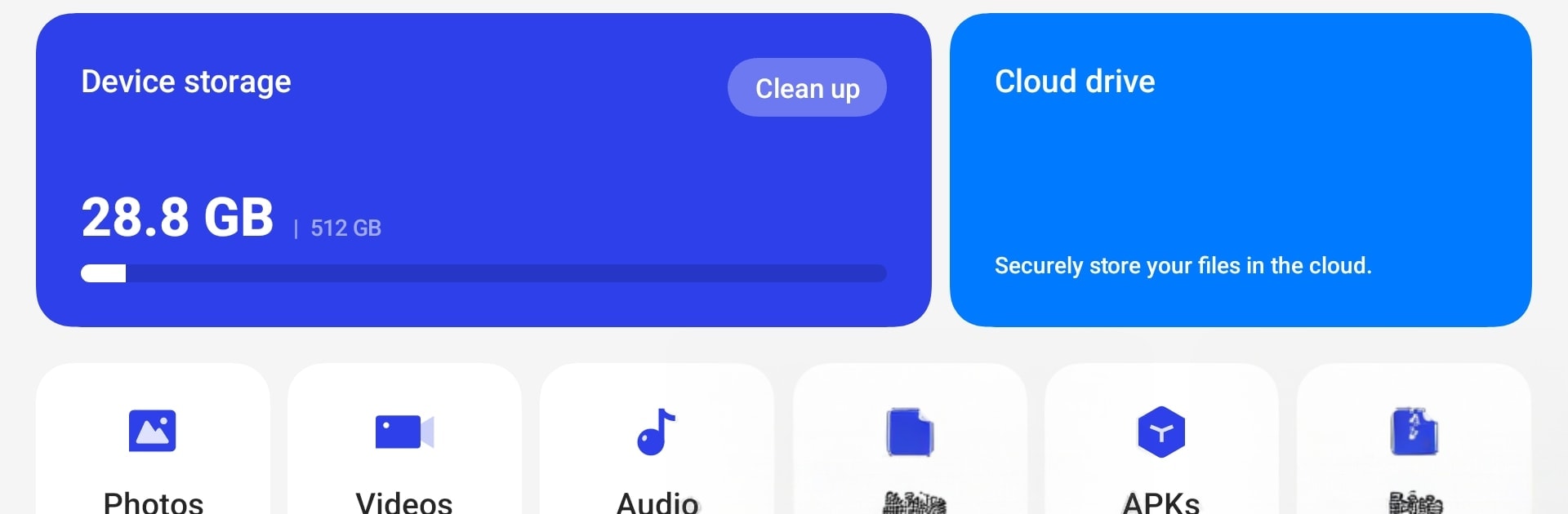
Put your images, audio, videos, APKs, documents and archives into different categories that are easy to find with the My Files app. It doesn’t matter where you want to protect sensitive files or even random media on your phone — My Files offers something exciting to every user.
About App
My Files is designed to help you organize and manage your files in one place. This way, you can just browse through to find any file. The app also lets you filter your search according to the date, category, source, type, or file format to get what you want faster.
However, there are several other additional features on the My Files app. You can use the app to free up storage on your device and compress files for a more efficient sharing. The app allows you to back up your files for easy recovery whenever you want to.
App Features
- Responsive user interface
- Smart categorization
- Intuitive filters
How to Get?
Download My Files for free from the Google Play Store using the BlueStacks app player.