My Navigo Tickets
My Navigo Tickets

My Navigo Tickets

Tools

| Île-de-France Mobilités

Play on PC with BlueStacks or from our cloud

  • Overview
  • How to Download

Page Modified On: September 12, 2025

Run My Navigo Tickets on PC or Mac

Multitask effortlessly on your PC or Mac as you try out My Navigo Tickets, a Tools app by Île-de-France Mobilités on BlueStacks.

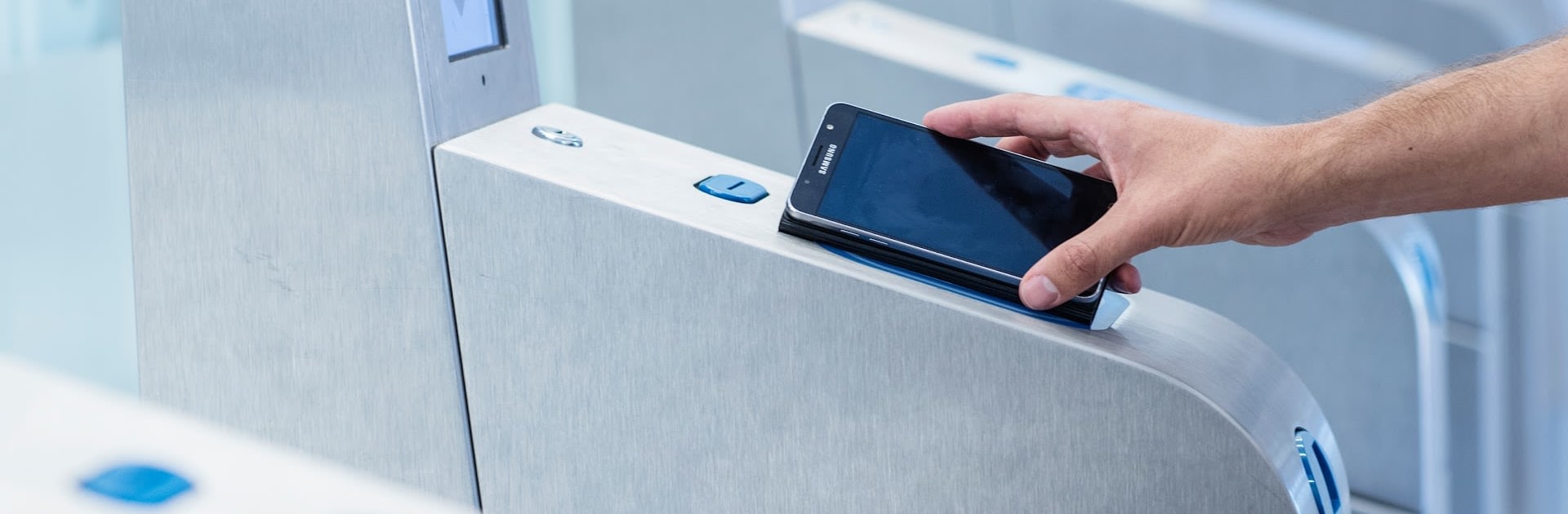
My Navigo Tickets feels like a simple add-on that turns a regular Navigo card into a digital one on a phone. It does not try to be a full transit app. It plugs into the main transit app, and without that installed it will not go very far. The whole idea is straightforward. Load tickets onto the phone, then tap the phone on the contactless readers at train gates, buses, or trams. The app keeps things minimal on purpose, more utility than flash, which makes sense for something that is used at a turnstile when hands are full.

On a PC with BlueStacks, it is useful for poking around the layout and seeing how the ticket loading flow is organized, but the important part still needs a real NFC Android phone on Android 8.0 or higher. Validation happens by touching the phone to the reader, and a laptop will not do that. It is worth noting that uninstalling or clearing the app will erase stored tickets, so anyone who likes to factory reset or swap devices a lot should be careful. It is one of those tools that does one job and mostly stays out of the way. Open it, see the tickets, load through the main app, done. No fluff, no weird menus, just get on with the commute.

Ready to experience My Navigo Tickets on a bigger screen, in all its glory? Download BlueStacks now.

How to Download and Run My Navigo Tickets on PC or Mac

  • Download and install BlueStacks on your PC or Mac

  • Complete Google sign-in to access the Play Store, or do it later

  • Look for My Navigo Tickets in the search bar at the top right corner

  • Click to install My Navigo Tickets from the search results

  • Complete Google sign-in (if you skipped step 2) to install My Navigo Tickets

  • Click the My Navigo Tickets icon on the home screen to start playing

video
Watch Video

Minimum System Requirements

With BlueStacks 5, you can get started on a PC that fulfills the following requirements.

  • Operating System

    Microsoft Windows 7 or above, macOS 11 (Big Sur) or above

  • Processor

    Intel, AMD or Apple Silicon Processor

  • RAM

    at least 4GB

  • HDD

    10GB Free Disk Space

Note:

* You must be an Administrator on your PC. Up to date graphics drivers from Microsoft or the chipset vendor.

My Navigo Tickets - FAQs

  • How to Run My Navigo Tickets on Windows PC & Mac?

    Run My Navigo Tickets on your PC or Mac by following these simple steps.

    • Click on ‘Download My Navigo Tickets on PC’ to download BlueStacks
    • Install it and log-in to Google Play Store
    • Launch and run the app.
  • Why is BlueStacks the fastest and safest platform to play games on PC?

    BlueStacks respects your privacy and is always safe and secure to use. It does not carry any malware, spyware, or any sort of additional software that could harm your PC.

    It is engineered to optimize speed and performance for a seamless gaming experience.

  • What are My Navigo Tickets PC requirements?

    Minimum requirement to run My Navigo Tickets on your PC

    • OS: Microsoft Windows 7 and above:
    • Processor: Intel or AMD Processor:
    • RAM: Your PC must have at least 2GB of RAM. (Note that having 2GB or more disk space is not a substitute for RAM):
    • HDD: 5GB Free Disk Space.
    • You must be an Administrator on your PC.