Nepali Keyboard
Nepali Keyboard

Nepali Keyboard

Tools

| Desh Global

Play on PC with BlueStacks or from our cloud

  • Overview
  • How to Download

Page Modified On: December 15, 2025

Run Nepali Keyboard on PC or Mac

Upgrade your experience. Try Nepali Keyboard, the fantastic Tools app from Desh Global, from the comfort of your laptop, PC, or Mac, only on BlueStacks.

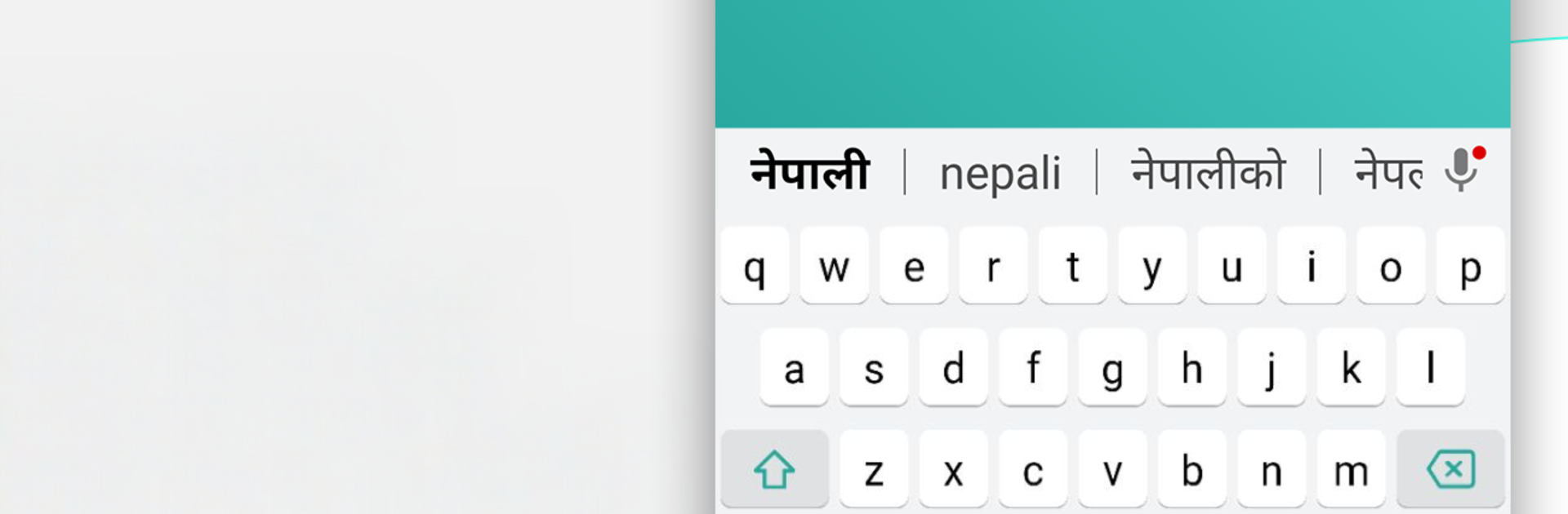
Nepali Keyboard is one of those tools that just makes typing in Nepali feel easy. It uses phonetic transliteration, so someone types words in English letters like namaste or sanchai and it suggests the Nepali versions instantly. The suggestions show up inside any app, so there is no copy paste shuffle. Switching between Nepali and English is a single button, and it can be turned off when not needed. The layout is clean, with 21 plus color themes to pick from if they want the keyboard to match the mood. Emojis are tucked under the 123 key, press and hold to get three pages of them, which is simple and quick.

Setup is straightforward. Enable it, set as default, choose a theme, done. It even has an app search built into the keyboard, so opening installed apps without leaving the screen is handy. On PC with BlueStacks, the whole thing feels faster because a full keyboard pairs nicely with the predictive Nepali suggestions, great for chatting with family or posting on social apps. It is not overloaded with features, just focused on getting Nepali text out fast. Offline support is mentioned as coming soon, so at the moment it mostly leans on being online. The app also states that it does not collect personal info, only anonymous stats, which is reassuring.

Eager to take your app experience to the next level? Start right away by downloading BlueStacks on your PC or Mac.


How to Download and Run Nepali Keyboard on PC or Mac

  • Download and install BlueStacks on your PC or Mac

  • Complete Google sign-in to access the Play Store, or do it later

  • Look for Nepali Keyboard in the search bar at the top right corner

  • Click to install Nepali Keyboard from the search results

  • Complete Google sign-in (if you skipped step 2) to install Nepali Keyboard

  • Click the Nepali Keyboard icon on the home screen to start playing

video
Watch Video

Minimum System Requirements

With BlueStacks 5, you can get started on a PC that fulfills the following requirements.

  • Operating System

    Microsoft Windows 7 or above, macOS 11 (Big Sur) or above

  • Processor

    Intel, AMD or Apple Silicon Processor

  • RAM

    at least 4GB

  • HDD

    10GB Free Disk Space

Note:

* You must be an Administrator on your PC. Up to date graphics drivers from Microsoft or the chipset vendor.

Nepali Keyboard - FAQs

  • How to Run Nepali Keyboard on Windows PC & Mac?

    Run Nepali Keyboard on your PC or Mac by following these simple steps.

    • Click on ‘Download Nepali Keyboard on PC’ to download BlueStacks
    • Install it and log-in to Google Play Store
    • Launch and run the app.
  • Why is BlueStacks the fastest and safest platform to play games on PC?

    BlueStacks respects your privacy and is always safe and secure to use. It does not carry any malware, spyware, or any sort of additional software that could harm your PC.

    It is engineered to optimize speed and performance for a seamless gaming experience.

  • What are Nepali Keyboard PC requirements?

    Minimum requirement to run Nepali Keyboard on your PC

    • OS: Microsoft Windows 7 and above:
    • Processor: Intel or AMD Processor:
    • RAM: Your PC must have at least 2GB of RAM. (Note that having 2GB or more disk space is not a substitute for RAM):
    • HDD: 5GB Free Disk Space.
    • You must be an Administrator on your PC.