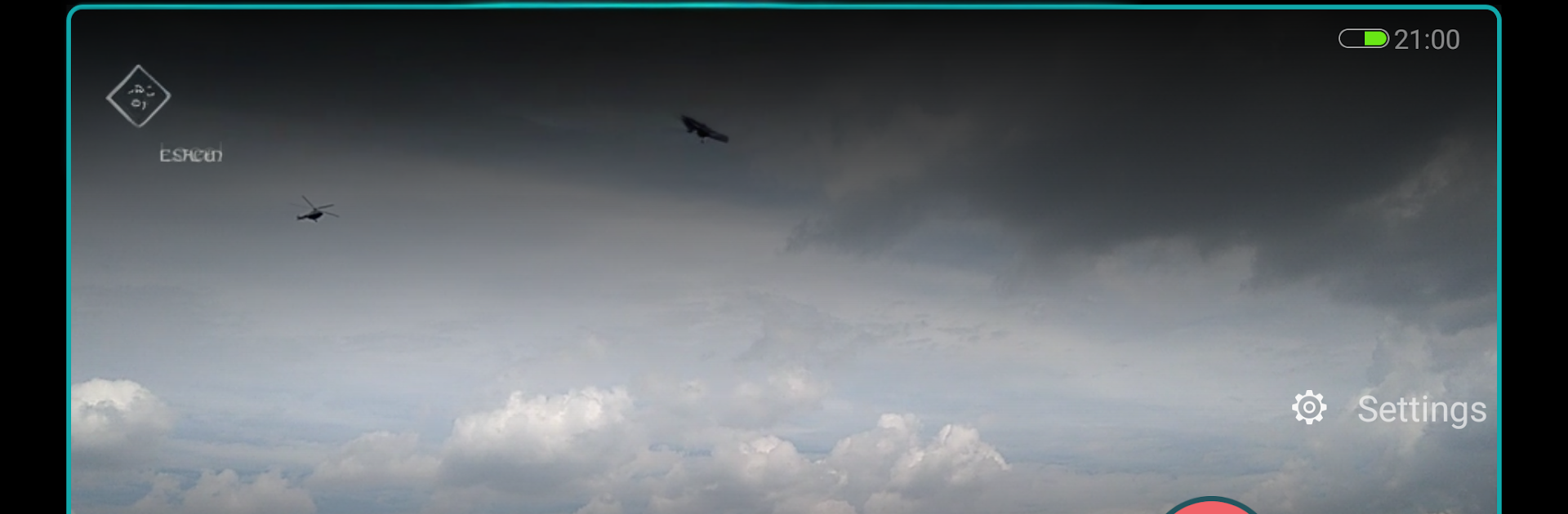
Partial Screen
Partial Screen

Partial Screen

Tools

| Andrii Ichenets

Play on PC with BlueStacks or from our cloud

  • Overview
  • How to Download

Page Modified On: November 10, 2025

Run Partial Screen on PC or Mac

Upgrade your experience. Try Partial Screen, the fantastic Tools app from Andrii Ichenets, from the comfort of your laptop, PC, or Mac, only on BlueStacks.

About the App

Partial Screen is a smart, no-fuss way to keep using a phone or tablet with a broken or damaged display. If your touchscreen keeps firing off random taps or ghost touch events, this Tools app by Andrii Ichenets helps you calm the chaos and get control back. It works like a precise touch blocker, letting you mark problem zones so the rest of your screen feels normal again.

App Features

  • Auto Zone Scan: Run a quick analysis that intercepts touch input for a moment to spot where clicks and presses randomly appear—hands off while it scans—and it’ll create no‑touch regions for you.
  • Manual Regions: Prefer to do it yourself? Add a region by hand, move it, resize it, and place it exactly over the flaky spot on your touch screen.
  • Touch Detector: Visualize where ghost touch activity happens in real time to pinpoint areas that need blocking.
  • Area Manager: Toggle areas on or off, change color, reposition, resize, or remove them whenever you like. Subscribers can also tweak transparency and manage more regions at once.
  • Bubble Lock: Keep a tiny floating indicator on screen; double‑tap it to quickly block screen input everywhere, then unfreeze when you’re ready.
  • Rounded Corners: Add clean, rounded edges with your chosen color and radius. Round corners sit on top of everything for a neat look.
  • Reliable Overlay: Your no‑touch zones sit above apps and games, helping prevent accidental touches while you text, browse, or play.
  • Startup & Preload: Optionally auto start the service and reload saved layouts so your “touch disabler” setup is always ready. Works great on mobile—and it’s easy to try on BlueStacks, too.

Big screen. Bigger performance. Use BlueStacks on your PC or Mac to run your favorite apps.

How to Download and Run Partial Screen on PC or Mac

  • Download and install BlueStacks on your PC or Mac

  • Complete Google sign-in to access the Play Store, or do it later

  • Look for Partial Screen in the search bar at the top right corner

  • Click to install Partial Screen from the search results

  • Complete Google sign-in (if you skipped step 2) to install Partial Screen

  • Click the Partial Screen icon on the home screen to start playing

video
Watch Video

Minimum System Requirements

With BlueStacks 5, you can get started on a PC that fulfills the following requirements.

  • Operating System

    Microsoft Windows 7 or above, macOS 11 (Big Sur) or above

  • Processor

    Intel, AMD or Apple Silicon Processor

  • RAM

    at least 4GB

  • HDD

    10GB Free Disk Space

Note:

* You must be an Administrator on your PC. Up to date graphics drivers from Microsoft or the chipset vendor.

Partial Screen - FAQs

  • How to Run Partial Screen on Windows PC & Mac?

    Run Partial Screen on your PC or Mac by following these simple steps.

    • Click on ‘Download Partial Screen on PC’ to download BlueStacks
    • Install it and log-in to Google Play Store
    • Launch and run the app.
  • Why is BlueStacks the fastest and safest platform to play games on PC?

    BlueStacks respects your privacy and is always safe and secure to use. It does not carry any malware, spyware, or any sort of additional software that could harm your PC.

    It is engineered to optimize speed and performance for a seamless gaming experience.

  • What are Partial Screen PC requirements?

    Minimum requirement to run Partial Screen on your PC

    • OS: Microsoft Windows 7 and above:
    • Processor: Intel or AMD Processor:
    • RAM: Your PC must have at least 2GB of RAM. (Note that having 2GB or more disk space is not a substitute for RAM):
    • HDD: 5GB Free Disk Space.
    • You must be an Administrator on your PC.