RemoteView for Android

RemoteView for Android

Tools

| RSUPPORT Co., Ltd.

Play on PC with BlueStacks or from our cloud

  • Overview
  • How to Download

Page Modified On: November 10, 2025

Run RemoteView for Android on PC or Mac

Upgrade your experience. Try RemoteView for Android, the fantastic Tools app from RSUPPORT Co., Ltd., from the comfort of your laptop, PC, or Mac, only on BlueStacks.

About the App

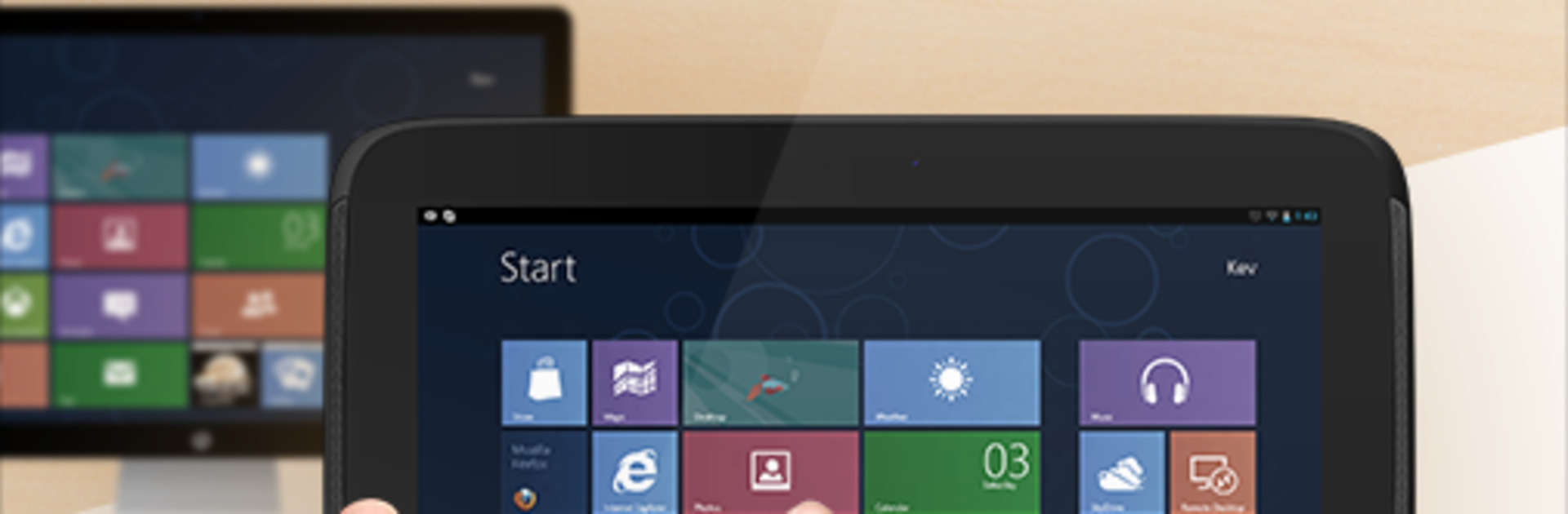
RemoteView for Android lets you hop into your work or home computer right from your phone or tablet—no matter where you are. Open desktop apps, grab files, or handle quick fixes without sitting in front of the PC. Built by RSUPPORT Co., Ltd., this Tools app focuses on fast connections, strong security, and a control experience that actually feels natural on mobile.

App Features

  • Instant remote control: Connect to your PC or server in seconds and work as if you’re sitting there.
  • Strong security built in: Two-step login, AES‑256 encryption, and SSL keep sessions protected from end to end.
  • Two‑way file transfer: Send documents to your desktop or pull them down to your phone—both directions, no fuss.
  • Works across real‑world networks: Reliable access even with dynamic IPs, DHCP, NAT, and tight office firewalls.
  • Desktop‑grade controls on mobile: Use a full mouse and keyboard from your device; pinch‑to‑zoom, scroll, and other multi‑touch gestures are supported. Your PC’s language input methods work too.
  • Multi‑monitor made easy: Switch between displays, view the screen you need, and keep the remote desktop locked when required.
  • Power options at a distance: Wake up or shut down supported machines with RemoteWOL for those after‑hours moments.
  • Virtualization friendly: Connect to machines running on Hyper‑V, VMware, Virtual PC, or Citrix Xen environments.
  • Simple setup: Install the agent on the computer you want to reach, sign in from the app, and you’re in—no complicated network tweaks.
  • For work, home, and IT fleets: Check your office PC from home, pick up files from your home tower at work, manage many assets, or reach locked‑down servers fast.
  • Big‑screen option: Prefer managing from a desktop? You can run RemoteView for Android on BlueStacks for a wider view.

BlueStacks brings your apps to life on a bigger screen—seamless and straightforward.

How to Download and Run RemoteView for Android on PC or Mac

  • Download and install BlueStacks on your PC or Mac

  • Complete Google sign-in to access the Play Store, or do it later

  • Look for RemoteView for Android in the search bar at the top right corner

  • Click to install RemoteView for Android from the search results

  • Complete Google sign-in (if you skipped step 2) to install RemoteView for Android

  • Click the RemoteView for Android icon on the home screen to start playing

video
Watch Video

Minimum System Requirements

With BlueStacks 5, you can get started on a PC that fulfills the following requirements.

  • Operating System

    Microsoft Windows 7 or above, macOS 11 (Big Sur) or above

  • Processor

    Intel, AMD or Apple Silicon Processor

  • RAM

    at least 4GB

  • HDD

    10GB Free Disk Space

Note:

* You must be an Administrator on your PC. Up to date graphics drivers from Microsoft or the chipset vendor.

RemoteView for Android - FAQs

  • How to Run RemoteView for Android on Windows PC & Mac?

    Run RemoteView for Android on your PC or Mac by following these simple steps.

    • Click on ‘Download RemoteView for Android on PC’ to download BlueStacks
    • Install it and log-in to Google Play Store
    • Launch and run the app.
  • Why is BlueStacks the fastest and safest platform to play games on PC?

    BlueStacks respects your privacy and is always safe and secure to use. It does not carry any malware, spyware, or any sort of additional software that could harm your PC.

    It is engineered to optimize speed and performance for a seamless gaming experience.

  • What are RemoteView for Android PC requirements?

    Minimum requirement to run RemoteView for Android on your PC

    • OS: Microsoft Windows 7 and above:
    • Processor: Intel or AMD Processor:
    • RAM: Your PC must have at least 2GB of RAM. (Note that having 2GB or more disk space is not a substitute for RAM):
    • HDD: 5GB Free Disk Space.
    • You must be an Administrator on your PC.