RoboRemo - SPP BLE TCP UDP USB

RoboRemo - SPP BLE TCP UDP USB

Tools

| HARDCODED JOY S.R.L.

Play on PC with BlueStacks or from our cloud

  • Overview
  • How to Download

Page Modified On: September 02, 2025

Run RoboRemo - SPP BLE TCP UDP USB on PC or Mac

What’s better than using RoboRemo – SPP BLE TCP UDP USB by hardcoded joy? Well, try it on a big screen, on your PC or Mac, with BlueStacks to see the difference.

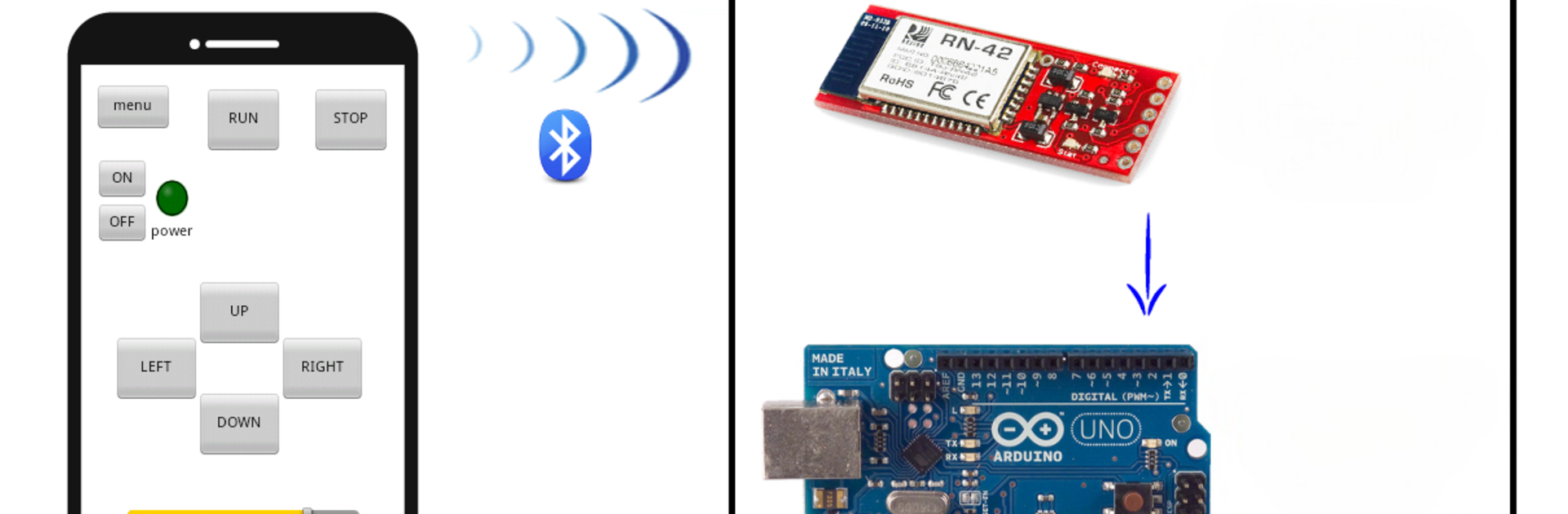
RoboRemo feels like a blank remote control you build yourself for whatever gadget is on the workbench. It connects in almost any way someone would need: classic Bluetooth SPP or BLE, WiFi over TCP or UDP, straight USB, even mobile internet if that is the setup. After choosing the connection, the app lets the user drop in buttons, sliders, toggles, LED indicators, labels, and live plots, then wire those to digital or analog pins or to custom strings. It suits RC cars, small drones, boats, planes, robot arms, or simple home automation stuff. The live graphing makes sensor tuning less guessy, since data shows up in real time.

Boards are not fussy either. It talks to the usual modules like HC-05 and HC-06, BlueSMiRF, CC2540 and CC2541, ESP8266 and ESP32 boards including NodeMCU, ESP12, WROOM, HUZZAH, plus Arduino over USB with FTDI, CP210x, CH340, or CDC drivers, and WiFi shield type gear. Interfaces can be exported and shared to another device, which is handy when a setup moves from phone to tablet or a spare laptop. There is not much hand holding, so it suits tinkerers who like to map commands and pins themselves, but once a layout is made it is very solid. Running it on a PC through BlueStacks gives more space to line up widgets and a keyboard to edit commands faster. No fluff, just a clean toolbox that turns a screen into a control deck.

BlueStacks gives you the much-needed freedom to experience your favorite apps on a bigger screen. Get it now.

How to Download and Run RoboRemo - SPP BLE TCP UDP USB on PC or Mac

  • Download and install BlueStacks on your PC or Mac

  • Complete Google sign-in to access the Play Store, or do it later

  • Look for RoboRemo - SPP BLE TCP UDP USB in the search bar at the top right corner

  • Click to install RoboRemo - SPP BLE TCP UDP USB from the search results

  • Complete Google sign-in (if you skipped step 2) to install RoboRemo - SPP BLE TCP UDP USB

  • Click the RoboRemo - SPP BLE TCP UDP USB icon on the home screen to start playing

video
Watch Video

Minimum System Requirements

With BlueStacks 5, you can get started on a PC that fulfills the following requirements.

  • Operating System

    Microsoft Windows 7 or above, macOS 11 (Big Sur) or above

  • Processor

    Intel, AMD or Apple Silicon Processor

  • RAM

    at least 4GB

  • HDD

    10GB Free Disk Space

Note:

* You must be an Administrator on your PC. Up to date graphics drivers from Microsoft or the chipset vendor.

RoboRemo - SPP BLE TCP UDP USB - FAQs

  • How to Run RoboRemo - SPP BLE TCP UDP USB on Windows PC & Mac?

    Run RoboRemo - SPP BLE TCP UDP USB on your PC or Mac by following these simple steps.

    • Click on ‘Download RoboRemo - SPP BLE TCP UDP USB on PC’ to download BlueStacks
    • Install it and log-in to Google Play Store
    • Launch and run the app.
  • Why is BlueStacks the fastest and safest platform to play games on PC?

    BlueStacks respects your privacy and is always safe and secure to use. It does not carry any malware, spyware, or any sort of additional software that could harm your PC.

    It is engineered to optimize speed and performance for a seamless gaming experience.

  • What are RoboRemo - SPP BLE TCP UDP USB PC requirements?

    Minimum requirement to run RoboRemo - SPP BLE TCP UDP USB on your PC

    • OS: Microsoft Windows 7 and above:
    • Processor: Intel or AMD Processor:
    • RAM: Your PC must have at least 2GB of RAM. (Note that having 2GB or more disk space is not a substitute for RAM):
    • HDD: 5GB Free Disk Space.
    • You must be an Administrator on your PC.