WifiLink: Share WiFi

WifiLink: Share WiFi

Tools

| Tokyobay K.K.

Play on PC with BlueStacks or from our cloud

  • Overview
  • How to Download

Page Modified On: January 09, 2026

Run WifiLink: Share WiFi on PC or Mac

Why limit yourself to your small screen on the phone? Run WifiLink: Share WiFi, an app by Tokyobay K.K., best experienced on your PC or Mac with BlueStacks, the world’s #1 Android emulator.

About the App

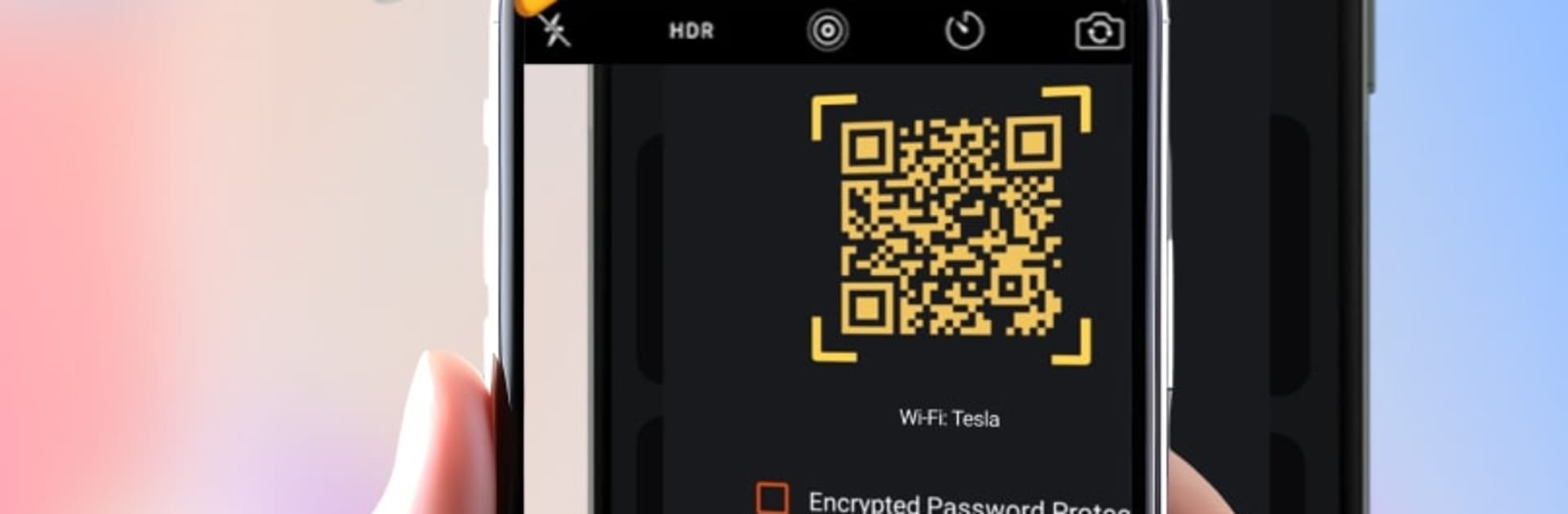
Need to let friends or customers hop on your Internet without handing over your password? WifiLink: Share WiFi turns that “What’s the Wi‑Fi?” moment into a quick scan-and-connect. Made by Tokyobay K.K. (Tools), it generates a secure QR that people scan in the app to join your Wi‑Fi or hotspot—and if you like a bigger screen, it also runs nicely on BlueStacks.

App Features

  • Encrypted QR sharing: Show a QR and let people connect without ever seeing your password. The code is encrypted and only this app can read it—third‑party scanners won’t reveal anything.

  • One-time setup: Enter your Wi‑Fi or hotspot password once, and you’re set. After that, sharing your connection is as simple as opening the app and showing the code.

  • Group connect, no hassle: Got a crowd? Share within about 100 meters. Guests can scan the QR or tap the in‑app invite card to join. They’ll need mobile data or an existing connection to receive the invite.

  • Built for homes and businesses: Perfect for coffee shops, restaurants, offices, salons—anywhere people ask for Wi‑Fi. Post a code at the counter or near the entrance and you’re done.

  • Save or print QR labels: Keep a digital copy or print a clean label for your front desk, lobby, Airbnb, or living room so guests can connect on their own.

  • Speed test on tap: Check your current connection speed right inside the app—no switching apps or extra steps.

Ready to experience WifiLink: Share WiFi on a bigger screen, in all its glory? Download BlueStacks now.


How to Download and Run WifiLink: Share WiFi on PC or Mac

  • Download and install BlueStacks on your PC or Mac

  • Complete Google sign-in to access the Play Store, or do it later

  • Look for WifiLink: Share WiFi in the search bar at the top right corner

  • Click to install WifiLink: Share WiFi from the search results

  • Complete Google sign-in (if you skipped step 2) to install WifiLink: Share WiFi

  • Click the WifiLink: Share WiFi icon on the home screen to start playing

video
Watch Video

Minimum System Requirements

With BlueStacks 5, you can get started on a PC that fulfills the following requirements.

  • Operating System

    Microsoft Windows 7 or above, macOS 11 (Big Sur) or above

  • Processor

    Intel, AMD or Apple Silicon Processor

  • RAM

    at least 4GB

  • HDD

    10GB Free Disk Space

Note:

* You must be an Administrator on your PC. Up to date graphics drivers from Microsoft or the chipset vendor.

WifiLink: Share WiFi - FAQs

  • How to Run WifiLink: Share WiFi on Windows PC & Mac?

    Run WifiLink: Share WiFi on your PC or Mac by following these simple steps.

    • Click on ‘Download WifiLink: Share WiFi on PC’ to download BlueStacks
    • Install it and log-in to Google Play Store
    • Launch and run the app.
  • Why is BlueStacks the fastest and safest platform to play games on PC?

    BlueStacks respects your privacy and is always safe and secure to use. It does not carry any malware, spyware, or any sort of additional software that could harm your PC.

    It is engineered to optimize speed and performance for a seamless gaming experience.

  • What are WifiLink: Share WiFi PC requirements?

    Minimum requirement to run WifiLink: Share WiFi on your PC

    • OS: Microsoft Windows 7 and above:
    • Processor: Intel or AMD Processor:
    • RAM: Your PC must have at least 2GB of RAM. (Note that having 2GB or more disk space is not a substitute for RAM):
    • HDD: 5GB Free Disk Space.
    • You must be an Administrator on your PC.