Crossword Challenge
Crossword Challenge

Crossword Challenge

Word

| NOCTURNAL

Play on PC with BlueStacks or from our cloud

  • Overview
  • Game Features
  • How to Play

Page Modified On: July 27, 2026

Play Crossword Challenge on PC or Mac

Step into the World of Crossword Challenge, a thrilling Word game from the house of NOCTURNAL. Play this Android game on BlueStacks App Player and experience immersive gaming on PC or Mac.

About the Game

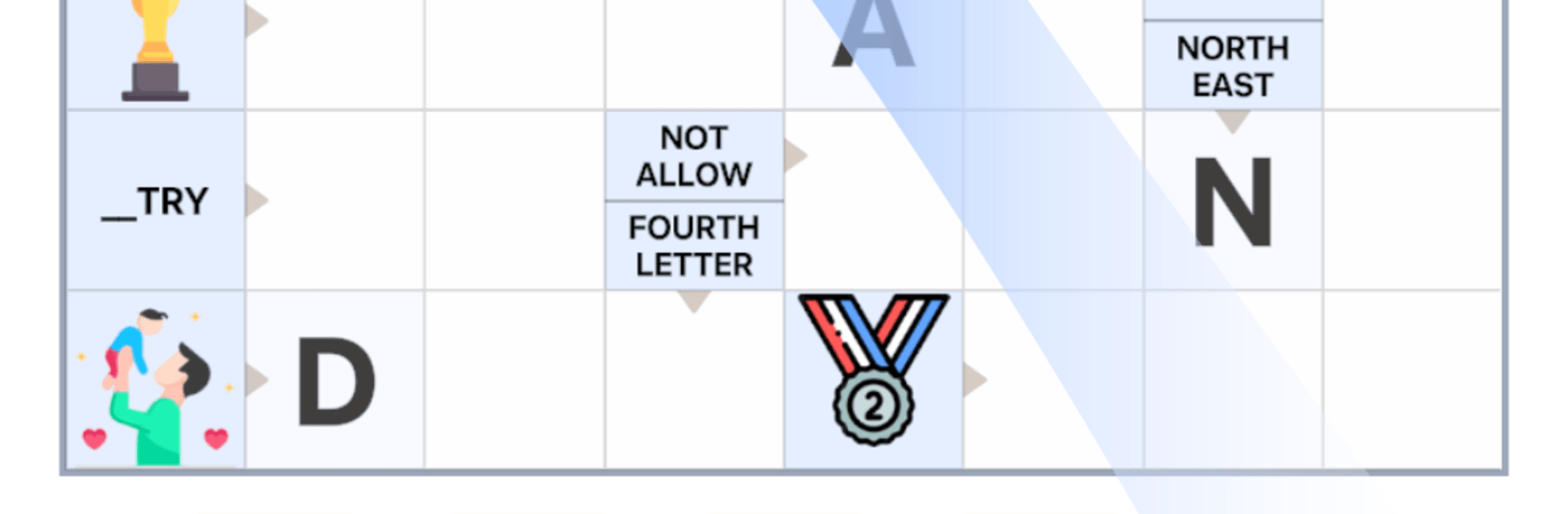
Crossword Challenge blends classic crosswords with playful picture clues for a brain-boosting break that actually feels relaxing. It’s easy to pick up, satisfying to crack, and great for anyone who loves Word puzzles—whether you’re chasing a streak or just filling a quiet moment. Want a quick mini or a longer think? You’ll find both, without pressure.

Game Features

  • Picture Clues: Solve words with visual hints that add a fun twist to the usual across-and-down routine.
  • Daily Minis & City Badges: Knock out bite-sized puzzles and earn collectible city badges. Quick, neat, and surprisingly addictive.
  • Weekly Tournaments: Compete on global leaderboards each week and see how your solving speed stacks up against other fans.
  • No Timers, No Rush: Take your time. Think, sip coffee, come back later—there’s zero countdown stress here.
  • Helpful Hints: Stuck on a square or two? Nudge your way forward without spoiling the whole grid.
  • Comfy Dark Mode: Solve comfortably day or night with a sleek look that’s gentle on the eyes.
  • Auto-Save Progress: Close the app mid-puzzle and pick up right where you left off—no lost streaks, no lost words.
  • Clean, Modern Feel: Smooth controls and crisp visuals keep the focus on the fun part: the solve.
  • BlueStacks Friendly: Prefer a bigger screen and keyboard typing? It plays nicely on BlueStacks for a cozy desk setup.

Start your journey now. Download the game on BlueStacks, invite your friends, and march on a new adventure.
Game Features

Enhancements

  • Macros
  • Multi Instance
  • Multi Instance Sync
  • Script
  • Enhancements
Macros

Macros

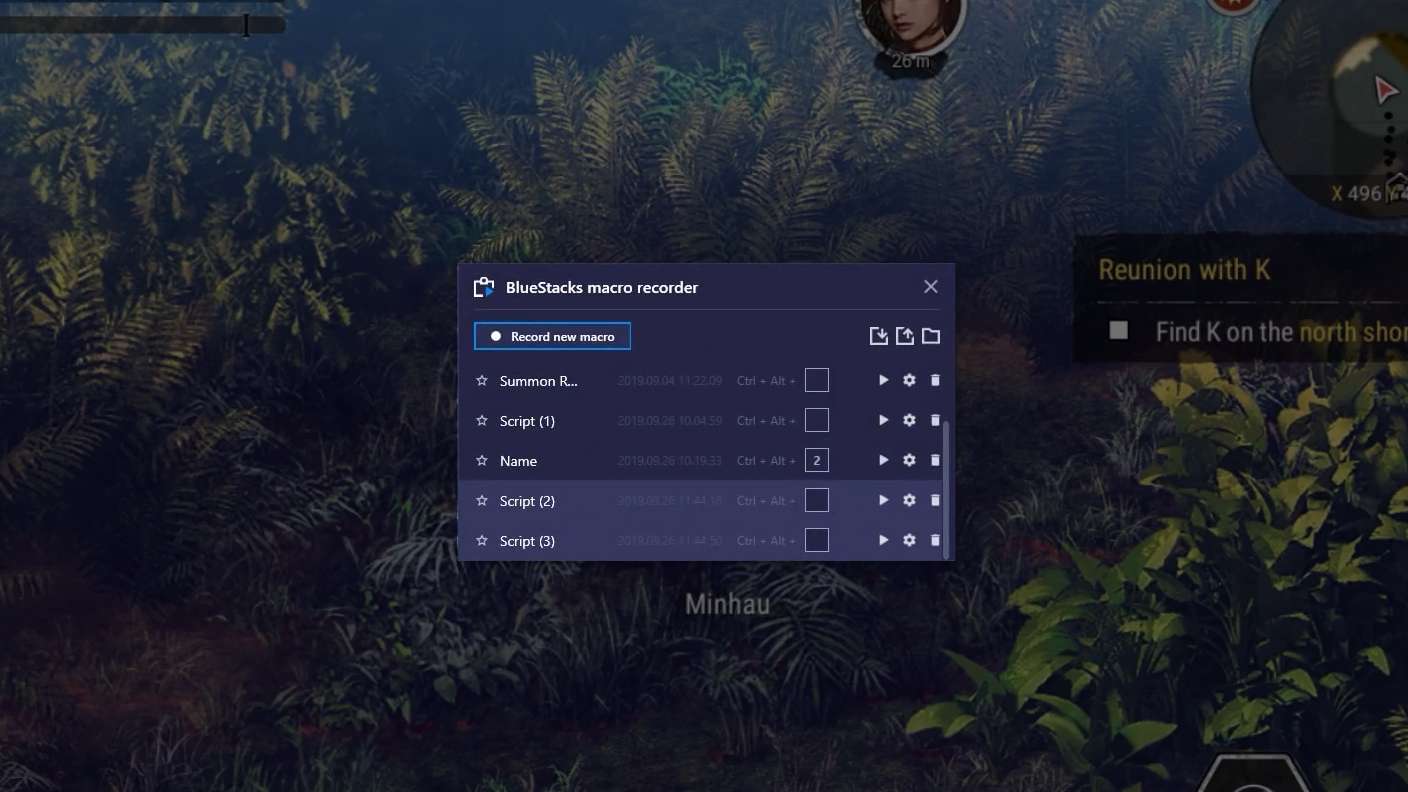
Automate the predictable in Crossword Challenge and transform your gameplay with Macros. Get access to inventive Macros in the BlueStacks Macro Community
Multi Instance

Multi Instance

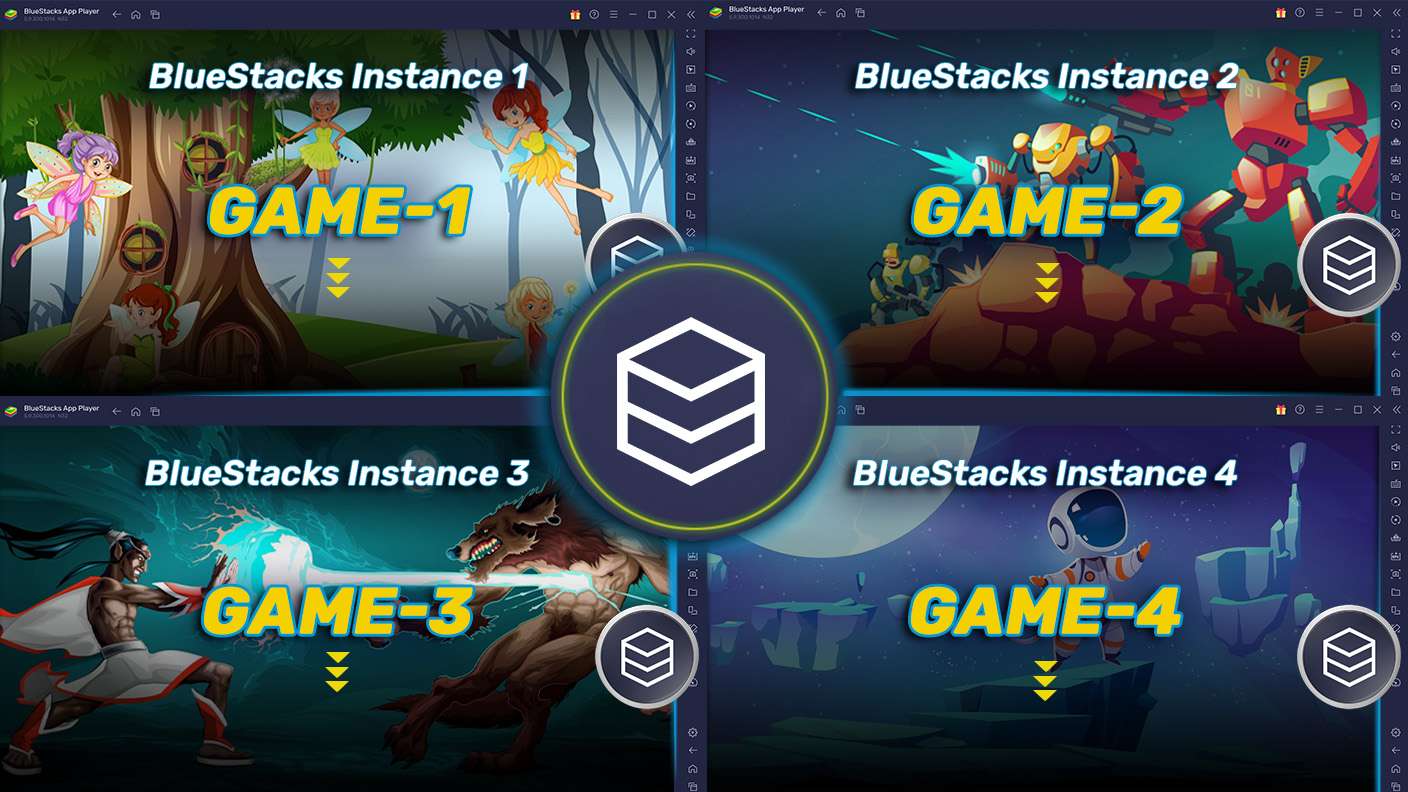
Play Crossword Challenge on one window. And chat with your friend on the other. Press CTRL + Shift + 8 to open the Multi-Instance Manager. And start creating fresh instances or clone an existing one.
Multi Instance Sync

Multi Instance Sync

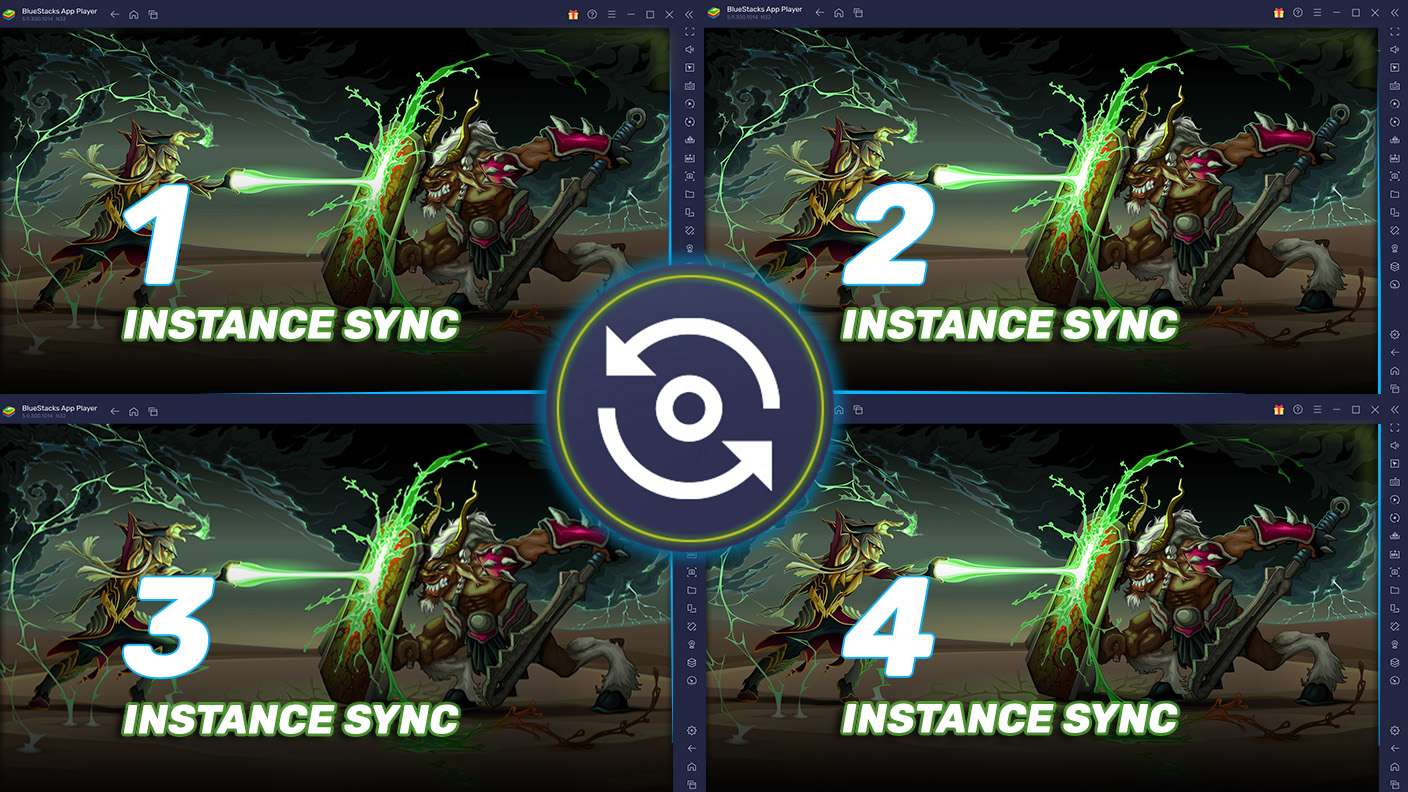
Play Crossword Challenge with the power of Multi-Instance Sync. Replicate what you are doing on the main instance on all other instances. Level up faster, play more.
Script

Script

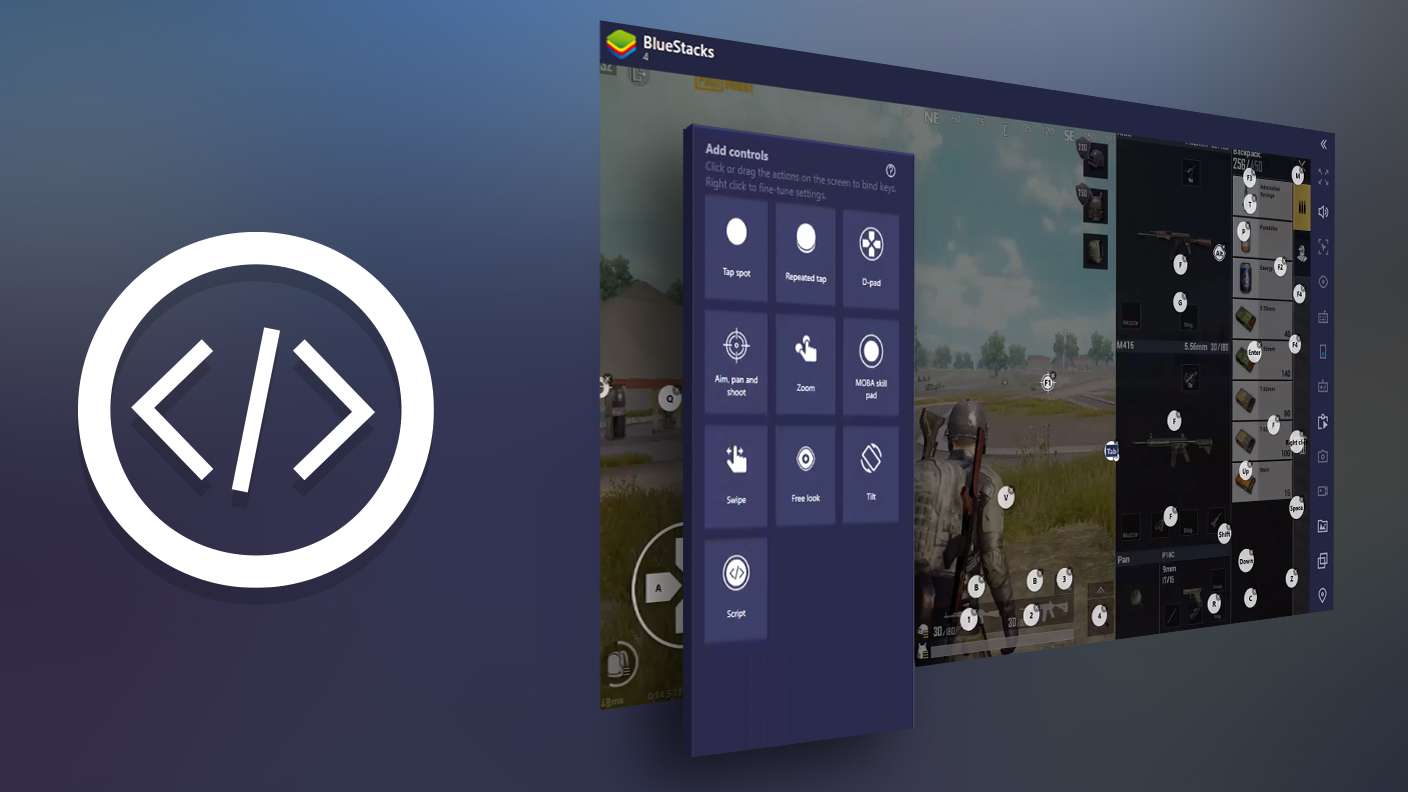
Script your way to gaming glory in Crossword Challenge with BlueStacks Script. Write and run a set of commands to automate repeated tasks. Trigger the command by assigning it to any key.
Read More

How to Download and Play Crossword Challenge on PC or Mac

  • Download and install BlueStacks on your PC or Mac

  • Complete Google sign-in to access the Play Store, or do it later

  • Look for Crossword Challenge in the search bar at the top right corner

  • Click to install Crossword Challenge from the search results

  • Complete Google sign-in (if you skipped step 2) to install Crossword Challenge

  • Click the Crossword Challenge icon on the home screen to start playing

video
Watch Video

Minimum System Requirements

With BlueStacks 5, you can get started on a PC that fulfills the following requirements.

  • Operating System

    Microsoft Windows 7 or above, macOS 11 (Big Sur) or above

  • Processor

    Intel, AMD or Apple Silicon Processor

  • RAM

    at least 4GB

  • HDD

    10GB Free Disk Space

Note:

* You must be an Administrator on your PC. Up to date graphics drivers from Microsoft or the chipset vendor.

Crossword Challenge - FAQs

  • How to play Crossword Challenge on Windows PC & Mac?

    Play Crossword Challenge on your PC or Mac by following these simple steps.

    • Click on 'Play Crossword Challenge on PC’ to download BlueStacks
    • Install it and log-in to Google Play Store
    • Launch and play the game.
  • Why is BlueStacks the fastest and safest platform to play games on PC?

    BlueStacks respects your privacy and is always safe and secure to use. It does not carry any malware, spyware, or any sort of additional software that could harm your PC.

    It is engineered to optimize speed and performance for a seamless gaming experience.

  • What are Crossword Challenge PC requirements?

    Minimum requirement to run Crossword Challenge on your PC

    • OS: Microsoft Windows 7 or above MacOS 11 (Big Sur) or above
    • Processor: Intel, AMD or Apple Silicon Processor
    • RAM: Your PC must have at least 4GB of RAM. (Note that having 4GB or more disk space is not a substitute for RAM)
    • HDD: 10GB Free Disk Space.
    • You must be an Administrator on your PC.