BlueStacks Desktop vs Other Android Emulators: 5 Differences That Matter
For years, running Android on a PC has meant the same thing: a phone screen trapped in a window, one app at a time, on an Android version a few years behind your actual phone.
BlueStacks Desktop breaks that model. Powered by Android 16, it turns your PC into a full Android desktop where every app gets its own window, they all run side by side, and your AI agent can use them right alongside you. It isn’t a better emulator. It’s a different category.
BlueStacks 16 is available through BlueStacks Desktop: one download gives you the Android 16 desktop for apps and agents, plus the gaming experience built on the same foundation.
Five ways BlueStacks Desktop is different
1. The newest Android, today
Most emulators on the market still run Android versions several years old. BlueStacks Desktop is powered by Android 16 (API level 36), the version Google Play now requires new apps and updates to target. That means apps behave on your PC the way they’re built to behave on the latest phones and tablets, and developers can test against the Android their users are moving to.
2. Multi-instance, reimagined: every app in its own window
Typical emulators show one app at a time inside a phone-shaped frame. Want a second app on screen? You launch a second emulator, with its own memory, its own setup and its own sign-in. BlueStacks Desktop runs many apps inside one Android, each in its own resizable window, just like programs on Windows. Snap a chat app next to a maps app next to your shopping list, and they all stay live.
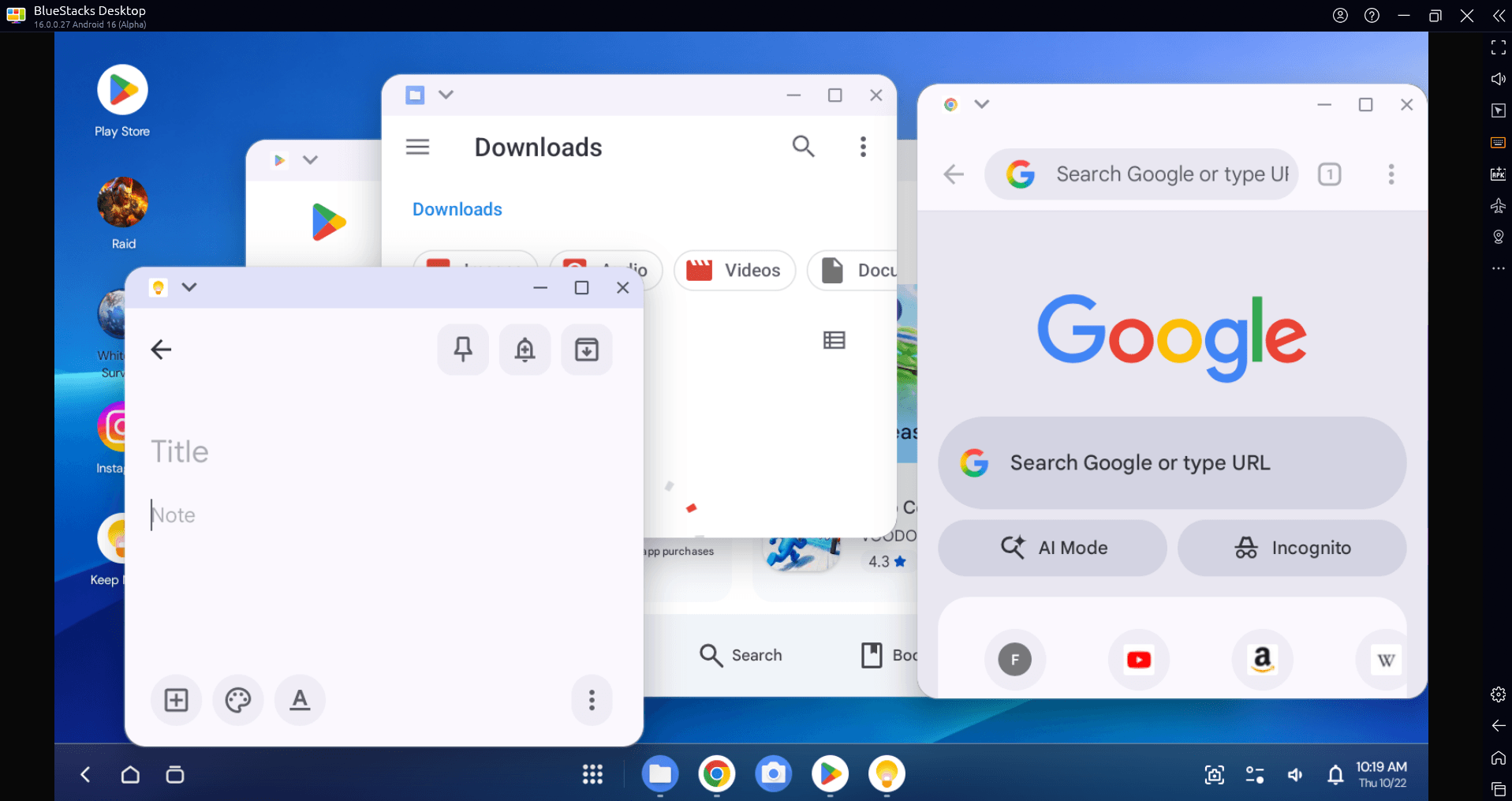
And it’s lighter on your PC. Multi-instance setups load a full copy of Android for every extra app, so each one adds to your RAM bill. BlueStacks Desktop doesn’t create another instance at all. One Android environment does the work of many: a new app is just a new window, so your PC uses less RAM and fewer background processes compete for resources.
3. A real desktop, not a phone in a box
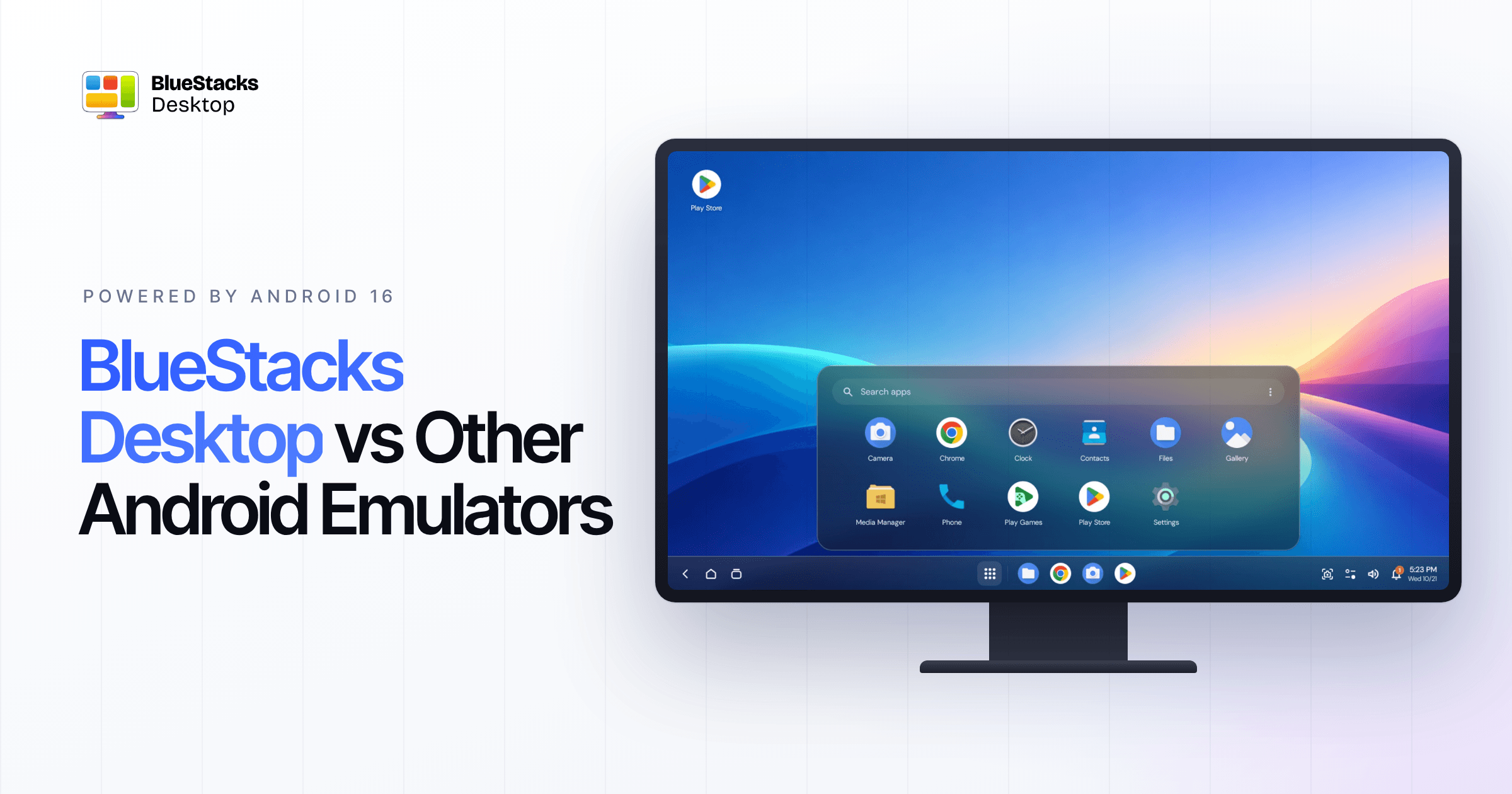
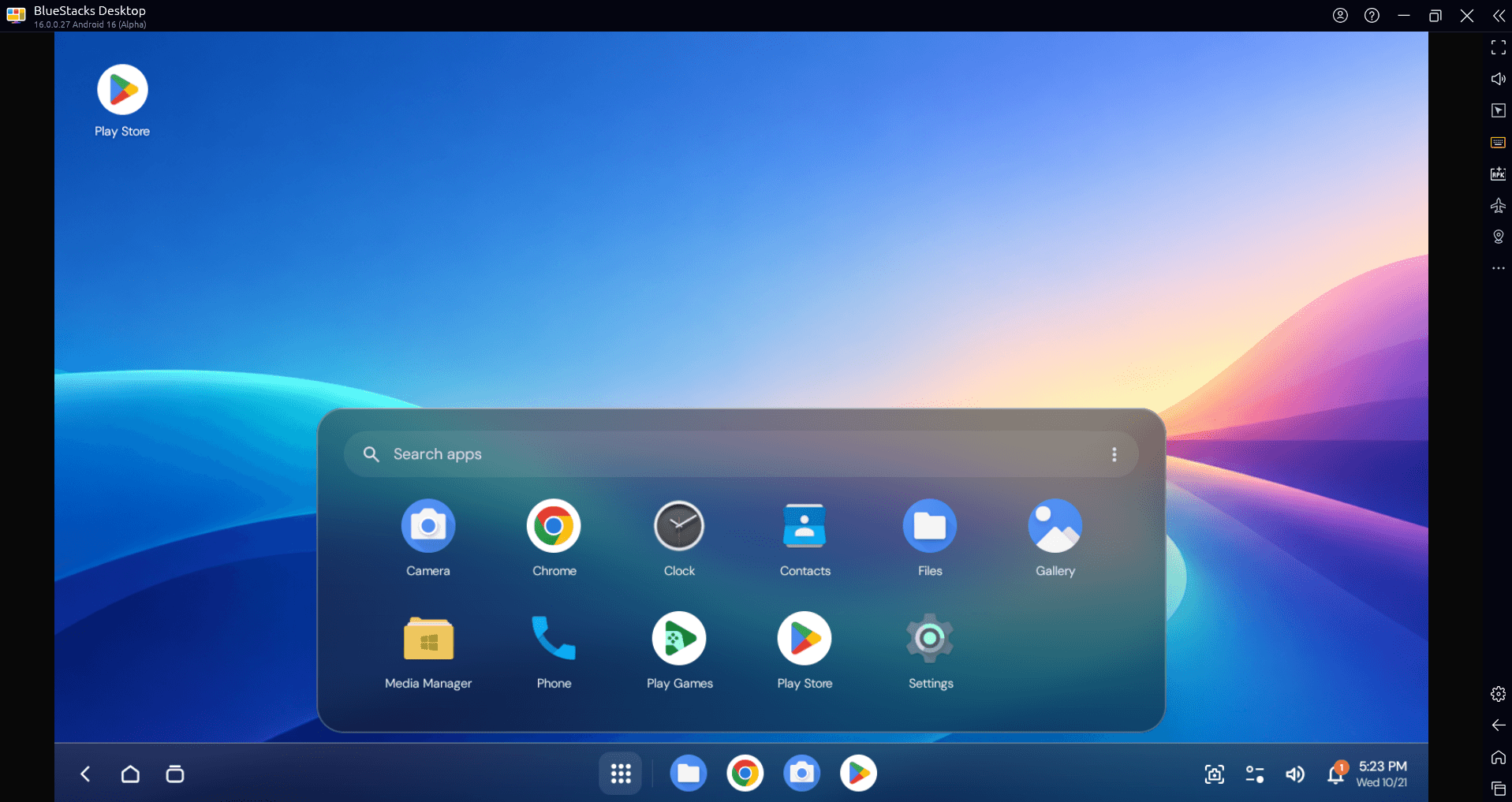
Open BlueStacks Desktop and you land on a home screen with an app drawer, a taskbar with pinned apps and notifications, and windows you can minimise, maximise and arrange. Full keyboard and mouse support makes typing, copying and clicking feel natural. Google Play, Chrome and Play Games are built in.
4. Built for AI agents
This is where BlueStacks Desktop stands alone. AI agents such as Claude and Codex can work inside it: open apps, tap, type, scroll, switch windows and report back. It brings three things agents need into one place: a browser, files and Android apps, including the everyday apps that have no website or API. You bring the agent; BlueStacks Desktop gives it an Android computer to work on.
5. Pro tools one click away
A sidebar puts real device controls at your fingertips: set a location, toggle airplane mode, go fullscreen, rotate, install an APK or free up memory. Developers can switch on ADB in Settings to install builds, read logs and automate tests. Gamers get the full BlueStacks gaming toolkit, like game controls, plus high refresh rates up to 120Hz in supported games and Smart App Archiving to free up space without losing progress.
BlueStacks Desktop vs typical Android emulators
| Typical Android emulators | BlueStacks Desktop | |
|---|---|---|
| Android version | Usually Android 9 to 15 | Android 16 |
| Apps on screen | One app per emulator window | Many apps, each in its own resizable window |
| Running more apps | Launch another full emulator instance for each extra app, adding RAM every time | Open another window in the same Android, no new instance, less RAM |
| Interface | A phone or tablet screen in a frame | A full desktop: home screen, app drawer, taskbar, notifications |
| Primary purpose | Mobile gaming | Work, multitasking, AI agents and gaming |
| AI agent support | Not designed for agents | Built for agents like Claude and Codex |
| Browser, files and apps together | Separate tools | One environment |
| Device controls | A toolbar with basics like volume, screenshots and APK install | Location, airplane mode, fullscreen, rotate, APK install, memory cleanup in one sidebar |
| Developer access | ADB access, but on older Android versions | ADB for builds, logs and automation |
| Gaming extras | Key mapping, macros and high-FPS modes | Full gaming toolkit (key mapping, high FPS), plus up to 120Hz, Smart App Archiving and multiple games side by side in one instance |
The pattern is clear: a typical emulator imitates a phone. BlueStacks Desktop gives Android the computer it always deserved.
Who it’s for
- Professionals who rely on mobile-only apps and want them on a big screen, side by side, with a real keyboard and mouse.
- Product and UX teams who benchmark their app against competitors on one screen instead of a desk full of phones.
- Developers and QA teams who need Android 16 on their PC to test, debug and automate.
- AI-first teams who want their agents to get real work done inside Android apps.
- Gamers who want the newest Android, smoother frame rates and multiple games open at once.
Get it today
BlueStacks Desktop is free to download for Windows, with Mac on the way. All you need is a PC with 12 GB of RAM or more. Download BlueStacks Desktop and see what Android on a real desktop feels like.
Here to play? Get BlueStacks 16, the same Android 16 engine tuned for gaming.