BlueStacks vs Google Play Games on PC: Which one should you use?
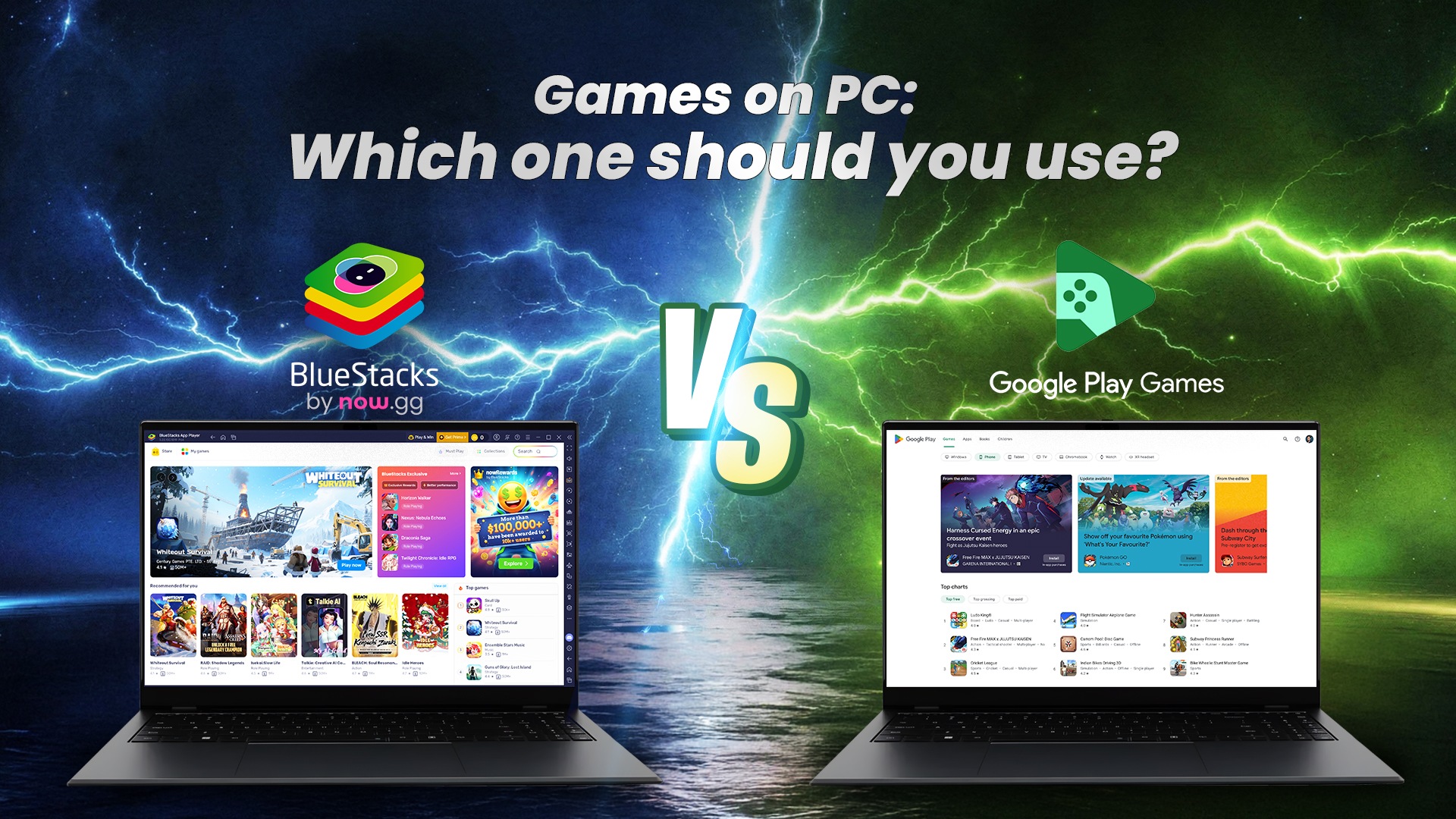

If you’re looking to play Android games on PC, BlueStacks is built to give you the complete experience: more games, more control, and smoother gameplay with the settings you actually need. At the same time, Google Play Games on PC is Google’s official Windows app that focuses on a supported catalog of games.
In this blog, we’ll break down the real differences—setup, game support, controls, and performance—based on what XDA highlighted in their comparison.
The real difference
- BlueStacks gives you a full Android gaming setup on PC—broad compatibility and deep customization.
- Google Play Games on PC is a curated experience that works best when your game is officially supported.
| Features | BlueStacks | Google Play Games on PC |
|---|---|---|
| Game Library | Wide range of Android games; not limited to an approved list | Limited to officially supported catalog |
| Compatibility | Broad compatibility across game types (RPGs, strategy, shooters, gacha, etc.) | Works best with supported titles only |
| Setup | Quick install, easy sign-in, accessible performance settings | Simple for supported titles; restrictive beyond that |
| Controls | Keyboard, mouse, and controller support with customizable keymapping | PC input support for supported titles; less customization |
| Control Customization | Deep per-game control customization, adjustable aim settings | Limited control customization |
| Performance Settings | Full control: resolution, CPU/RAM allocation, per-game tuning | More locked down; optimized mainly for supported titles |
| Best For | Playing multiple Android games with performance control | When your specific game is in the supported catalog |
| Ad-Free Option | BlueStacks Prime | Not specified |
Setup and ease of use
We’ve always designed BlueStacks for regular gamers—not just developers.
With BlueStacks, you can install it quickly, sign in, download games from Google Play, and start playing. You can also adjust performance settings easily (CPU, RAM, resolution, FPS), which matters a lot depending on your PC and the games you play.
With Google Play Games on PC, the setup is also simple for supported titles. But once you go beyond what’s officially supported, things can get restrictive or technical.
Bottom line: if you want the easiest way to get into Android gaming on PC without limitations, BlueStacks is the better choice.
Game library and compatibility
BlueStacks
BlueStacks is made to run a wide range of Android games—and you’re not limited to a short “approved list.” Whether you’re into RPGs, strategy, shooters, gacha games, or newer releases, you’ll generally have far more options available.
Google Play Games on PC
Google’s app is built around supported games. That can be great when your favorite title is in the catalog, but it also means some games won’t show up at all.
Bottom line: if your goal is to play more Android games on PC, BlueStacks wins.
Controls: Keyboard, mouse, controller
We know Android games weren’t designed for PC inputs by default—so controls matter.
BlueStacks supports keyboard, mouse, and controllers, and we give you an advantage that matters: customizable keymapping. That means you can tailor controls per game, tweak aim settings, and set up a layout that actually feels like PC gaming.
Google Play Games on PC also supports PC inputs for supported titles, but you typically won’t get the same level of deep control customization.
Bottom line: if you care about control mapping, BlueStacks gives you more flexibility.
Performance and settings control
XDA’s comparison clearly leaned toward BlueStacks in performance and capability, especially for heavier games. A big reason is that BlueStacks gives you control:
- Adjust resolution and display settings
- Allocate CPU and RAM based on your system
- Tune performance per game/container
Google Play Games on PC is more locked down and mainly optimized around supported titles.
Bottom line: if you want strong performance and the ability to tune your setup, BlueStacks is the more powerful option.
Want a clean, ad-free experience?
If you want ad-free gameplay on BlueStacks, you can go with BlueStacks Prime—and keep all the compatibility and control that makes BlueStacks the preferred choice for PC Android gaming.
If you play multiple Android games (especially beyond a limited supported list) and you want the freedom to customize controls and performance, BlueStacks is the better choice.
Google Play Games on PC makes sense when your game is supported and you want a simplified, official path. But for most Android gamers on PC, BlueStacks is built to deliver more—more games, more control, and better overall capability.