How to Get Custom Kits in Dream League Soccer 2026
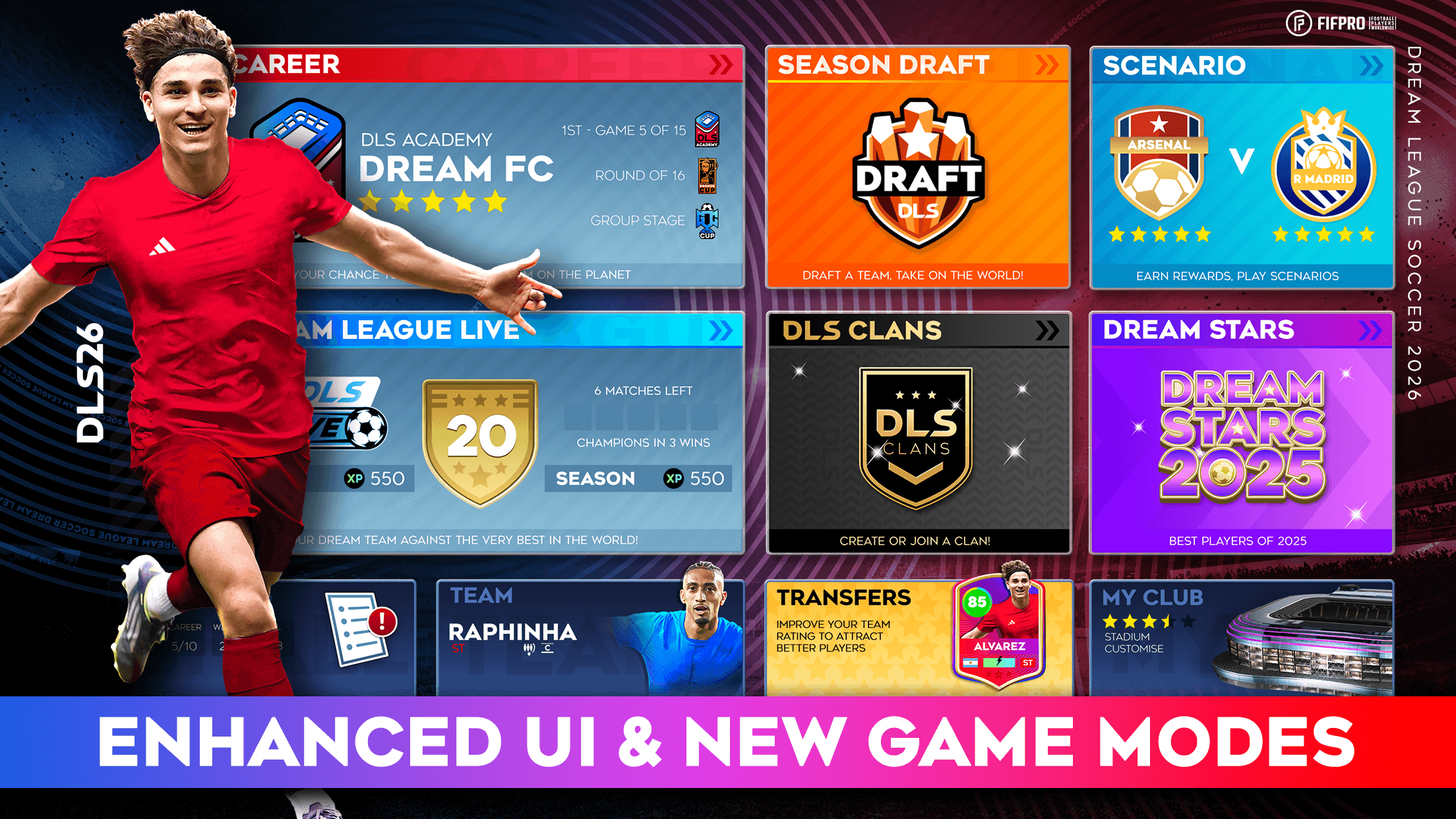
Dream League Soccer 2026 lets you go well beyond the default jerseys when it comes to representing your club. The game includes a full kit customisation system that covers everything from basic colour adjustments to importing high-resolution custom designs made by the community. Whether you want your team wearing the colours of a real-world club or a completely original design, this guide walks you through every part of the process.
Where to Find the Kit Customisation Screen
All kit customisation in Dream League Soccer 2026 is handled through the My Club section of the main menu. From there, tap the Customise option and then select the Kit tab on the left side of the screen. This is where you can switch between your Home, Away, and other kit slots using the Select Kit arrows, and where the Custom Kit button is located at the bottom left of the screen.
The customisation screen is divided into two main areas. On the left you have navigation tabs for Kit, Logo, Team Name, Players, and Manager. On the right panel, the kit editor shows your current kit rendered on a player model along with all the editing options available to you.
Using the In-Game Kit Editor
The in-game editor gives you direct control over the colours of your shirt, shorts, and socks separately. Tap whichever item you want to edit at the top of the preview panel, then use the colour tabs to adjust different parts of that piece. The available tabs are Primary, Secondary, Sponsor, Trim, and Shirt Number, each of which can be set to a different colour independently.
Colour adjustment is done using three sliding scales. The Colour slider lets you move across the full spectrum, the Saturation slider controls how vivid or muted the colour appears, and the Lightness slider adjusts how dark or bright it is. A row of Presets is also available below the sliders if you want a quick starting point rather than building a colour manually.
Below the colour controls, you can use the Kit Type arrows to cycle through different jersey patterns such as plain, striped, and other designs. The Kit Trim selector lets you pick a trim style by number, which changes the detailing around the collar and cuffs. These two settings together give you a wide range of kit appearances without needing to import anything.

What the Custom Kit Import Feature Does
Beyond the built-in editor, Dream League Soccer 2026 supports importing fully custom kit designs using an image URL. This method allows you to apply detailed designs that include real sponsor logos, gradients, textures, and patterns that the in-game colour sliders cannot replicate. It is the method most widely used by the community to recreate real-world club kits inside the game.
When you tap the Custom Kit button at the bottom of the screen, a popup appears asking whether you want to unlock the ability to download custom kits. This unlock is a one-time purchase costing 300 Diamonds, which is the premium currency in Dream League Soccer 2026. Once completed, the import feature remains permanently available for your account.
How to Import a Custom Kit
Importing a custom kit requires a direct image URL pointing to a PNG file. The image must be formatted to the correct 512×512 pixel template so that it maps properly onto the in-game jersey shape. Community kit websites provide ready-to-use URLs for most popular clubs, so you typically do not need to create the image yourself. Here is how the import process works once you have your URL:
- Find a kit URL from a trusted DLS community kit site. Make sure the link ends in .png and the image is 512×512 pixels.
- Open Dream League Soccer 2026 and go to My Club, then Customise, then the Kit tab.
- Tap the Custom Kit button at the bottom left. If not yet unlocked, complete the one-time 300 Diamond unlock first.
- Use the Select Kit arrows to choose the slot you want to customize, such as Home or Away, then paste the URL into the importer field and tap Confirm.
- The game downloads and applies the design immediately. Repeat for each kit slot you want to customize, as each one is managed separately.

Removing Custom Kits
If you want to remove a custom kit you have imported, go to the Edit Kit screen for that slot and a Delete button will appear if a custom kit is currently active. It is worth keeping your kit URLs saved somewhere outside the game in case you ever need to re-import them. Community kit sites update their libraries regularly as clubs release new designs, so the same site where you originally found a kit is usually the best place to get an updated version.
Tips for Getting the Best Results
A few practical points will help you avoid the most common issues when working with custom kits in Dream League Soccer 2026:
- Always verify that your kit image URL ends in .png. Other formats will not be recognised by the game’s importer and the download will fail.
- Use only 512×512 pixel images. Lower resolution images appear blurry on the player model during matches, and incorrectly sized images may not map to the kit template properly.
- Clubs update their real-world kits every season. If a kit looks outdated, check the same community site for a refreshed URL with the current season’s design.
- Import kits for all slots you actively use. If you regularly play with an Away kit, set a custom design for that slot as well, since each slot is managed independently.
Dream League Soccer 2026 gives you genuine flexibility when it comes to your team’s visual identity. The in-game editor covers the basics with colour sliders, kit types, and trim options, while the URL import system opens up a much wider range of detailed designs from the community. Taking the time to set up your kits properly makes your club feel more personal and adds an extra layer of enjoyment to every match. For the smoothest kit management experience, play Dream League Soccer 2026 on BlueStacks!