PUBG MOBILE FLASH Claw Guide Best 2-Finger and 3-Finger HUD Layout Codes for Small Screens
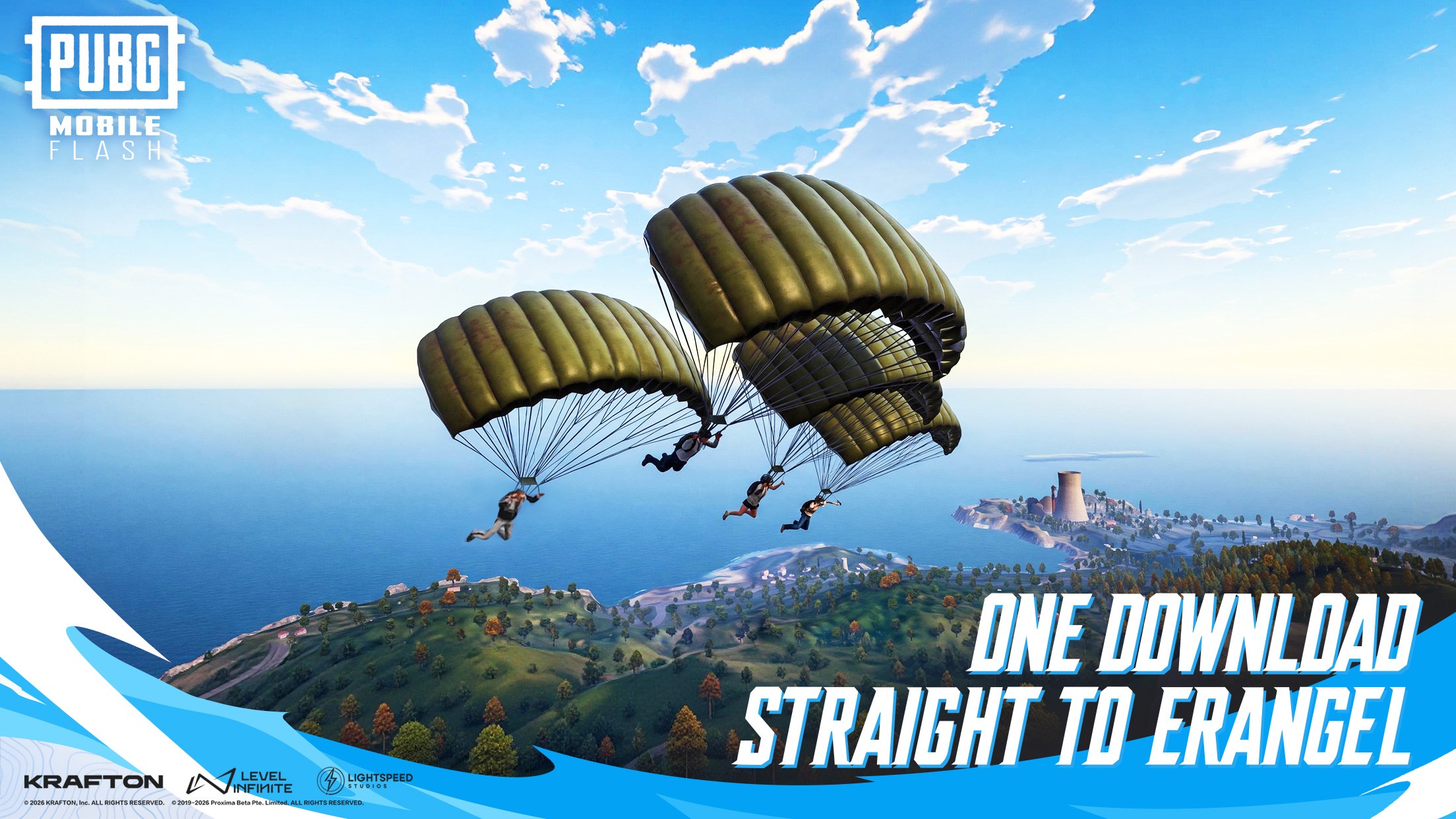
PUBG MOBILE FLASH launched worldwide as a lighter app built for phones with less storage and weaker hardware. Many of those phones also have compact displays, where a crowded HUD causes more lost fights than bad aim. This PUBG Mobile Flash Claw guide covers the best 2-finger and 3-finger HUD codes, the right button placement for small screens, and the sensitivity settings that go with each setup.
Why 2-Finger and 3-Finger Claw Work Best in PUBG MOBILE FLASH on Small Screens
A 4-finger or 5-finger claw needs room. Two index fingers resting on the top of a small display cover a big part of the screen and hide enemies. Wide claw layouts are generally built around phones of 6 inches and above, while 2-finger and 3-finger setups stay comfortable on smaller devices.
PUBG MOBILE FLASH is not a separate game. It runs on the same accounts, the same matchmaking, and the same gameplay as standard PUBG MOBILE, and both apps share lobbies through cross-play. This means the control system is the same one PUBG MOBILE players already know. New players can check the PUBG MOBILE FLASH vs PUBG Mobile comparison to see how the two apps differ.
Best PUBG MOBILE FLASH 2-Finger Claw HUD Codes
The 2-finger setup, also called thumbs, uses the left thumb for movement and the right thumb for aiming, firing, and every other action. It is the easiest layout to learn and the safest pick for very small phones.
| Layout | HUD Code | Best For |
| 2-Finger Code 1 | 6937-0865-1724-6960-408 | Beginners who play without gyroscope |
| 2-Finger Code 2 | 6916-3303-7623-7952-720 | Close range players who need quick peek and fire |
| 2-Finger Code 3 | 7007-2506-9547-9375-328 | Balanced all round thumbs layout |
| 2-Finger Code 4 | 6937-0903-0518-5811-333 | Players planning to move to 3-finger later |
These are PUBG MOBILE layout codes. Since PUBG MOBILE FLASH shares the same account and control system, they are the codes to try first. The app is only a few days old, so if a code does not load, the layout can be built by hand using the placement tips below.

2-Finger Button Placement for Small Screens
The joystick should sit low on the left side so the thumb rests on it without stretching. The fire button belongs right under the natural resting spot of the right thumb, with the scope button close to it but never touching it. On a compact display, overlapping buttons are the main cause of wrong taps.
Peek, crouch, and jump should form a tight group around the fire button so the right thumb can slide between them. The center right part of the screen must stay empty, because that space is used for swiping the camera. Rarely used buttons such as emotes or the second fire button can be shrunk or made almost fully transparent to clear more room.
Best PUBG MOBILE FLASH 3-Finger Claw HUD Codes
The 3-finger claw adds one index finger to the thumbs setup. In most layouts, the left index finger takes the fire button at the top left. The left thumb keeps moving the character and the right thumb is free to aim the whole time. This single change allows moving, aiming, and shooting at once, which thumbs players cannot do.
| Layout | HUD Code | Best For |
| 3-Finger Code 1 | 6916-3084-8580-4664-088 | Players leaving thumbs for the first time |
| 3-Finger Code 2 | 7275-1794-4178-8556-303 | Balanced phone layout for close range fights |

3-Finger Button Placement for Small Screens
The fire button goes in the top left corner for the left index finger. It needs to be close enough to the edge that the finger does not cover the middle of the screen. The scope button stays on the right side near the thumb, with peek, jump, and crouch placed around it.
Two settings make this layout much stronger. Setting the scope mode to hold lets players aim and release faster in close fights. Turning on Peek and Fire allows shots from behind cover without exposing the full body. Both options are found in the basic settings menu.
Best HUD Button Size and Transparency in PUBG MOBILE FLASH for Small Screens
Imported codes are usually made on larger phones, so buttons often look oversized on a compact display. A few quick edits fix this.
- Joystick: Keep it large enough for the thumb, around 110 to 120 percent, placed low on the left.
- Fire button: Make it the biggest action button so it is never missed.
- Secondary buttons: Shrink peek, crouch, prone, and jump slightly and leave a small gap between each.
- Transparency: Set action buttons to around 70 to 80 percent so enemies stay visible behind them.
- Mini map and kill feed: Keep them at the default size or smaller to free up the top of the screen.
- Unused buttons: Move extra mode buttons away from fire, scope, and peek after every import.
Best Sensitivity Settings for 2-Finger and 3-Finger Claw in PUBG MOBILE FLASH
A layout code only changes button positions. Sensitivity is saved separately and has to be set on its own. The values below are starting points and should be adjusted after a few sprays in the training ground.
| Setting | 2-Finger (No Gyro) | 3-Finger |
| Gyroscope | Off | Scope On or Always On |
| Camera | 30 to 50 | TPP No Scope around 190% |
| ADS | 15 to 20 | No Scope 95 to 100% |
| Gyroscope No Scope to 2x | Not used | Around 300% |
Thumb players without gyroscope should rely on ADS sensitivity to pull recoil down, so lower values give more control. 3-finger players gain the most from gyroscope, because tilting the phone handles recoil while the right thumb tracks the target. Phones running at 60 Hz feel better with slightly lower values, while 120 Hz phones can go a little higher. Only one slider should be changed at a time so the effect is easy to notice.

How to Import HUD Layout Codes in PUBG MOBILE FLASH
- Open Settings from the lobby and go to the Customize Buttons section.
- Tap the layout management icon, shown as a magnifying glass.
- Pick a free layout slot so the default layout is not overwritten.
- Paste the HUD code and preview the layout.
- Adjust the size, transparency, and position of each button to fit the screen.
- Save the layout and test it in the training ground for at least 10 minutes.
Players can enjoy playing PUBG Mobile Flash on a bigger screen of their PC or Laptop via BlueStacks along with your keyboard and mouse.