Best PUBG Mobile Flash Graphics Settings for No Lag and Max FPS
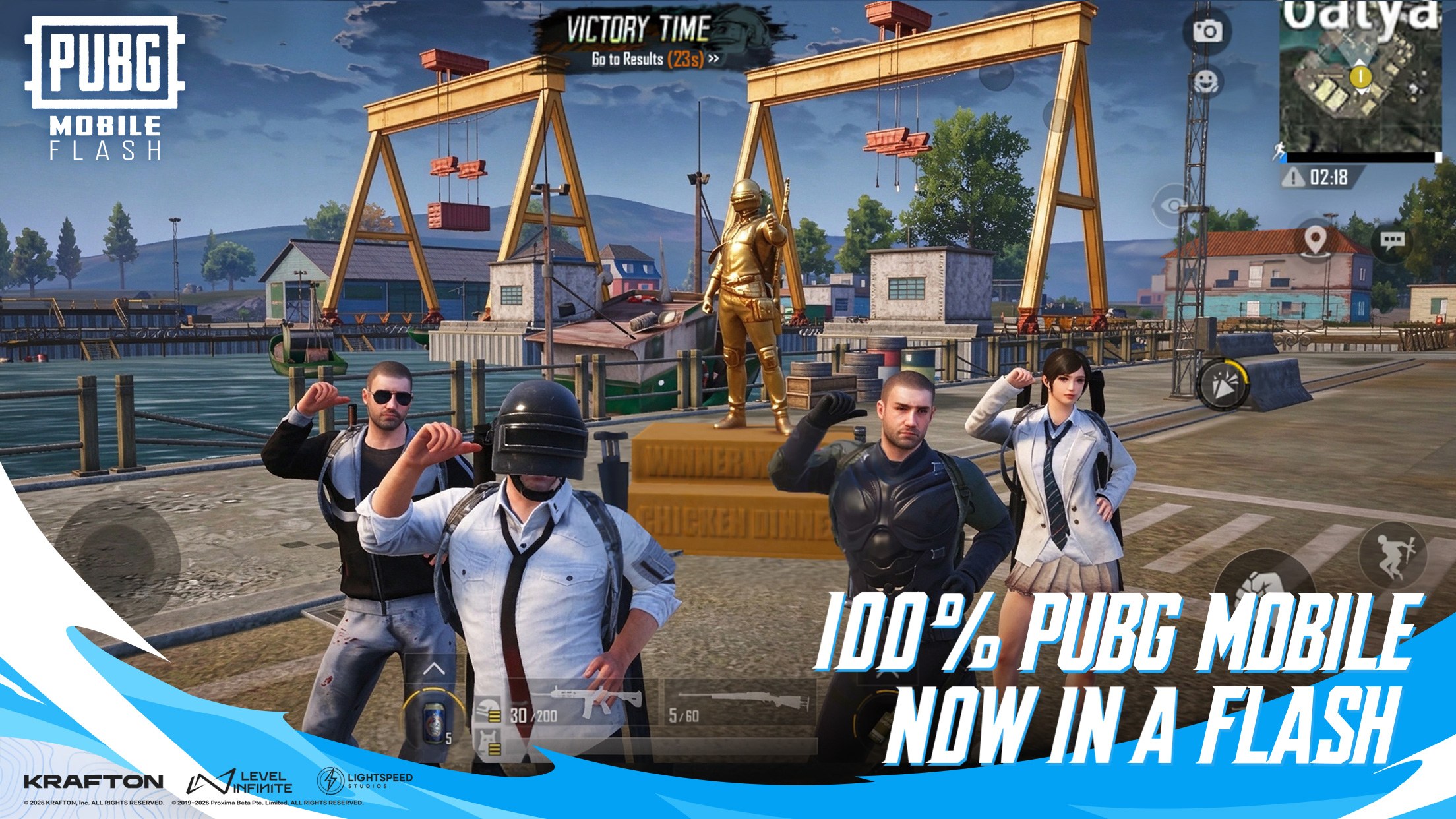
PUBG Mobile Flash is designed to offer a lighter, more optimized version of the PUBG Mobile experience. However, choosing the right graphics settings is still important if you want smooth gameplay, responsive controls, and fewer frame rate drops during intense firefights.
Playing PUBG Mobile Flash on PC with BlueStacks gives you another advantage. By using your computer’s hardware instead of relying on a mobile device, you can potentially achieve smoother gameplay and more consistent performance, even on a reasonably equipped PC.

In this guide, we’ll explain the best PUBG Mobile Flash graphics settings for maximizing FPS, reducing lag, and getting the most out of your experience on BlueStacks.
Best PUBG Mobile Flash Graphics Settings
If your priority is smooth gameplay and stable FPS, these settings are a good starting point:
| Setting | Recommended Configuration |
| Graphics Preference | FLASH Exclusive |
| Custom Graphics Quality | Super Smooth or Smooth |
| Frame Rate | Highest stable option available |
| Anti-Aliasing | Disable |
| Shadows | Disable |
| Power Saving | Test with Disable for maximum performance |
| Adaptive Graphics | Disable initially |
| Lobby Graphics Enhancement | Disable |
| Style | Classic |
| Brightness | 100% as a starting point |
These settings prioritize performance over visual quality. However, players using BlueStacks on a capable PC may have more flexibility to increase graphics quality while maintaining a stable frame rate.
The best approach is to start with a performance-focused configuration and gradually increase settings until you find the balance that works for your computer.

FLASH Exclusive vs. Customize: Which Is Better?
PUBG Mobile Flash includes three graphics preference options: FLASH Exclusive, Better Graphics, and Customize.
- FLASH Exclusive is the game’s dedicated optimization preset. According to its in-game description, it prioritizes smoother combat and greater stability while considering device power consumption. It’s also enabled by default, making it a convenient option for players who don’t want to adjust every setting manually.
- Better Graphics focuses on visual quality. While this can make environments look more detailed, it’s not necessarily the best choice when your main objective is maintaining maximum FPS.
- Customize allows you to adjust graphics quality, frame rate, and advanced settings individually. This is especially useful when playing on BlueStacks, since you can experiment with different configurations depending on your PC’s capabilities.

We recommend starting with FLASH Exclusive. If you’re playing on a reasonably powerful computer and want more control over performance, switch to Customize and fine-tune the settings.
How to Configure PUBG Mobile Flash for Maximum FPS
Open PUBG Mobile Flash, enter the Settings menu, and select Graphics. From there, choose Customize to access the individual graphics and frame rate options.
Choose Smooth or Super Smooth Graphics
Graphics quality determines how much detail the game renders. Higher settings improve certain visual effects, but they can also increase hardware demands.
For the best performance, start with Super Smooth or Smooth. These settings reduce the graphical workload and can help maintain consistent FPS during demanding situations.
However, if you’re playing PUBG Mobile Flash on BlueStacks, you may not need to settle for the lowest graphics settings. A decent gaming PC can provide considerably more processing and graphics power than many mobile devices, allowing you to experiment with Balanced or HD while maintaining good performance.
Start low, test your frame rate, and increase graphics quality only if the game remains smooth.
Select the Highest Stable Frame Rate
The Frame Rate Settings menu includes Power Saving, Medium, High, Ultra, and Extreme. Depending on your configuration, Extreme+ and Ultra Extreme may also be available.
For competitive gameplay, prioritize the highest frame rate your system can maintain consistently.
This is where playing on BlueStacks can be particularly useful. With a capable PC and suitable emulator settings, you may be able to maintain a higher and more consistent frame rate than you would on many mobile devices.
However, remember that the available frame rate options depend on the game and your configuration. A powerful PC doesn’t automatically unlock every FPS setting.
If Extreme is available, it’s a reasonable option to test. If you experience noticeable frame drops, try lowering the setting until gameplay becomes stable.

Adjust Advanced Graphics Settings
PUBG Mobile Flash also includes several advanced graphics options that can influence performance.
- Anti-Aliasing: Disable this setting if you want to prioritize FPS. Anti-aliasing smooths the edges of objects but requires additional processing.
- Shadows: Disabling shadows can reduce graphical demands, particularly during scenes with complex environments.
- Power Saving: If you’re prioritizing maximum FPS, test disabling this option. Its impact can vary depending on your configuration, so compare performance before deciding.
- Adaptive Graphics: Start with this disabled when testing a fixed configuration. If you notice inconsistent performance, try enabling it and see whether it improves stability.
On BlueStacks, you can also adjust the emulator’s CPU allocation, memory allocation, and performance settings. Giving BlueStacks appropriate resources can help your computer handle demanding games more effectively, provided you leave enough resources for Windows and other essential processes.
Other Graphics Settings Worth Adjusting
Beyond graphics quality and frame rate, PUBG Mobile Flash offers several additional options.
Lobby Graphics Enhancement can be disabled to avoid unnecessary visual enhancements in the lobby. This setting doesn’t directly control combat graphics, but keeping it off is reasonable when prioritizing performance.
Under Style, you can choose between Classic, Colorful, Realistic, Soft, and Movie. Classic is a reliable starting point, while Colorful may appeal to players who prefer more vibrant environments. These presets mainly affect the game’s appearance rather than serving as major FPS optimizations.
Brightness can remain at 100% initially. You can adjust it based on your monitor and personal preference, particularly if darker areas are difficult to see.
The game also includes Colorblind Mode options such as Deuteranopia, Protanopia, and Tritanopia. These settings are intended to improve visual accessibility, so choose whichever option best suits your needs.
How to Reduce Lag and Frame Drops in PUBG Mobile Flash
Even with optimized graphics settings, performance can fluctuate during busy matches. Areas with multiple players, vehicles, and combat effects can be more demanding than the lobby or quieter parts of the map.

The best way to find a stable configuration is to test your settings during actual gameplay. Start with FLASH Exclusive or a low custom graphics preset, play a few matches, and observe how the game performs during firefights.
If you’re using BlueStacks, make sure the emulator has enough CPU cores and RAM allocated for your PC’s capabilities. You can also check its performance settings and FPS configuration to ensure they match your intended gameplay experience.
For example, selecting a high frame rate inside PUBG Mobile Flash won’t necessarily produce that result if your BlueStacks FPS configuration is set lower.
It’s also important to distinguish between graphics lag and network lag. Graphics lag causes stuttering or choppy movement, while network lag can cause delayed actions, rubber-banding, and high ping. Adjusting graphics settings can help with FPS drops, but it won’t necessarily solve connection problems.
The best PUBG Mobile Flash graphics settings depend on your hardware and whether you prefer maximum FPS or better visual quality. FLASH Exclusive is a convenient starting point, while Customize lets you fine-tune graphics quality, frame rate, and advanced effects.
Playing PUBG Mobile Flash on PC with BlueStacks lets you take advantage of your computer’s hardware, a larger display, and keyboard and mouse controls. With the right emulator configuration and in-game settings, you can aim for smoother gameplay and more consistent performance without relying on a high-end smartphone.