Rolling Ball Adventure 3D

Rolling Ball Adventure 3D

Arcade

| Gamebee Studio

Play on PC with BlueStacks or from our cloud

  • Overview
  • Game Features
  • How to Play

Page Modified On: July 27, 2026

Play Rolling Ball Adventure 3D on PC or Mac

Rolling Ball Adventure 3D by Gamebee Studio has plenty to keep you busy. BlueStacks lets you play it on PC or Mac with more screen space, better control, and fewer mobile limits.

About the Game

Rolling Ball Adventure 3D is all about guiding a speedy sphere across wild 3D tracks without losing your cool. It mixes quick reactions with steady hands, so every nudge, hop, and stop matters. Expect tight turns, suspended paths, and clever traps that make this Arcade experience equal parts tense and satisfying.

Game Features

  • Precision Rolling: Thread your way across skinny beams, curved rails, and high-up routes where a tiny slip means starting over.
  • Smart Physics: The ball feels weighty and responsive, so momentum, braking, and cornering all count when the pressure’s on.
  • Snappy Controls: Easy to pick up, smooth to steer, and tuned for quick restarts when you want another shot at a clean run.
  • Set-Piece Obstacles: Face rotating gates, swinging mallets, tilting platforms, and shifting bridges that keep you guessing.
  • Sky-High Courses: Navigate colorful aerial tracks with ramps, gaps, and moving pieces that reward nerves of steel.
  • Arcade Challenge Flow: Short, focused stages build into tougher gauntlets, pushing your timing and balance without overcomplicating things.
  • Chill Yet Tough: Relaxing movement and clean visuals take the edge off, even when the path gets downright punishing.
  • Progress-Friendly Design: Tackle multiple levels that gradually introduce new mechanics and trickier layouts.
  • Play Anywhere: Great for quick sessions or longer grinds, and it works offline when you’re on the go.
  • PC-Friendly Option: Prefer keyboard or a bigger screen? It runs smoothly on BlueStacks for a different feel without changing the core gameplay.

Start playing Rolling Ball Adventure 3D on BlueStacks and get a smoother, more comfortable PC or Mac setup.
Game Features

Enhancements

  • Macros
  • Multi Instance
  • Multi Instance Sync
  • Script
  • Enhancements
Macros

Macros

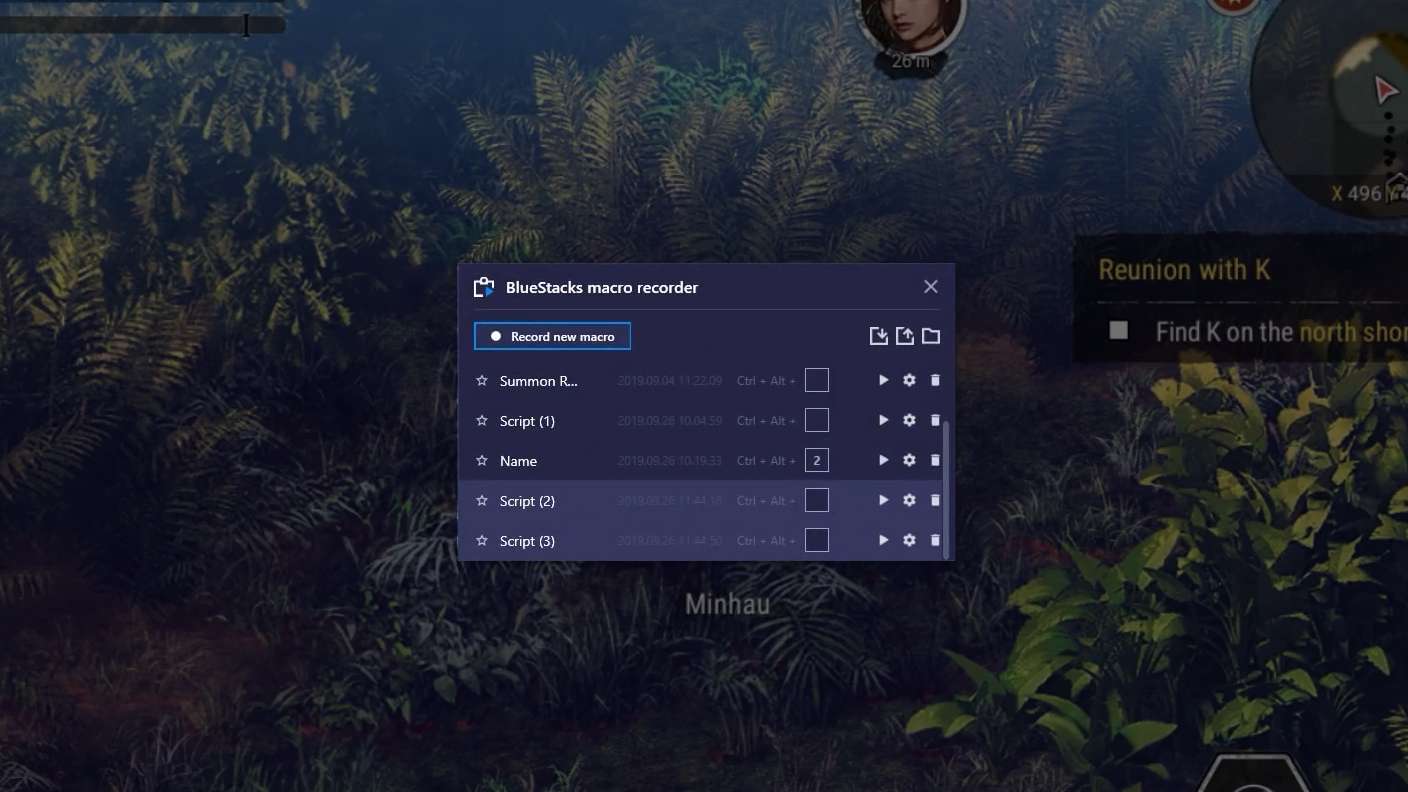
Automate the predictable in Rolling Ball Adventure 3D and transform your gameplay with Macros. Get access to inventive Macros in the BlueStacks Macro Community
Multi Instance

Multi Instance

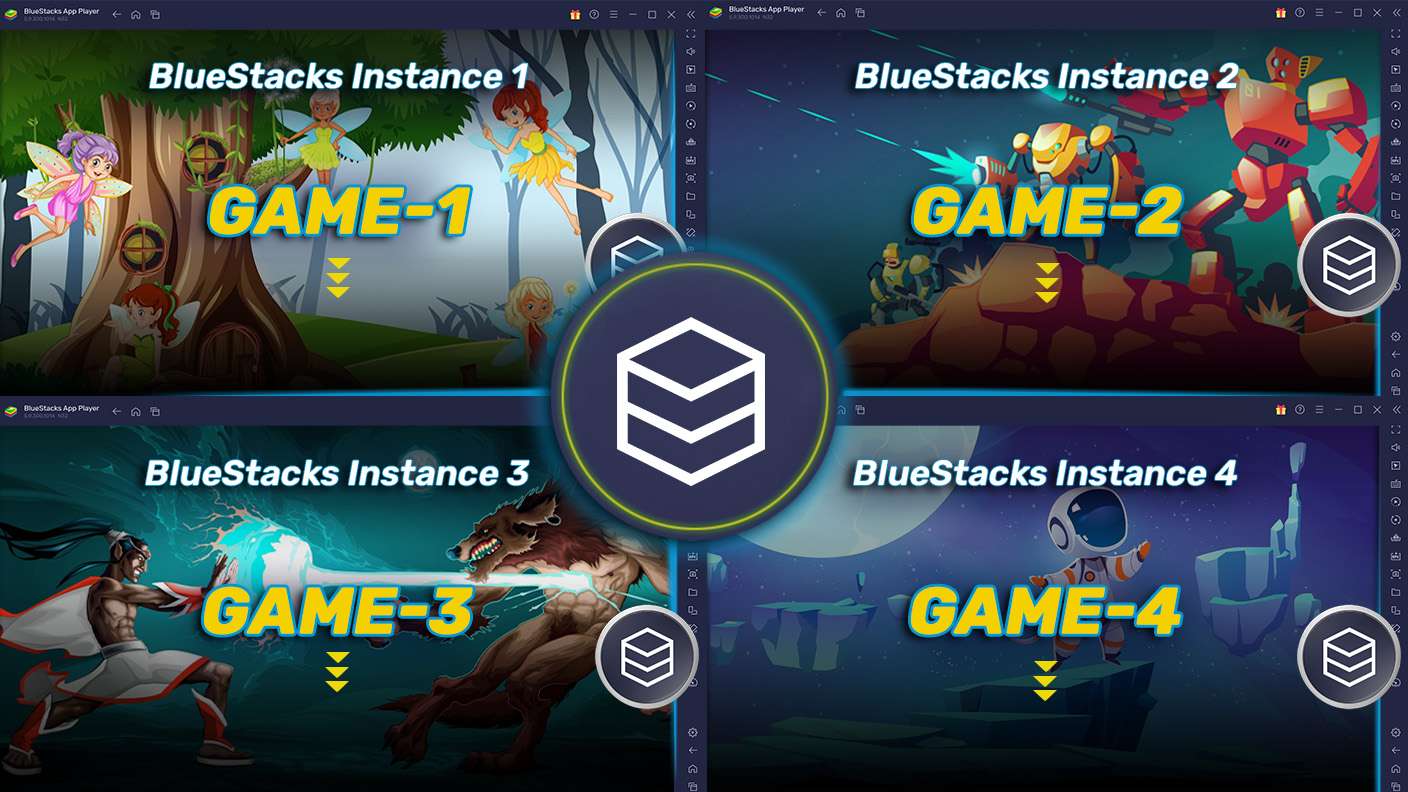
Play Rolling Ball Adventure 3D on one window. And chat with your friend on the other. Press CTRL + Shift + 8 to open the Multi-Instance Manager. And start creating fresh instances or clone an existing one.
Multi Instance Sync

Multi Instance Sync

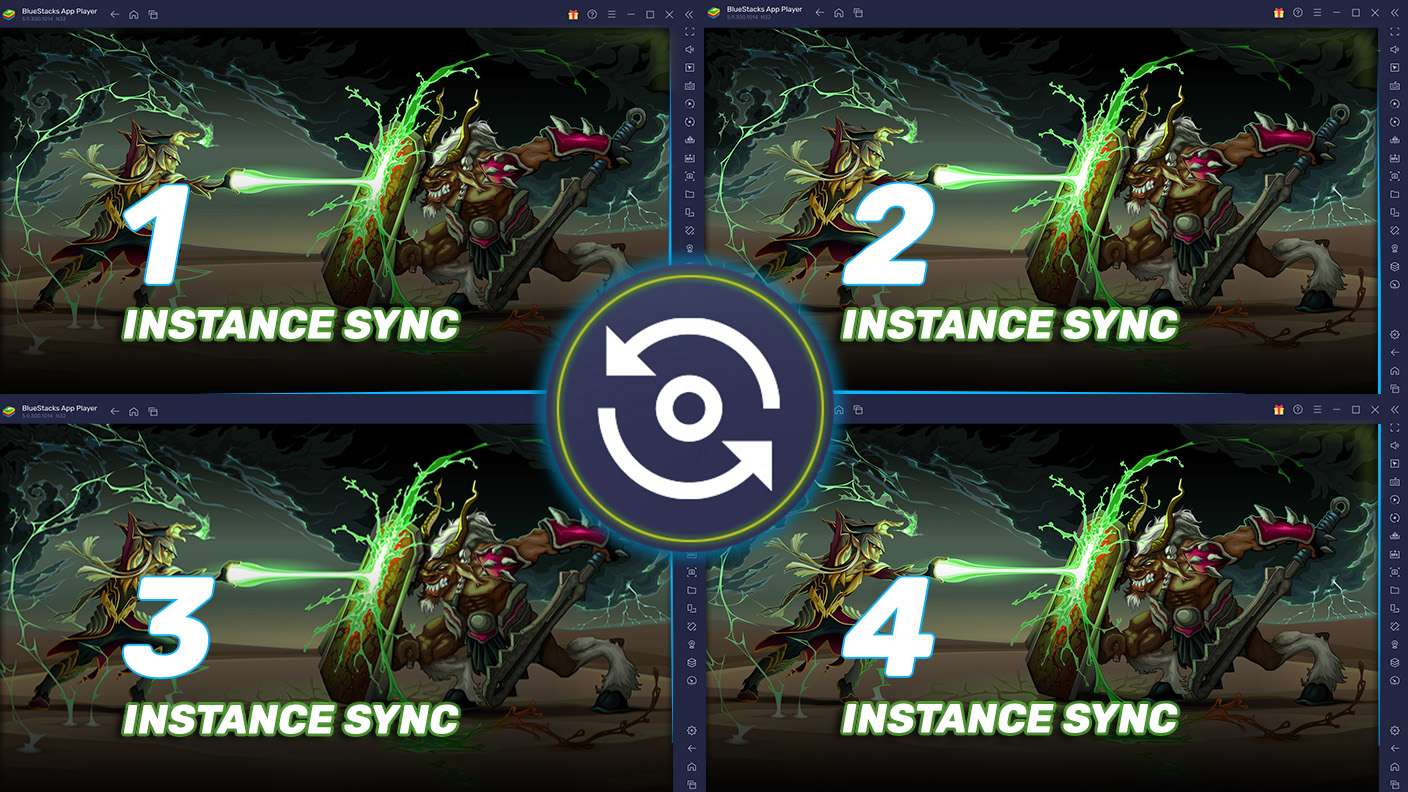
Play Rolling Ball Adventure 3D with the power of Multi-Instance Sync. Replicate what you are doing on the main instance on all other instances. Level up faster, play more.
Script

Script

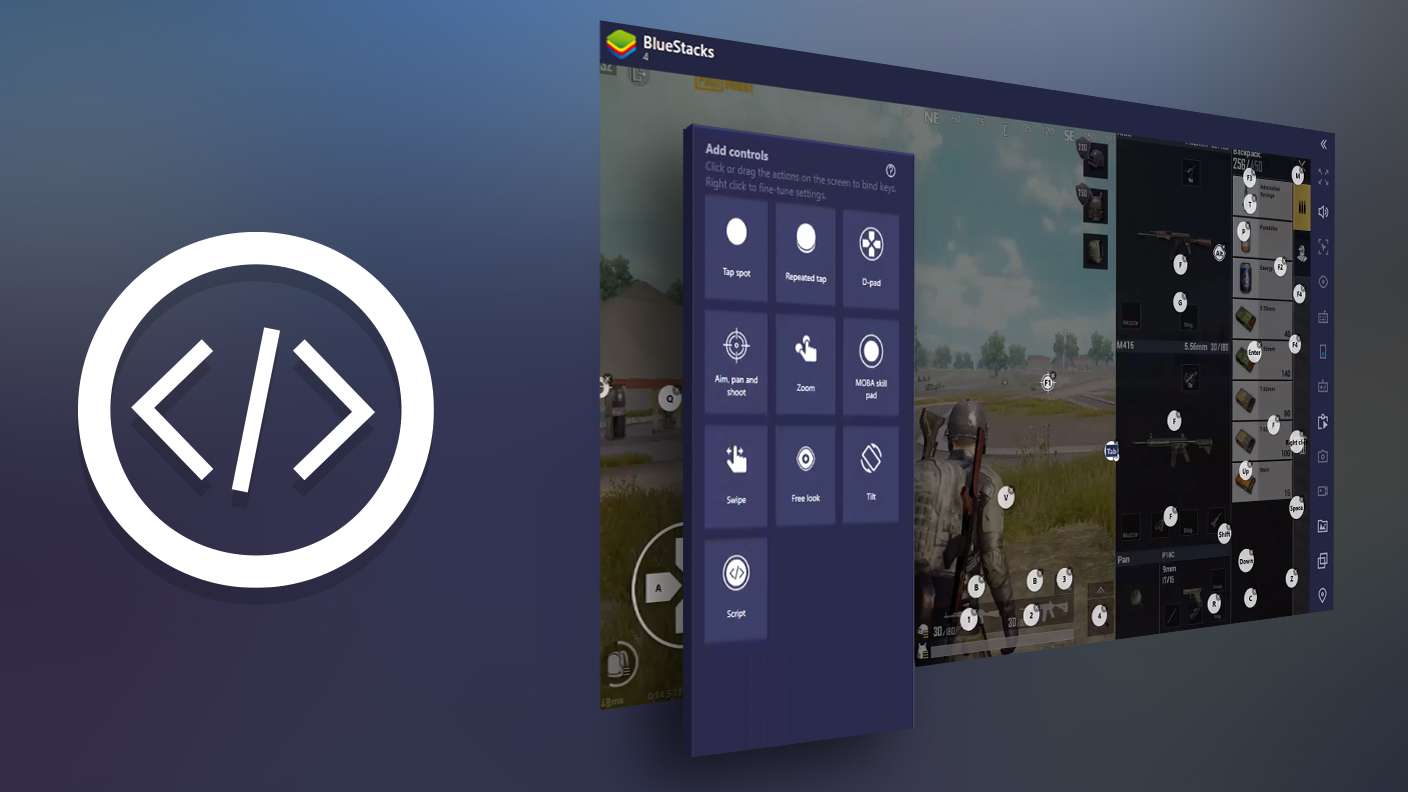
Script your way to gaming glory in Rolling Ball Adventure 3D with BlueStacks Script. Write and run a set of commands to automate repeated tasks. Trigger the command by assigning it to any key.
Read More

How to Download and Play Rolling Ball Adventure 3D on PC or Mac

  • Download and install BlueStacks on your PC or Mac

  • Complete Google sign-in to access the Play Store, or do it later

  • Look for Rolling Ball Adventure 3D in the search bar at the top right corner

  • Click to install Rolling Ball Adventure 3D from the search results

  • Complete Google sign-in (if you skipped step 2) to install Rolling Ball Adventure 3D

  • Click the Rolling Ball Adventure 3D icon on the home screen to start playing

video
Watch Video

Minimum System Requirements

With BlueStacks 5, you can get started on a PC that fulfills the following requirements.

  • Operating System

    Microsoft Windows 7 or above, macOS 11 (Big Sur) or above

  • Processor

    Intel, AMD or Apple Silicon Processor

  • RAM

    at least 4GB

  • HDD

    10GB Free Disk Space

Note:

* You must be an Administrator on your PC. Up to date graphics drivers from Microsoft or the chipset vendor.

Rolling Ball Adventure 3D - FAQs

  • How to play Rolling Ball Adventure 3D on Windows PC & Mac?

    Play Rolling Ball Adventure 3D on your PC or Mac by following these simple steps.

    • Click on 'Play Rolling Ball Adventure 3D on PC’ to download BlueStacks
    • Install it and log-in to Google Play Store
    • Launch and play the game.
  • Why is BlueStacks the fastest and safest platform to play games on PC?

    BlueStacks respects your privacy and is always safe and secure to use. It does not carry any malware, spyware, or any sort of additional software that could harm your PC.

    It is engineered to optimize speed and performance for a seamless gaming experience.

  • What are Rolling Ball Adventure 3D PC requirements?

    Minimum requirement to run Rolling Ball Adventure 3D on your PC

    • OS: Microsoft Windows 7 or above MacOS 11 (Big Sur) or above
    • Processor: Intel, AMD or Apple Silicon Processor
    • RAM: Your PC must have at least 4GB of RAM. (Note that having 4GB or more disk space is not a substitute for RAM)
    • HDD: 10GB Free Disk Space.
    • You must be an Administrator on your PC.