
Classic Games - Learn and Play

Classic Games - Learn and Play

Board

| Chess.com

Play on PC with BlueStacks or from our cloud

  • Overview
  • Game Features
  • How to Play

Page Modified On: October 21, 2026

Play Classic Games - Learn and Play on PC or Mac

Classic Games – Learn and Play brings the Board genre to life, and throws up exciting challenges for gamers. Developed by Chess.com, this Android game is best experienced on BlueStacks, the World’s #1 app player for PC and Mac users.

About the Game

Classic Games – Learn and Play bundles nine timeless favorites into one clean, no-fuss Board experience. Whether you’re in the mood for a quick Solitaire hand, a brain-tickling Sudoku, or a tactical Backgammon match, it’s all here with flexible difficulty and handy tools. Prefer a bigger screen for longer sessions? It also runs smoothly on PC with BlueStacks.

Game Features

  • Nine classics, one place: Play Solitaire, Mahjong, Sudoku, a crossword-style Word game, Backgammon, Go (Baduk/Weiqi), Checkers, Xiangqi, and Shogi—no app-hopping required.
  • Smooth Solitaire: Enjoy Klondike and FreeCell with satisfying drag-and-drop, unlimited undo, daily challenges, and the option to make every deal winnable or keep it truly random.
  • Relaxing Mahjong: Match tiles across hundreds of layouts with beautiful sets, plus handy shuffle, hint, and undo whenever you need a breather.
  • Smarter Sudoku: Tackle thousands of puzzles from Easy to Expert with pencil notes, smart hints, player points, and a fresh daily board.
  • Word game that sticks: Place letters, build high-scoring words, and play against the computer or take turns locally with a friend—great for brushing up your vocabulary.
  • Real Backgammon feel: Use the doubling cube, play full matches, lean on move hints, and face a sharp AI or a buddy sitting next to you.
  • Learn and grow in Go: Choose 9×9, 13×13, or 19×19 boards, adjust the AI from beginner to strong, read the built-in guide, and track your rating as you improve.
  • Classic Checkers options: Play with a smart AI, toggle forced captures, use move hints and undo, or go head-to-head locally with a friend.
  • Xiangqi & Shogi, done right: Get legal-move hints in Xiangqi, plus drops, promotions, and a friendly beginner tutorial in Shogi.
  • Offline where it counts: Play Solitaire, Mahjong, Sudoku, Word games, Backgammon, and Go without an internet connection.
  • Clean look, easy on the eyes: A distraction-free layout with light and dark themes keeps the focus on the game.
  • Help when you want it: Adjustable difficulty in every title, unlimited undo, on-demand hints, and clear built-in rules.
  • Stats that matter: Daily challenges, streaks, and detailed statistics help you track progress and set personal goals.
  • One download, zero clutter: Keep your classics organized in a single app instead of juggling a bunch of separate installs.

BlueStacks gives you more room to focus on the game and less time adjusting around mobile limitations.
Game Features

Enhancements

  • Macros
  • Multi Instance
  • Multi Instance Sync
  • Script
  • Enhancements
Macros

Macros

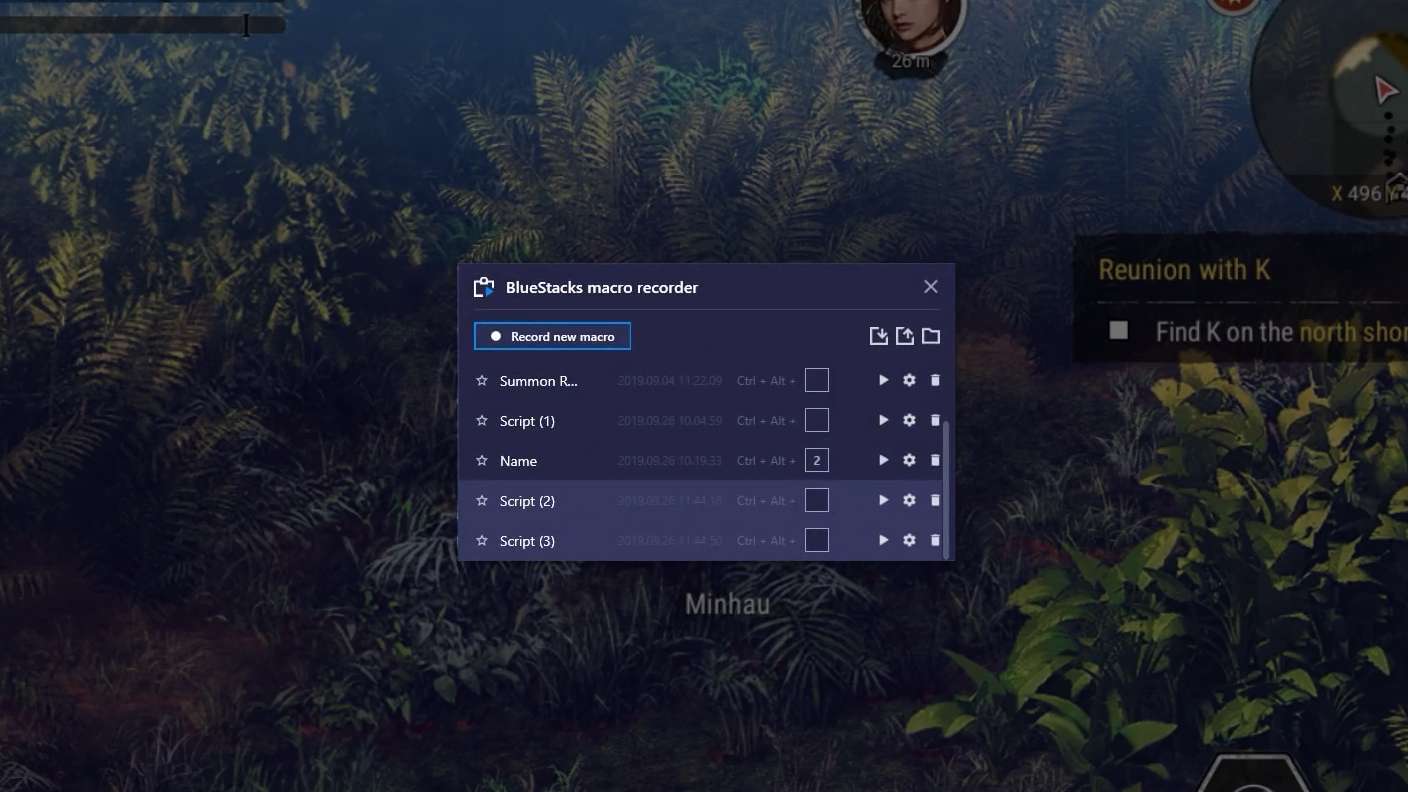
Automate the predictable in Classic Games - Learn and Play and transform your gameplay with Macros. Get access to inventive Macros in the BlueStacks Macro Community
Multi Instance

Multi Instance

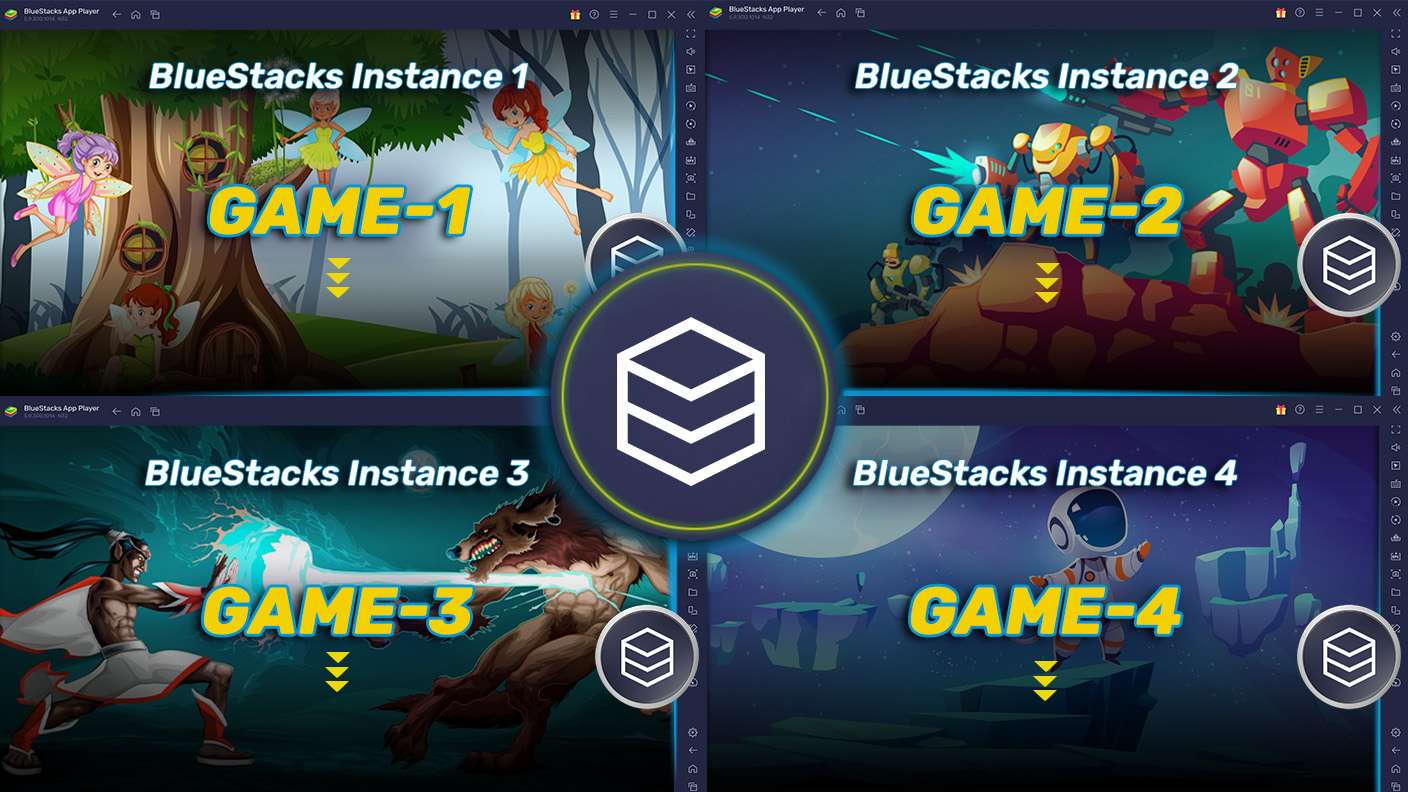
Play Classic Games - Learn and Play on one window. And chat with your friend on the other. Press CTRL + Shift + 8 to open the Multi-Instance Manager. And start creating fresh instances or clone an existing one.
Multi Instance Sync

Multi Instance Sync

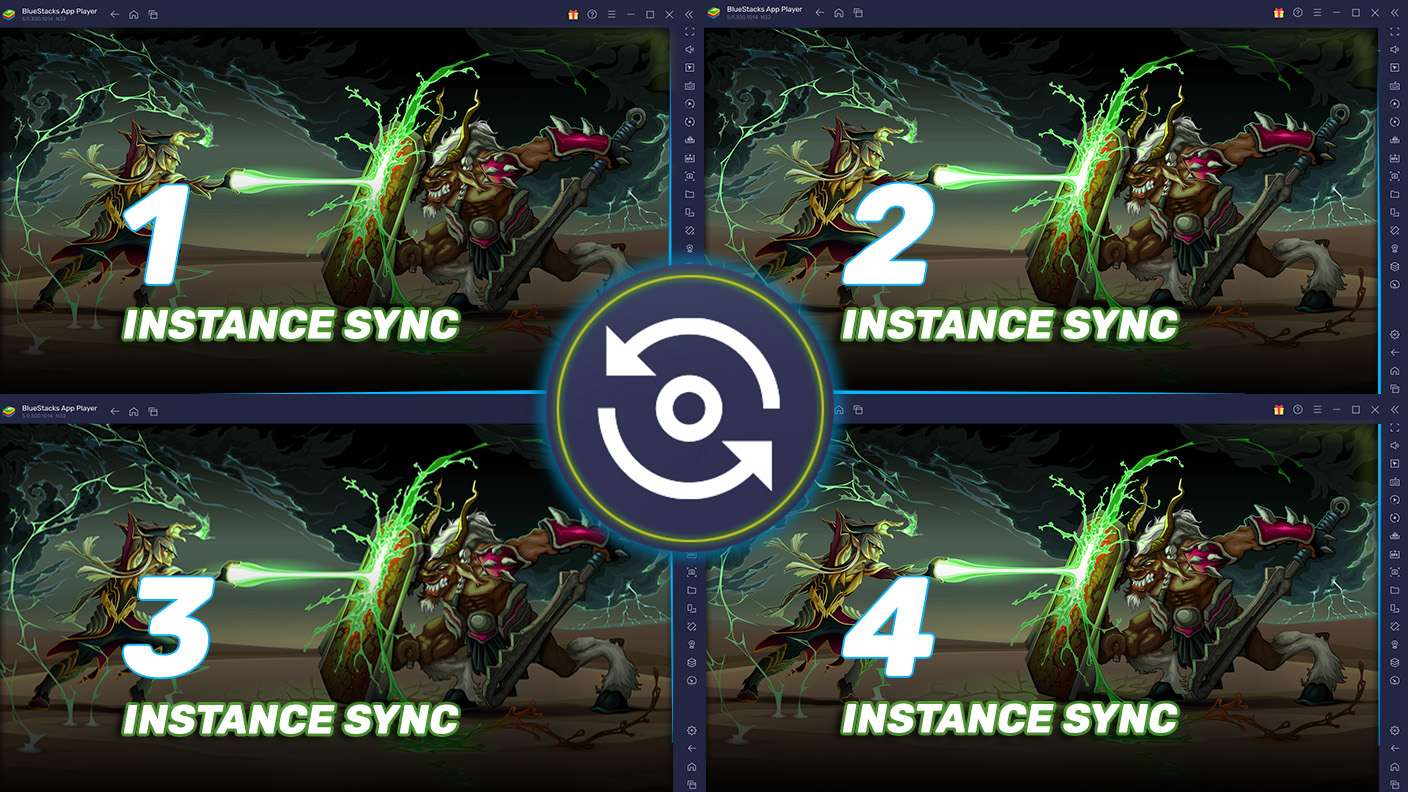
Play Classic Games - Learn and Play with the power of Multi-Instance Sync. Replicate what you are doing on the main instance on all other instances. Level up faster, play more.
Script

Script

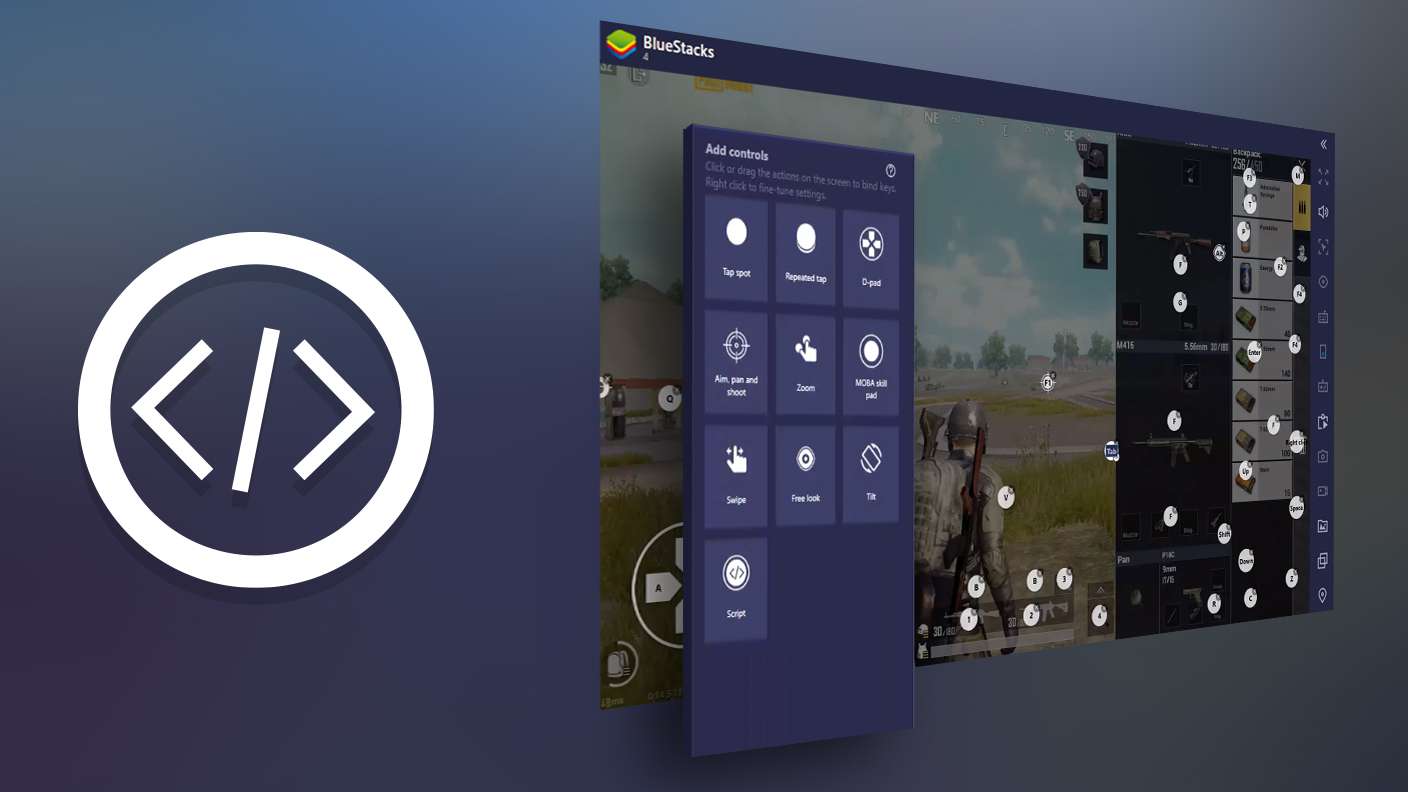
Script your way to gaming glory in Classic Games - Learn and Play with BlueStacks Script. Write and run a set of commands to automate repeated tasks. Trigger the command by assigning it to any key.
Read More

How to Download and Play Classic Games - Learn and Play on PC or Mac

  • Download and install BlueStacks on your PC or Mac

  • Complete Google sign-in to access the Play Store, or do it later

  • Look for Classic Games - Learn and Play in the search bar at the top right corner

  • Click to install Classic Games - Learn and Play from the search results

  • Complete Google sign-in (if you skipped step 2) to install Classic Games - Learn and Play

  • Click the Classic Games - Learn and Play icon on the home screen to start playing

video
Watch Video

Minimum System Requirements

With BlueStacks 5, you can get started on a PC that fulfills the following requirements.

  • Operating System

    Microsoft Windows 7 or above, macOS 11 (Big Sur) or above

  • Processor

    Intel, AMD or Apple Silicon Processor

  • RAM

    at least 4GB

  • HDD

    10GB Free Disk Space

Note:

* You must be an Administrator on your PC. Up to date graphics drivers from Microsoft or the chipset vendor.

Classic Games - Learn and Play - FAQs

  • How to play Classic Games - Learn and Play on Windows PC & Mac?

    Play Classic Games - Learn and Play on your PC or Mac by following these simple steps.

    • Click on 'Play Classic Games - Learn and Play on PC’ to download BlueStacks
    • Install it and log-in to Google Play Store
    • Launch and play the game.
  • Why is BlueStacks the fastest and safest platform to play games on PC?

    BlueStacks respects your privacy and is always safe and secure to use. It does not carry any malware, spyware, or any sort of additional software that could harm your PC.

    It is engineered to optimize speed and performance for a seamless gaming experience.

  • What are Classic Games - Learn and Play PC requirements?

    Minimum requirement to run Classic Games - Learn and Play on your PC

    • OS: Microsoft Windows 7 or above MacOS 11 (Big Sur) or above
    • Processor: Intel, AMD or Apple Silicon Processor
    • RAM: Your PC must have at least 4GB of RAM. (Note that having 4GB or more disk space is not a substitute for RAM)
    • HDD: 10GB Free Disk Space.
    • You must be an Administrator on your PC.