ZingPlay game portal

ZingPlay game portal

Casual

| VNG ZingPlay Game Studios

Play on PC with BlueStacks or from our cloud

  • Overview
  • Game Features
  • How to Play

Page Modified On: January 09, 2026

Play ZingPlay game portal on PC or Mac

Bring your A-game to ZingPlay game portal, the Casual game sensation from VNG ZingPlay Game Studios. Give your gameplay the much-needed boost with precise game controls, high FPS graphics, and top-tier features on your PC or Mac with BlueStacks.

About the Game

ZingPlay game portal brings the Filipino card favorite, Tongits, to life with smooth play and lively tables. It’s a quick, tactical 3-player rummy experience where you’re racing to empty your hand or end with the fewest points. Expect fast decisions, surprise wins, and plenty of “did you just do that?” moments, all in a Casual package from VNG ZingPlay Game Studios.

Game Features

  • Classic Tongits Flow: Shed cards, build melds, and read the table. Win by Tongits, call a Fight, snag a lucky Bisaklat, or squeak by with the lowest total when the draw pile runs out—just don’t get burned.

  • Real Players, Instant Seats: Hit play and jump into a match within seconds. Prefer to host? Create a table, set the stakes, and wait for challengers.

  • Daily Freebies: Grab free gold every day so you can keep playing even when your lucky streak takes a break.

  • Growing Pots: Win consecutive rounds to build a bigger pot and make the next hand even spicier.

  • Strategy Meets Luck: Decide when to lay down, when to hold, and when to challenge. Timing matters, and so does a little good fortune.

  • Play With Friends: Set up private tables and log in easily with Facebook, Google, or a Zing account to bring your crew together anytime.

  • Chat & Reactions: Toss in emojis and friendly banter while you play—because half the fun is at the table talk.

  • Clean Looks, Snappy Effects: Polished visuals and crisp animations keep every move clear and satisfying.

  • Flexible Devices: Great on mobile, and it also runs nicely on PC with BlueStacks if you like a bigger screen and steady controls.

Get ready for a buttery smooth, high-performance gaming action only on BlueStacks.

Game Features

Enhancements

  • Macros
  • Multi Instance
  • Script
  • Repeated Tap
  • Enhancements
Macros

Macros

Automate the predictable in ZingPlay game portal and transform your gameplay with Macros. Get access to inventive Macros in the BlueStacks Macro Community
Multi Instance

Multi Instance

Play ZingPlay game portal on one window. And chat with your friend on the other. Press CTRL + Shift + 8 to open the Multi-Instance Manager. And start creating fresh instances or clone an existing one.
Script

Script

Script your way to gaming glory in ZingPlay game portal with BlueStacks Script. Write and run a set of commands to automate repeated tasks. Trigger the command by assigning it to any key.
Repeated Tap

Repeated Tap

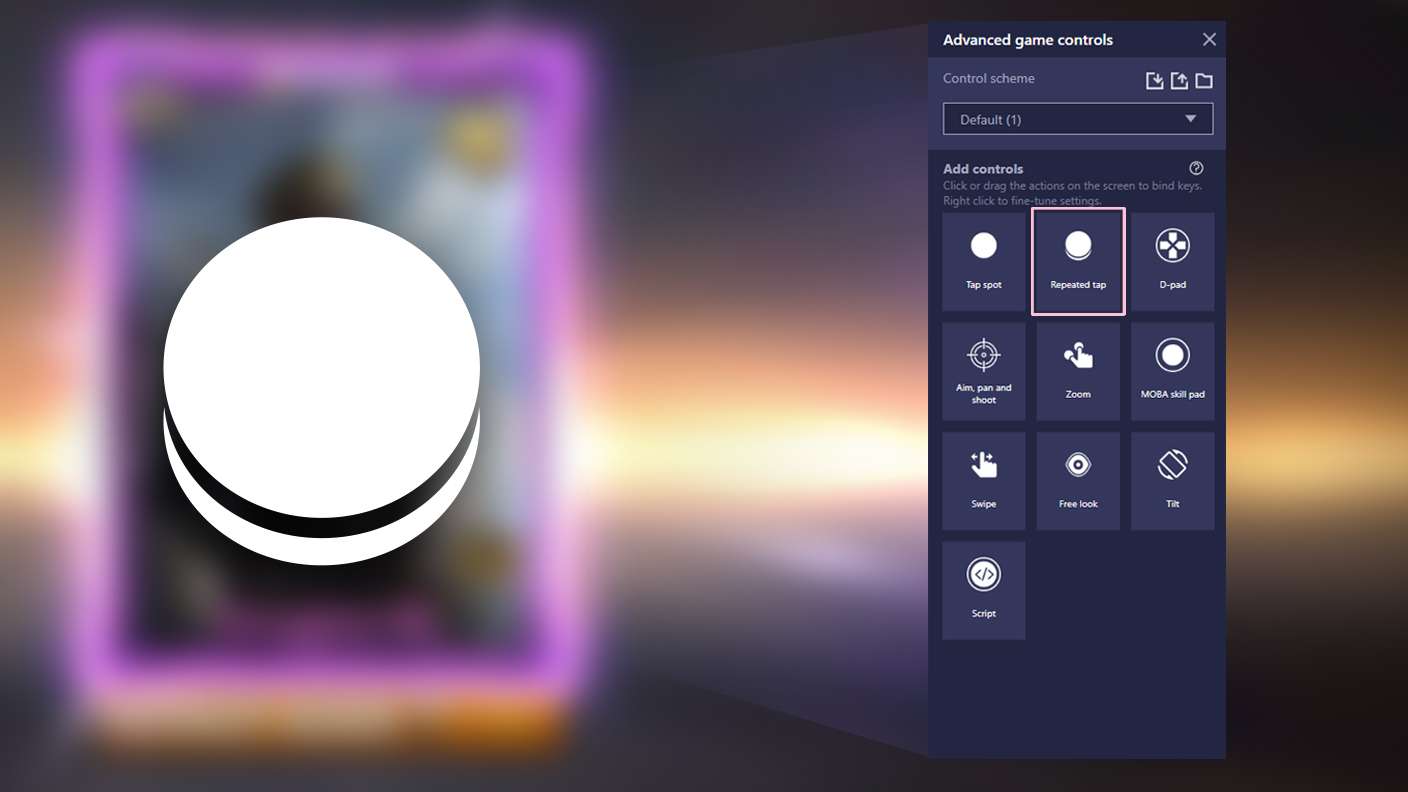
BlueStacks lets you master ZingPlay game portal with useful features like the Repeated Tap. Now you do not have to press the same key repeatedly to initiate an action. Just assign it to one key and you are good to go.
Read More

How to Download and Play ZingPlay game portal on PC or Mac

  • Download and install BlueStacks on your PC or Mac

  • Complete Google sign-in to access the Play Store, or do it later

  • Look for ZingPlay game portal in the search bar at the top right corner

  • Click to install ZingPlay game portal from the search results

  • Complete Google sign-in (if you skipped step 2) to install ZingPlay game portal

  • Click the ZingPlay game portal icon on the home screen to start playing

video
Watch Video

Minimum System Requirements

With BlueStacks 5, you can get started on a PC that fulfills the following requirements.

  • Operating System

    Microsoft Windows 7 or above, macOS 11 (Big Sur) or above

  • Processor

    Intel, AMD or Apple Silicon Processor

  • RAM

    at least 4GB

  • HDD

    10GB Free Disk Space

Note:

* You must be an Administrator on your PC. Up to date graphics drivers from Microsoft or the chipset vendor.

ZingPlay game portal - FAQs

  • How to play ZingPlay game portal on Windows PC & Mac?

    Play ZingPlay game portal on your PC or Mac by following these simple steps.

    • Click on 'Play ZingPlay game portal on PC’ to download BlueStacks
    • Install it and log-in to Google Play Store
    • Launch and play the game.
  • Why is BlueStacks the fastest and safest platform to play games on PC?

    BlueStacks respects your privacy and is always safe and secure to use. It does not carry any malware, spyware, or any sort of additional software that could harm your PC.

    It is engineered to optimize speed and performance for a seamless gaming experience.

  • What are ZingPlay game portal PC requirements?

    Minimum requirement to run ZingPlay game portal on your PC

    • OS: Microsoft Windows 7 or above MacOS 11 (Big Sur) or above
    • Processor: Intel, AMD or Apple Silicon Processor
    • RAM: Your PC must have at least 4GB of RAM. (Note that having 4GB or more disk space is not a substitute for RAM)
    • HDD: 10GB Free Disk Space.
    • You must be an Administrator on your PC.