App statistics: App Usage

App statistics: App Usage

Productivity

| hhll tools

Play on PC with BlueStacks or from our cloud

  • Overview
  • How to Download

Page Modified On: October 23, 2025

Run App statistics: App Usage on PC or Mac

What’s better than using App statistics: App Usage by hhll tools? Well, try it on a big screen, on your PC or Mac, with BlueStacks to see the difference.

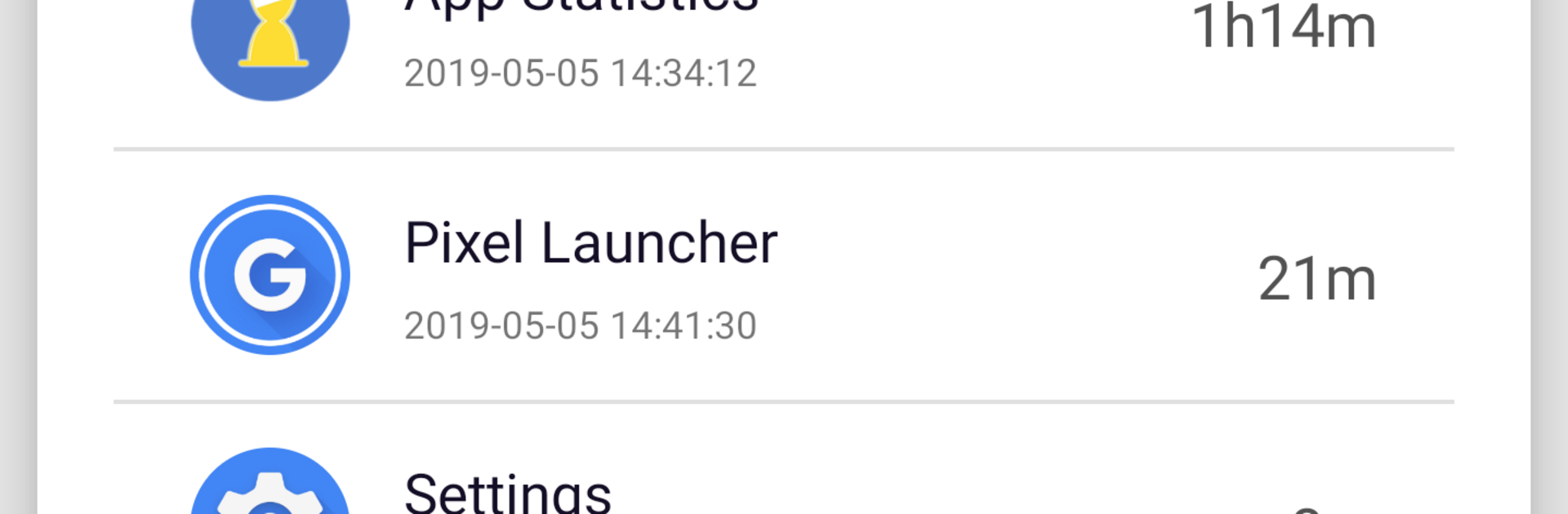
App Statistics feels like a simple screen time dashboard that actually shows where the day went. It tracks total phone time, how often each app gets opened, and the exact minutes spent in each one. Tap into an app and there is average daily use plus the last time it was opened, which makes patterns jump out without doing any math. The charts are clean, percentages are easy to read, and it even starts counting right after the device boots so there are no weird gaps.

The useful bit is the limits. Someone can set a daily cap for each app, and when that limit gets hit, a reminder pops up nudging them to close it. For that to work, it needs to stay running in the background, so force closing it will break the alerts. First run requires enabling the Usage Access permission, which is expected for this kind of tool. Data stays on the device, no account or cloud stuff, so it feels private and lightweight.

On PC with BlueStacks, the bigger screen makes the graphs and lists nicer to scan, and it tracks usage inside the Android apps running there, not all of Windows. It is not full of extras or coaching. Just clear stats and simple reminders that help someone notice when an app is eating the afternoon.

Eager to take your app experience to the next level? Start right away by downloading BlueStacks on your PC or Mac.


How to Download and Run App statistics: App Usage on PC or Mac

  • Download and install BlueStacks on your PC or Mac

  • Complete Google sign-in to access the Play Store, or do it later

  • Look for App statistics: App Usage in the search bar at the top right corner

  • Click to install App statistics: App Usage from the search results

  • Complete Google sign-in (if you skipped step 2) to install App statistics: App Usage

  • Click the App statistics: App Usage icon on the home screen to start playing

video
Watch Video

Minimum System Requirements

With BlueStacks 5, you can get started on a PC that fulfills the following requirements.

  • Operating System

    Microsoft Windows 7 or above, macOS 11 (Big Sur) or above

  • Processor

    Intel, AMD or Apple Silicon Processor

  • RAM

    at least 4GB

  • HDD

    10GB Free Disk Space

Note:

* You must be an Administrator on your PC. Up to date graphics drivers from Microsoft or the chipset vendor.

App statistics: App Usage - FAQs

  • How to Run App statistics: App Usage on Windows PC & Mac?

    Run App statistics: App Usage on your PC or Mac by following these simple steps.

    • Click on ‘Download App statistics: App Usage on PC’ to download BlueStacks
    • Install it and log-in to Google Play Store
    • Launch and run the app.
  • Why is BlueStacks the fastest and safest platform to play games on PC?

    BlueStacks respects your privacy and is always safe and secure to use. It does not carry any malware, spyware, or any sort of additional software that could harm your PC.

    It is engineered to optimize speed and performance for a seamless gaming experience.

  • What are App statistics: App Usage PC requirements?

    Minimum requirement to run App statistics: App Usage on your PC

    • OS: Microsoft Windows 7 and above:
    • Processor: Intel or AMD Processor:
    • RAM: Your PC must have at least 2GB of RAM. (Note that having 2GB or more disk space is not a substitute for RAM):
    • HDD: 5GB Free Disk Space.
    • You must be an Administrator on your PC.