Let's Game Now Table Tennis

Let's Game Now Table Tennis

Sports

| Let's Game Now

Play on PC with BlueStacks or from our cloud

  • Overview
  • Game Features
  • How to Play

Page Modified On: September 18, 2026

Play Let's Game Now Table Tennis on PC or Mac

Play Let’s Game Now Table Tennis by Let’s Game Now on PC or Mac with BlueStacks. Use a bigger screen, mouse and keyboard controls, and smoother performance while you play.

About the Game

Let’s Game Now Table Tennis serves up quick rallies, tight angles, and that satisfying snap when a perfect spin lands. This Sports game mixes speedy play with real opponents and smart bots, so you can warm up, experiment with styles, and then go all-in for bragging rights. Prefer a bigger display? You can play it on PC with BlueStacks, too.

Game Features

  • Head-to-head online play: Challenge real players in competitive matches that reward sharp timing and smart shot choice.
  • Solo practice with bots: Train against adaptive AI to nail serves, returns, and placements before you jump online.
  • Teams and player variety: Choose from different teams and athletes, each bringing their own flavor to the table.
  • Meaningful player stats: Spin, swing, power, speed, and accuracy genuinely affect rallies, from soft touches to heavy smashes.
  • Table selection system: Unlock and switch between distinct tables to change up the look and feel of each match.
  • Global leaderboard: Track your progress and see how your win streak stacks up against other players.
  • Graphics tuning: Customize visual settings for smoother performance or crisper detail based on what you like.
  • Haptics support: Subtle feedback adds a tactile feel to serves, blocks, and those edge-saving returns.
  • Landscape-first design: Clean, widescreen gameplay keeps the action readable and your shots easy to line up.
  • Quick-match flow: Jump in, play a fast set, and hop out—perfect when you’ve got a few spare minutes.

Get ready for a buttery smooth, high-performance gaming action only on BlueStacks.
Game Features

Enhancements

  • Macros
  • Multi Instance
  • Multi Instance Sync
  • Script
  • Enhancements
Macros

Macros

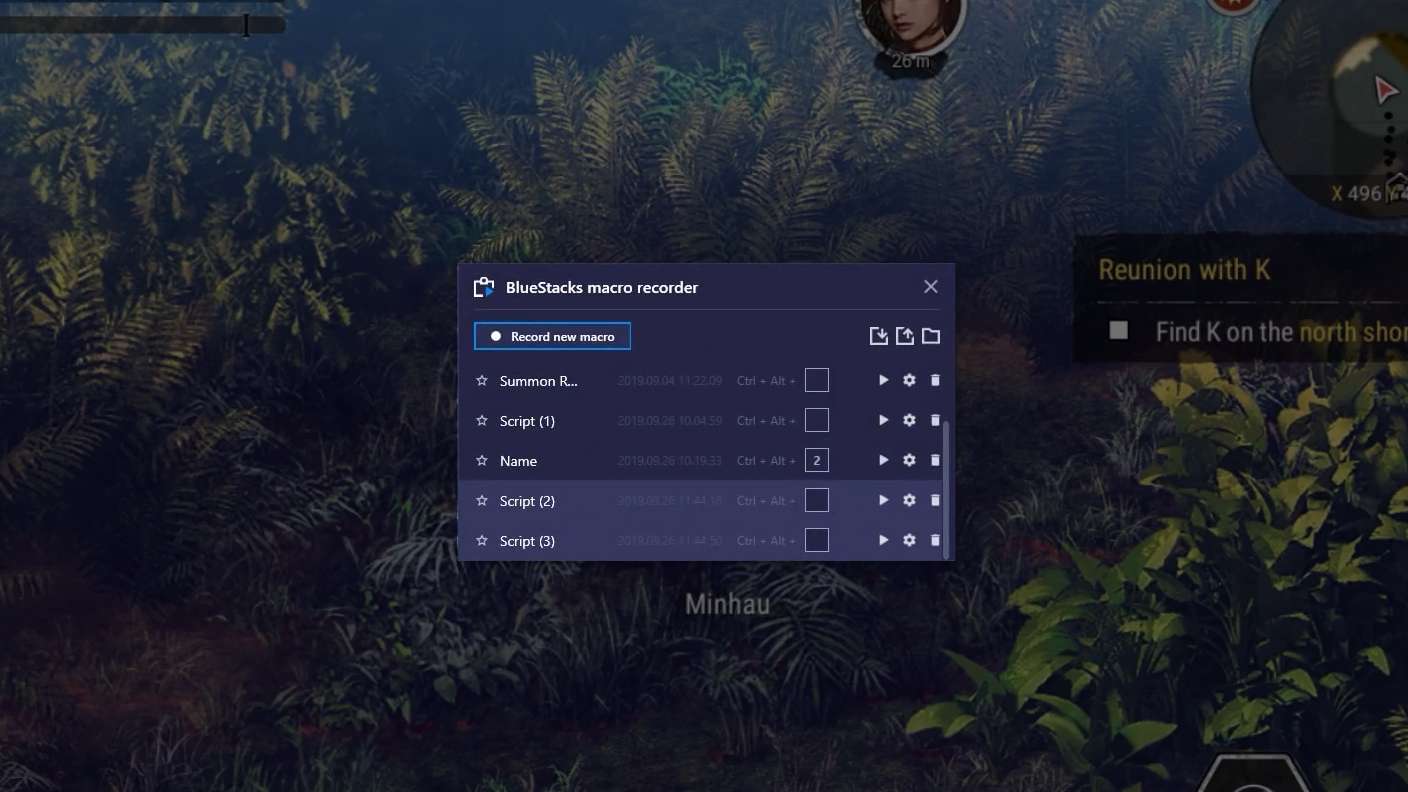
Automate the predictable in Let's Game Now Table Tennis and transform your gameplay with Macros. Get access to inventive Macros in the BlueStacks Macro Community
Multi Instance

Multi Instance

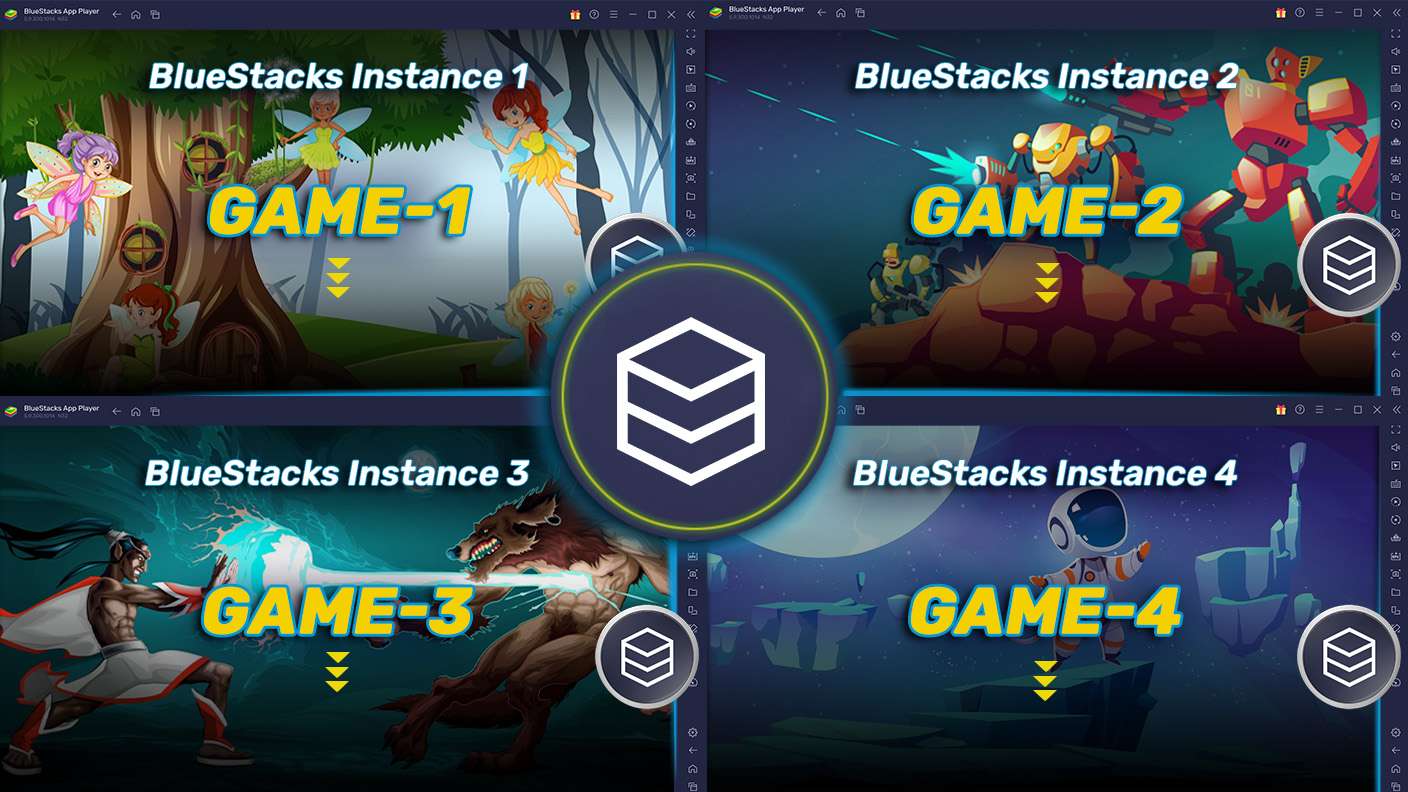
Play Let's Game Now Table Tennis on one window. And chat with your friend on the other. Press CTRL + Shift + 8 to open the Multi-Instance Manager. And start creating fresh instances or clone an existing one.
Multi Instance Sync

Multi Instance Sync

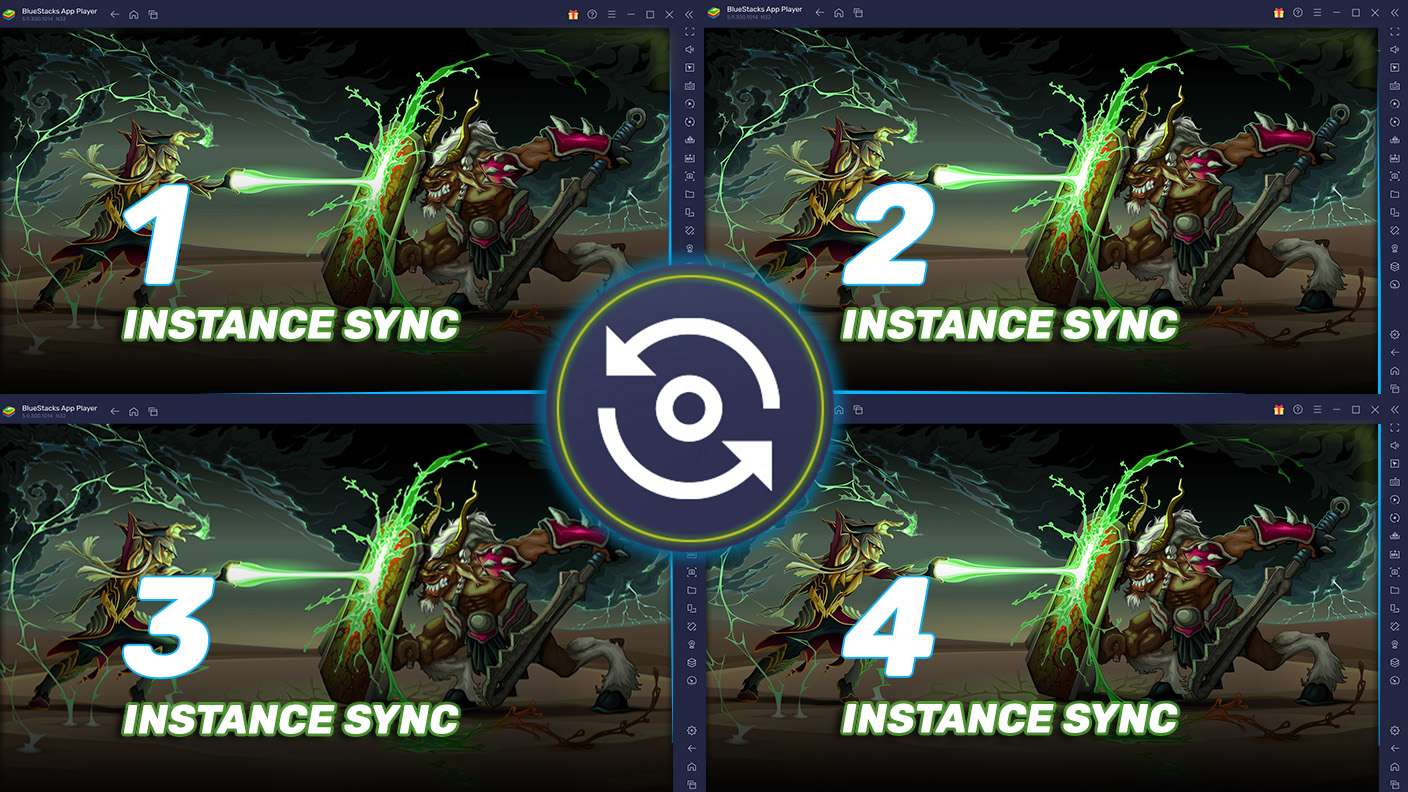
Play Let's Game Now Table Tennis with the power of Multi-Instance Sync. Replicate what you are doing on the main instance on all other instances. Level up faster, play more.
Script

Script

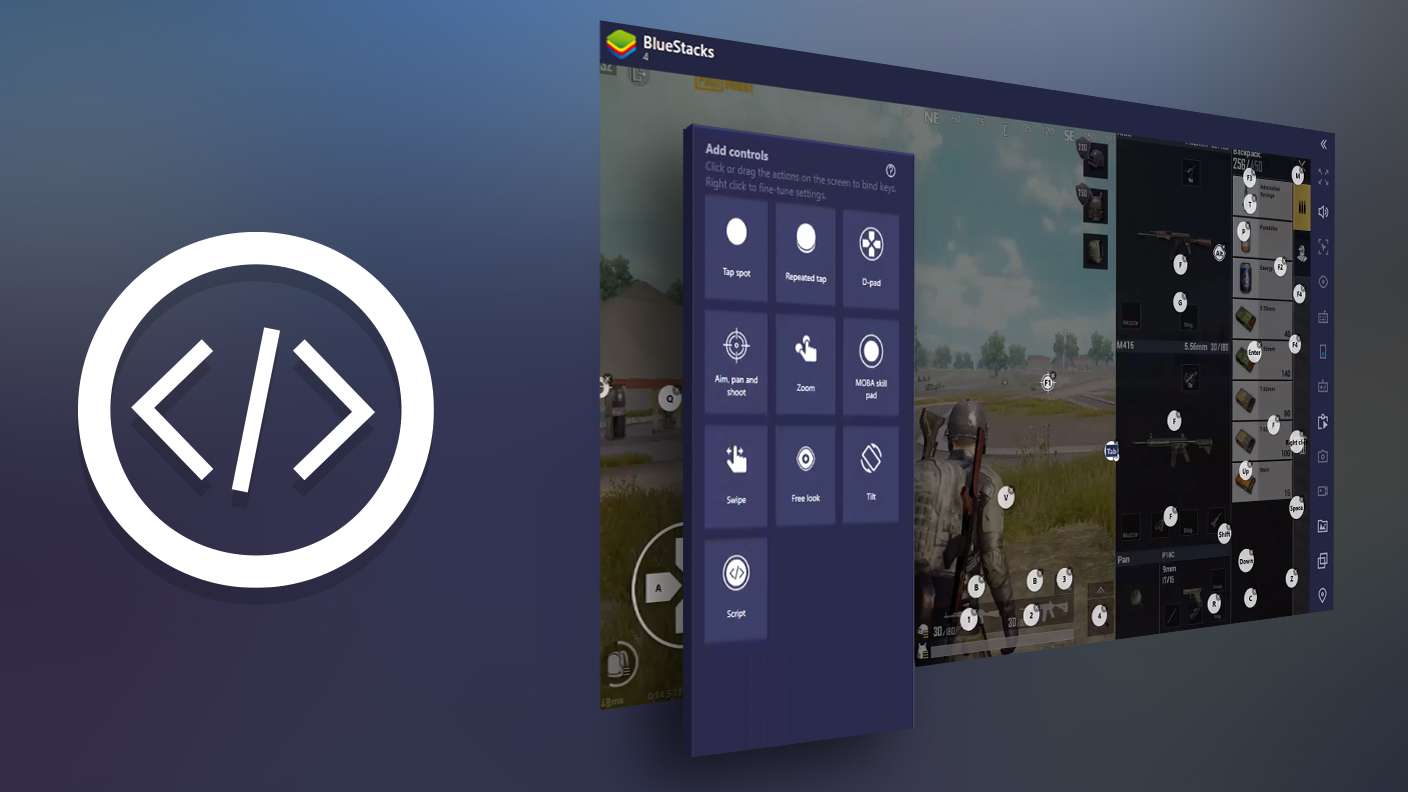
Script your way to gaming glory in Let's Game Now Table Tennis with BlueStacks Script. Write and run a set of commands to automate repeated tasks. Trigger the command by assigning it to any key.
Read More

How to Download and Play Let's Game Now Table Tennis on PC or Mac

  • Download and install BlueStacks on your PC or Mac

  • Complete Google sign-in to access the Play Store, or do it later

  • Look for Let's Game Now Table Tennis in the search bar at the top right corner

  • Click to install Let's Game Now Table Tennis from the search results

  • Complete Google sign-in (if you skipped step 2) to install Let's Game Now Table Tennis

  • Click the Let's Game Now Table Tennis icon on the home screen to start playing

video
Watch Video

Minimum System Requirements

With BlueStacks 5, you can get started on a PC that fulfills the following requirements.

  • Operating System

    Microsoft Windows 7 or above, macOS 11 (Big Sur) or above

  • Processor

    Intel, AMD or Apple Silicon Processor

  • RAM

    at least 4GB

  • HDD

    10GB Free Disk Space

Note:

* You must be an Administrator on your PC. Up to date graphics drivers from Microsoft or the chipset vendor.

Let's Game Now Table Tennis - FAQs

  • How to play Let's Game Now Table Tennis on Windows PC & Mac?

    Play Let's Game Now Table Tennis on your PC or Mac by following these simple steps.

    • Click on 'Play Let's Game Now Table Tennis on PC’ to download BlueStacks
    • Install it and log-in to Google Play Store
    • Launch and play the game.
  • Why is BlueStacks the fastest and safest platform to play games on PC?

    BlueStacks respects your privacy and is always safe and secure to use. It does not carry any malware, spyware, or any sort of additional software that could harm your PC.

    It is engineered to optimize speed and performance for a seamless gaming experience.

  • What are Let's Game Now Table Tennis PC requirements?

    Minimum requirement to run Let's Game Now Table Tennis on your PC

    • OS: Microsoft Windows 7 or above MacOS 11 (Big Sur) or above
    • Processor: Intel, AMD or Apple Silicon Processor
    • RAM: Your PC must have at least 4GB of RAM. (Note that having 4GB or more disk space is not a substitute for RAM)
    • HDD: 10GB Free Disk Space.
    • You must be an Administrator on your PC.