Programme TV Foot
Programme TV Foot

Programme TV Foot

Sports

| ERB MEDIA

Play on PC with BlueStacks or from our cloud

  • Overview
  • Game Features
  • How to Play

Page Modified On: October 23, 2025

Play Programme TV Foot on PC or Mac

Join millions to experience Programme TV Foot, an exciting Sports game from ERB MEDIA. With BlueStacks App Player, you are always a step ahead of your opponent, ready to outplay them with faster gameplay and better control with the mouse and keyboard on your PC or Mac.

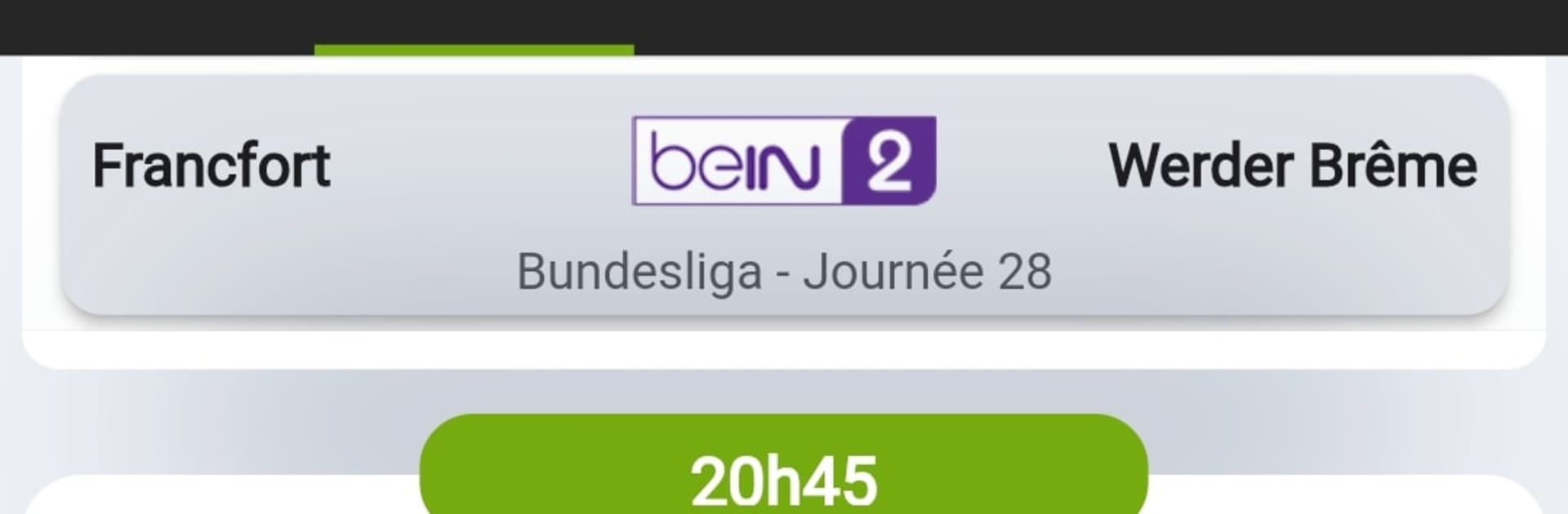
Programme TV Foot is not a match simulator, it is a clean dashboard that tells where and when football is on TV. On PC with BlueStacks, it feels like a proper second screen. Big list, big fonts, quick clicks. The home view shows what is live right now, what is on tonight, and what replays are planned across the week. The layout is simple in a good way, so no hunting through menus just to see kickoff times.

What stands out is how fast it is to tune the schedule to actual interests. Pick a favorite club or two, choose the channels that are in the subscription, and it trims the noise. There are alerts that drop a reminder before a match starts, which saves that awkward 10 minutes late to kickoff thing. Schedules go several days ahead, and there is a filter for women’s football that is easy to spot. It covers the big competitions like Ligue 1, Premier League, Champions League, Europa, World Cup qualifiers, all that, and lists channels such as Canal+, beIN Sports, RMC Sport, Amazon’s Ligue 1 Pass, TF1, M6, Eurosport and more. It does not stream anything itself, it just points to the channel, which is fair. On BlueStacks the calendar view and filters are nicer to use with a mouse, and it is easy to leave it open while checking other stuff. If someone wants a straightforward way to keep track of matches without extra fluff, this gets the job done.

Slay your opponents with your epic moves. Play it your way on BlueStacks and dominate the battlefield.


Game Features

Enhancements

  • Macros
  • Multi Instance
  • Multi Instance Sync
  • Script
  • Enhancements
Macros

Macros

Automate the predictable in Programme TV Foot and transform your gameplay with Macros. Get access to inventive Macros in the BlueStacks Macro Community
Multi Instance

Multi Instance

Play Programme TV Foot on one window. And chat with your friend on the other. Press CTRL + Shift + 8 to open the Multi-Instance Manager. And start creating fresh instances or clone an existing one.
Multi Instance Sync

Multi Instance Sync

Play Programme TV Foot with the power of Multi-Instance Sync. Replicate what you are doing on the main instance on all other instances. Level up faster, play more.
Script

Script

Script your way to gaming glory in Programme TV Foot with BlueStacks Script. Write and run a set of commands to automate repeated tasks. Trigger the command by assigning it to any key.
Read More

How to Download and Play Programme TV Foot on PC or Mac

  • Download and install BlueStacks on your PC or Mac

  • Complete Google sign-in to access the Play Store, or do it later

  • Look for Programme TV Foot in the search bar at the top right corner

  • Click to install Programme TV Foot from the search results

  • Complete Google sign-in (if you skipped step 2) to install Programme TV Foot

  • Click the Programme TV Foot icon on the home screen to start playing

video
Watch Video

Minimum System Requirements

With BlueStacks 5, you can get started on a PC that fulfills the following requirements.

  • Operating System

    Microsoft Windows 7 or above, macOS 11 (Big Sur) or above

  • Processor

    Intel, AMD or Apple Silicon Processor

  • RAM

    at least 4GB

  • HDD

    10GB Free Disk Space

Note:

* You must be an Administrator on your PC. Up to date graphics drivers from Microsoft or the chipset vendor.

Programme TV Foot - FAQs

  • How to play Programme TV Foot on Windows PC & Mac?

    Play Programme TV Foot on your PC or Mac by following these simple steps.

    • Click on 'Play Programme TV Foot on PC’ to download BlueStacks
    • Install it and log-in to Google Play Store
    • Launch and play the game.
  • Why is BlueStacks the fastest and safest platform to play games on PC?

    BlueStacks respects your privacy and is always safe and secure to use. It does not carry any malware, spyware, or any sort of additional software that could harm your PC.

    It is engineered to optimize speed and performance for a seamless gaming experience.

  • What are Programme TV Foot PC requirements?

    Minimum requirement to run Programme TV Foot on your PC

    • OS: Microsoft Windows 7 or above MacOS 11 (Big Sur) or above
    • Processor: Intel, AMD or Apple Silicon Processor
    • RAM: Your PC must have at least 4GB of RAM. (Note that having 4GB or more disk space is not a substitute for RAM)
    • HDD: 10GB Free Disk Space.
    • You must be an Administrator on your PC.