Aquarium Assistant
Aquarium Assistant

Aquarium Assistant

Tools

| Aitoros

Play on PC with BlueStacks or from our cloud

  • Overview
  • How to Download

Page Modified On: October 03, 2025

Run Aquarium Assistant on PC or Mac

Upgrade your experience. Try Aquarium Assistant, the fantastic Tools app from Aitoros, from the comfort of your laptop, PC, or Mac, only on BlueStacks.

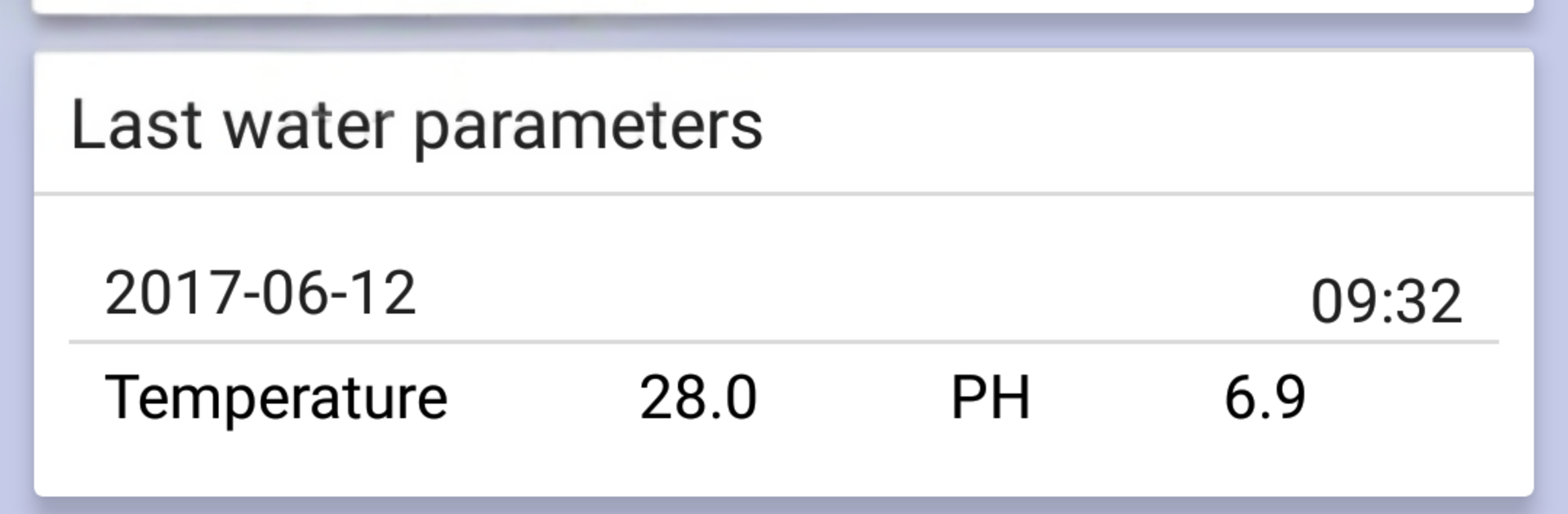
Aquarium Assistant feels like a tidy control center for fishkeepers. Everything about a tank lives in one place, so checking last month’s water readings, plant growth, or how many shrimp are in the colony does not involve digging through notes. The default screen is a simple dashboard that shows recent parameters, what jobs are due, and anything coming up. Each aquarium gets its own profile with basics like name and volume, plus the latest test results. There is a spot to catalog animals, plants, and gear, complete with photo galleries, and sorting by name, scientific name, or when it was bought.

Task tracking is a big deal here. Water changes, filter rinses, dosing, pruning, all of it can be scheduled, and overdue stuff gets flagged. Fertilization plans plug right into tasks, so the routine is laid out instead of guessed. Water parameters are logged per tank, and the app lets users set ranges that make sense for freshwater, marine, brackish, or shrimp setups. Graphs are clean, and there is a neat correlation view that puts any three stats on the same chart by day, week, or month. There is also a dosing calculator to hit target values, an Estimative Index tool with templates for macro and micro, unit converters, and quick notes with photos after activities. Little extras help, like parameter countdown timers, expense tracking, and sharing of logs or dosing presets. It supports multiple aquariums, plus backup and restore locally or to cloud storage.

On a PC with BlueStacks, the graphs and galleries are easier to read, typing in logs is faster, and switching between tanks with a mouse just feels smoother. It is not flashy, more practical and steady, like a coach keeping the routine on track without getting in the way.

Big screen. Bigger performance. Use BlueStacks on your PC or Mac to run your favorite apps.

How to Download and Run Aquarium Assistant on PC or Mac

  • Download and install BlueStacks on your PC or Mac

  • Complete Google sign-in to access the Play Store, or do it later

  • Look for Aquarium Assistant in the search bar at the top right corner

  • Click to install Aquarium Assistant from the search results

  • Complete Google sign-in (if you skipped step 2) to install Aquarium Assistant

  • Click the Aquarium Assistant icon on the home screen to start playing

video
Watch Video

Minimum System Requirements

With BlueStacks 5, you can get started on a PC that fulfills the following requirements.

  • Operating System

    Microsoft Windows 7 or above, macOS 11 (Big Sur) or above

  • Processor

    Intel, AMD or Apple Silicon Processor

  • RAM

    at least 4GB

  • HDD

    10GB Free Disk Space

Note:

* You must be an Administrator on your PC. Up to date graphics drivers from Microsoft or the chipset vendor.

Aquarium Assistant - FAQs

  • How to Run Aquarium Assistant on Windows PC & Mac?

    Run Aquarium Assistant on your PC or Mac by following these simple steps.

    • Click on ‘Download Aquarium Assistant on PC’ to download BlueStacks
    • Install it and log-in to Google Play Store
    • Launch and run the app.
  • Why is BlueStacks the fastest and safest platform to play games on PC?

    BlueStacks respects your privacy and is always safe and secure to use. It does not carry any malware, spyware, or any sort of additional software that could harm your PC.

    It is engineered to optimize speed and performance for a seamless gaming experience.

  • What are Aquarium Assistant PC requirements?

    Minimum requirement to run Aquarium Assistant on your PC

    • OS: Microsoft Windows 7 and above:
    • Processor: Intel or AMD Processor:
    • RAM: Your PC must have at least 2GB of RAM. (Note that having 2GB or more disk space is not a substitute for RAM):
    • HDD: 5GB Free Disk Space.
    • You must be an Administrator on your PC.