Clock Seconds Pro + Widget

Clock Seconds Pro + Widget

Tools

| Light Dot Net

Play on PC with BlueStacks or from our cloud

  • Overview
  • How to Download

Page Modified On: December 05, 2025

Run Clock Seconds Pro + Widget on PC or Mac

Multitask effortlessly on your PC or Mac as you try out Clock Seconds Pro + Widget, a Tools app by Light Dot Net on BlueStacks.

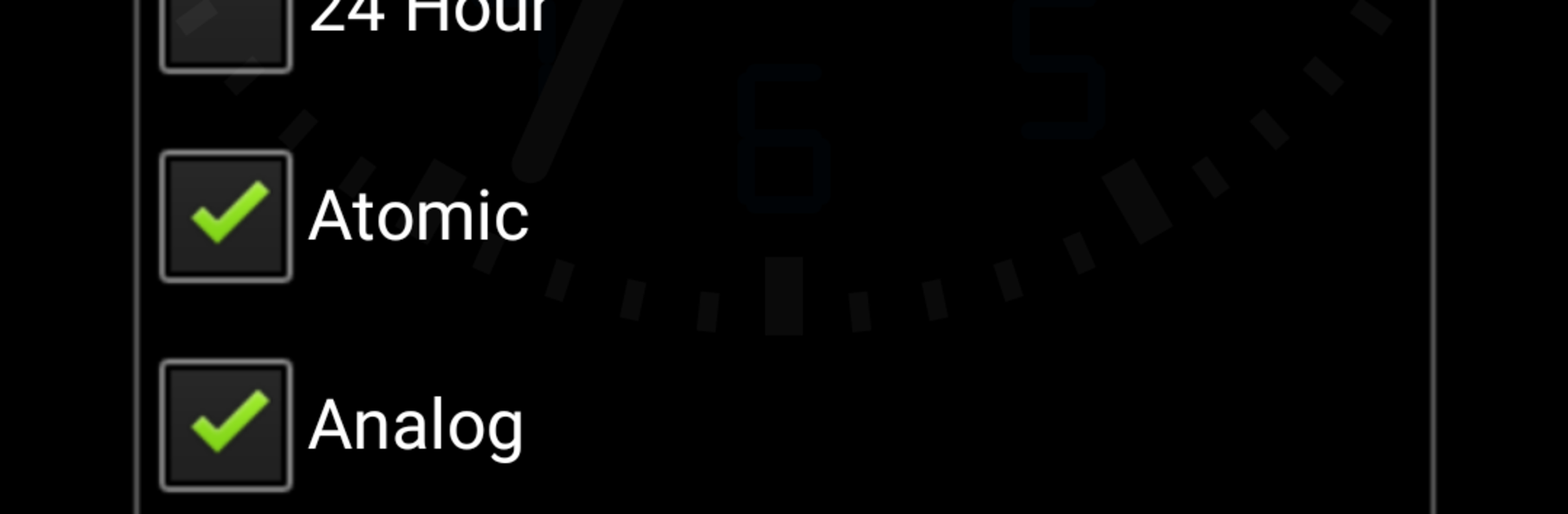
Clock Seconds Pro + Widget is basically a super clean clock that does seconds right, with a vibe that works on a phone or parked on a desk. It blends a digital seconds clock with that atomic wall clock feel, so the time snaps to the NIST Internet Time Server and stays tight. There is a simple switch between analog and digital, plus a 12 or 24 hour format. The widget can be resized so it can sit tiny on a home screen or take over a whole panel. Date can be shown or hidden. Colors are fully adjustable with red, green, blue sliders, so it can match a wallpaper or pop bright in a dark setup. There is a brightness control built in, which sounds small but actually helps if the screen will stay on for hours. Battery level reads accurately and quietly disappears when it hits 100, which is neat and avoids clutter.

Run it on BlueStacks and it turns into a handy desk clock on a big monitor, especially in full screen. The seconds tick smoothly, numbers are sharp, and split screen or picture in picture keeps the clock visible while doing other stuff. It can be a background companion while working, timing tasks, or just having a steady time reference that is not buried in a status bar. Nothing fancy, just solid options that get out of the way and a clock that stays precise without fuss.

BlueStacks brings your apps to life on a bigger screen—seamless and straightforward.

How to Download and Run Clock Seconds Pro + Widget on PC or Mac

  • Download and install BlueStacks on your PC or Mac

  • Complete Google sign-in to access the Play Store, or do it later

  • Look for Clock Seconds Pro + Widget in the search bar at the top right corner

  • Click to install Clock Seconds Pro + Widget from the search results

  • Complete Google sign-in (if you skipped step 2) to install Clock Seconds Pro + Widget

  • Click the Clock Seconds Pro + Widget icon on the home screen to start playing

video
Watch Video

Minimum System Requirements

With BlueStacks 5, you can get started on a PC that fulfills the following requirements.

  • Operating System

    Microsoft Windows 7 or above, macOS 11 (Big Sur) or above

  • Processor

    Intel, AMD or Apple Silicon Processor

  • RAM

    at least 4GB

  • HDD

    10GB Free Disk Space

Note:

* You must be an Administrator on your PC. Up to date graphics drivers from Microsoft or the chipset vendor.

Clock Seconds Pro + Widget - FAQs

  • How to Run Clock Seconds Pro + Widget on Windows PC & Mac?

    Run Clock Seconds Pro + Widget on your PC or Mac by following these simple steps.

    • Click on ‘Download Clock Seconds Pro + Widget on PC’ to download BlueStacks
    • Install it and log-in to Google Play Store
    • Launch and run the app.
  • Why is BlueStacks the fastest and safest platform to play games on PC?

    BlueStacks respects your privacy and is always safe and secure to use. It does not carry any malware, spyware, or any sort of additional software that could harm your PC.

    It is engineered to optimize speed and performance for a seamless gaming experience.

  • What are Clock Seconds Pro + Widget PC requirements?

    Minimum requirement to run Clock Seconds Pro + Widget on your PC

    • OS: Microsoft Windows 7 and above:
    • Processor: Intel or AMD Processor:
    • RAM: Your PC must have at least 2GB of RAM. (Note that having 2GB or more disk space is not a substitute for RAM):
    • HDD: 5GB Free Disk Space.
    • You must be an Administrator on your PC.