Google Assistant Go
Google Assistant Go

Google Assistant Go

Tools

| Google LLC

Play on PC with BlueStacks or from our cloud

  • Overview
  • How to Download

Page Modified On: September 14, 2026

Run Google Assistant Go on PC or Mac

Multitask effortlessly on your PC or Mac as you try out Google Assistant Go, a Tools app by Google LLC on BlueStacks.

About the App

Google Assistant Go is the lighter, faster way to get help with everyday tasks on Android (Go edition). As a Tools app, it focuses on the essentials—use your voice to find places, send messages, make calls, play music, and get quick answers without fuss. It’s great on compact devices, and if you like using a bigger screen, you can run it with BlueStacks too.

App Features

  • Hands-free calls: Say a name or number and it’ll place the call—no tapping through menus.
  • Quick texts: Dictate a message and send it right away, handy when you’re short on time.
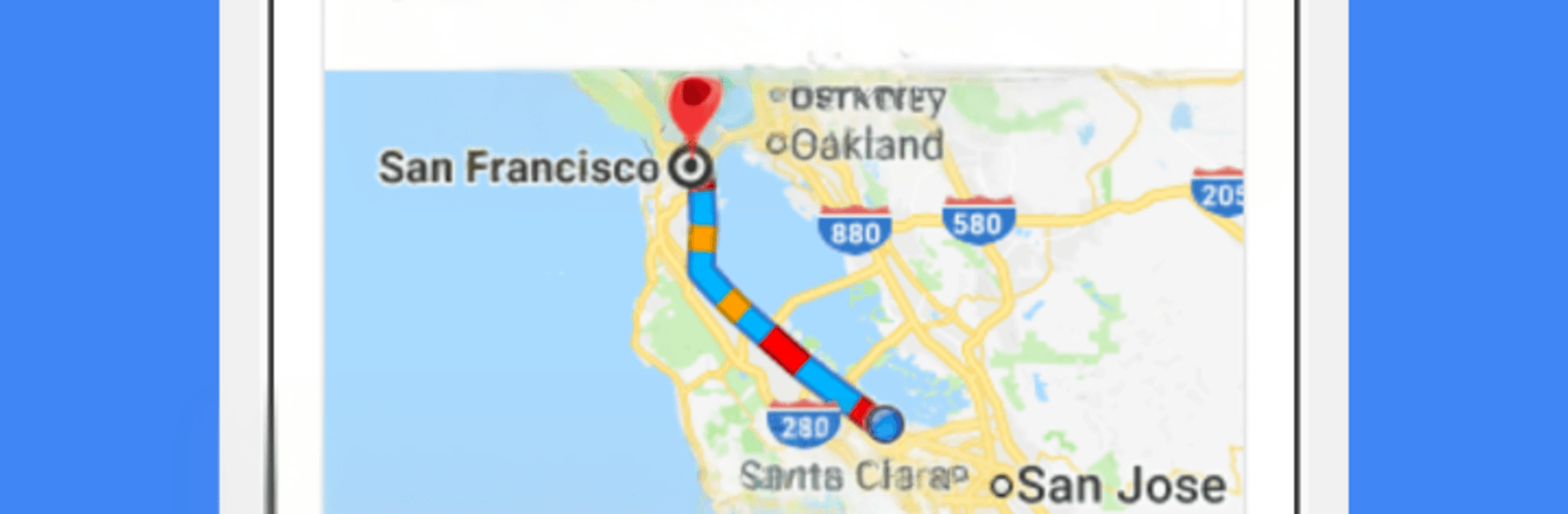
  • Navigation help: Ask for directions to nearby spots and get guided routes to where you’re headed.
  • Play your tunes: Request artists, genres, or playlists and let the music start instantly.
  • Your day at a glance: Hear what’s on your agenda so you can plan without opening another app.
  • Weather check: Find out if you’ll need an umbrella or sunglasses before stepping out.
  • Fast facts: Ask about landmarks, conversions, and more to get answers in seconds.
  • Simple launch: Tap the Assistant icon or long‑press the home button on devices running Android (Go edition) to start talking.
  • Made for speed: Designed to be lightweight and responsive, so it feels smooth even on lean setups.
  • Feature notes: This Go version doesn’t include reminders, smart home controls, or certain advanced actions.
  • Language support: Currently available in English.

Switch to BlueStacks and make the most of your apps on your PC or Mac.

How to Download and Run Google Assistant Go on PC or Mac

  • Download and install BlueStacks on your PC or Mac

  • Complete Google sign-in to access the Play Store, or do it later

  • Look for Google Assistant Go in the search bar at the top right corner

  • Click to install Google Assistant Go from the search results

  • Complete Google sign-in (if you skipped step 2) to install Google Assistant Go

  • Click the Google Assistant Go icon on the home screen to start playing

video
Watch Video

Minimum System Requirements

With BlueStacks 5, you can get started on a PC that fulfills the following requirements.

  • Operating System

    Microsoft Windows 7 or above, macOS 11 (Big Sur) or above

  • Processor

    Intel, AMD or Apple Silicon Processor

  • RAM

    at least 4GB

  • HDD

    10GB Free Disk Space

Note:

* You must be an Administrator on your PC. Up to date graphics drivers from Microsoft or the chipset vendor.

Google Assistant Go - FAQs

  • How to Run Google Assistant Go on Windows PC & Mac?

    Run Google Assistant Go on your PC or Mac by following these simple steps.

    • Click on ‘Download Google Assistant Go on PC’ to download BlueStacks
    • Install it and log-in to Google Play Store
    • Launch and run the app.
  • Why is BlueStacks the fastest and safest platform to play games on PC?

    BlueStacks respects your privacy and is always safe and secure to use. It does not carry any malware, spyware, or any sort of additional software that could harm your PC.

    It is engineered to optimize speed and performance for a seamless gaming experience.

  • What are Google Assistant Go PC requirements?

    Minimum requirement to run Google Assistant Go on your PC

    • OS: Microsoft Windows 7 and above:
    • Processor: Intel or AMD Processor:
    • RAM: Your PC must have at least 2GB of RAM. (Note that having 2GB or more disk space is not a substitute for RAM):
    • HDD: 5GB Free Disk Space.
    • You must be an Administrator on your PC.