LED Digital Clock: Table Clock

LED Digital Clock: Table Clock

Tools

| Galaxy studio apps

Play on PC with BlueStacks or from our cloud

  • Overview
  • How to Download

Page Modified On: January 05, 2026

Run LED Digital Clock: Table Clock on PC or Mac

What’s better than using LED Digital Clock: Table Clock by Galaxy studio apps? Well, try it on a big screen, on your PC or Mac, with BlueStacks to see the difference.

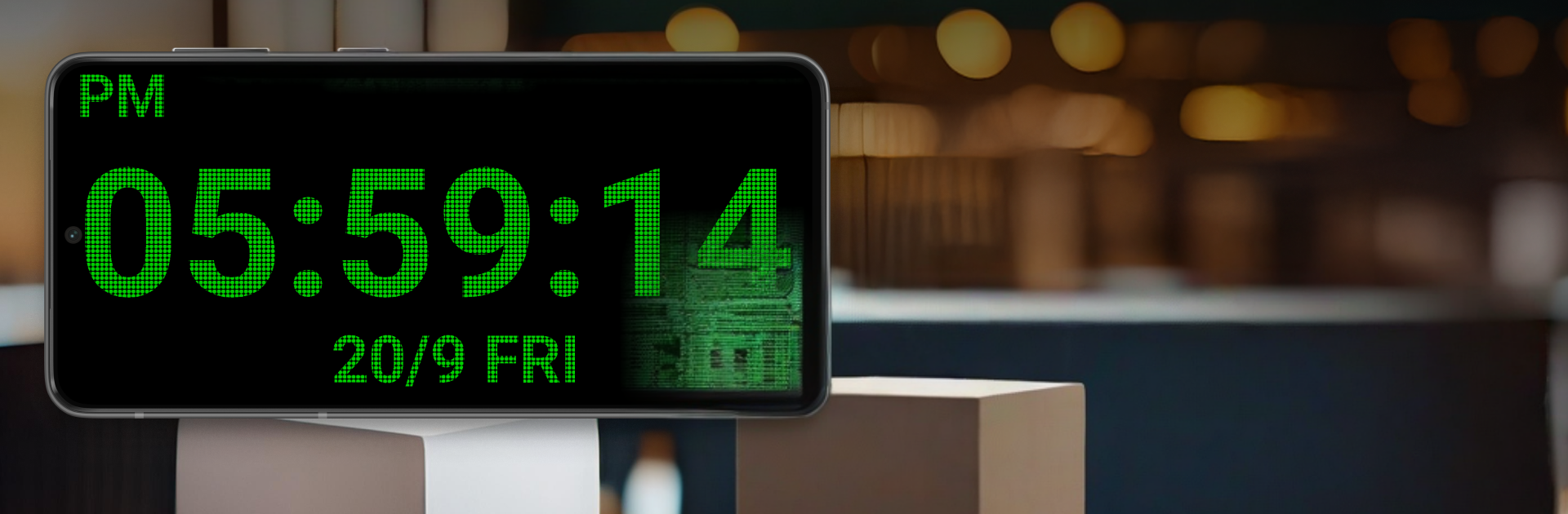
LED Digital Clock is basically a giant digital clock that turns a phone, tablet, or a PC screen into a clean desk clock. Big bright numbers, super readable from across the room, and it shows hours, minutes, seconds, plus the date. That is the whole point. No alarms, no timers, no extra widgets to manage. They open it, pick colors for the numbers and background, and let it sit there doing its job. The neon look can be bold for daytime, then the night mode dials the glow down so it is easy on the eyes when the room is dark.

The customization is simple but useful. They can go with a classic plain look or lean into the neon theme with loud color combos. It fits a home office, a kitchen counter, or a bedside table without feeling busy. On PC with BlueStacks, it is nice as a resizable window or full screen on a spare monitor, so it sort of becomes a modern table clock for a desk setup. The digits are crisp, the interface is straight to the point, and there is nothing to figure out. If someone needs alarms, calendars, or complicated layouts, this will feel too bare. If they just want a large, clean clock they can actually read and match to their room colors, it nails that simple use case.

Big screen. Bigger performance. Use BlueStacks on your PC or Mac to run your favorite apps.

How to Download and Run LED Digital Clock: Table Clock on PC or Mac

  • Download and install BlueStacks on your PC or Mac

  • Complete Google sign-in to access the Play Store, or do it later

  • Look for LED Digital Clock: Table Clock in the search bar at the top right corner

  • Click to install LED Digital Clock: Table Clock from the search results

  • Complete Google sign-in (if you skipped step 2) to install LED Digital Clock: Table Clock

  • Click the LED Digital Clock: Table Clock icon on the home screen to start playing

video
Watch Video

Minimum System Requirements

With BlueStacks 5, you can get started on a PC that fulfills the following requirements.

  • Operating System

    Microsoft Windows 7 or above, macOS 11 (Big Sur) or above

  • Processor

    Intel, AMD or Apple Silicon Processor

  • RAM

    at least 4GB

  • HDD

    10GB Free Disk Space

Note:

* You must be an Administrator on your PC. Up to date graphics drivers from Microsoft or the chipset vendor.

LED Digital Clock: Table Clock - FAQs

  • How to Run LED Digital Clock: Table Clock on Windows PC & Mac?

    Run LED Digital Clock: Table Clock on your PC or Mac by following these simple steps.

    • Click on ‘Download LED Digital Clock: Table Clock on PC’ to download BlueStacks
    • Install it and log-in to Google Play Store
    • Launch and run the app.
  • Why is BlueStacks the fastest and safest platform to play games on PC?

    BlueStacks respects your privacy and is always safe and secure to use. It does not carry any malware, spyware, or any sort of additional software that could harm your PC.

    It is engineered to optimize speed and performance for a seamless gaming experience.

  • What are LED Digital Clock: Table Clock PC requirements?

    Minimum requirement to run LED Digital Clock: Table Clock on your PC

    • OS: Microsoft Windows 7 and above:
    • Processor: Intel or AMD Processor:
    • RAM: Your PC must have at least 2GB of RAM. (Note that having 2GB or more disk space is not a substitute for RAM):
    • HDD: 5GB Free Disk Space.
    • You must be an Administrator on your PC.