mWater Surveyor
mWater Surveyor

mWater Surveyor

Tools

| mWater

Play on PC with BlueStacks or from our cloud

  • Overview
  • How to Download

Page Modified On: August 22, 2025

Run mWater Surveyor on PC or Mac

Let BlueStacks turn your PC, Mac, or laptop into the perfect home for mWater Surveyor, a fun Tools app from mWater.

About the App

If you’ve ever needed an easy way to handle surveys out in the field—whether you’re tracking water sources, checking up on schools, or mapping community projects—mWater Surveyor is built with you in mind. This straightforward app by mWater puts the power of smart data collection and analysis in your hands, no matter where you are. Jump between mapping, monitoring, and real-time tracking, all in a few taps.

App Features

  • Flexible Data Collection
    Create and fill out surveys tailored to your project, whether you’re checking water systems or other facilities—right from your phone or tablet.

  • Interactive Mapping Tools
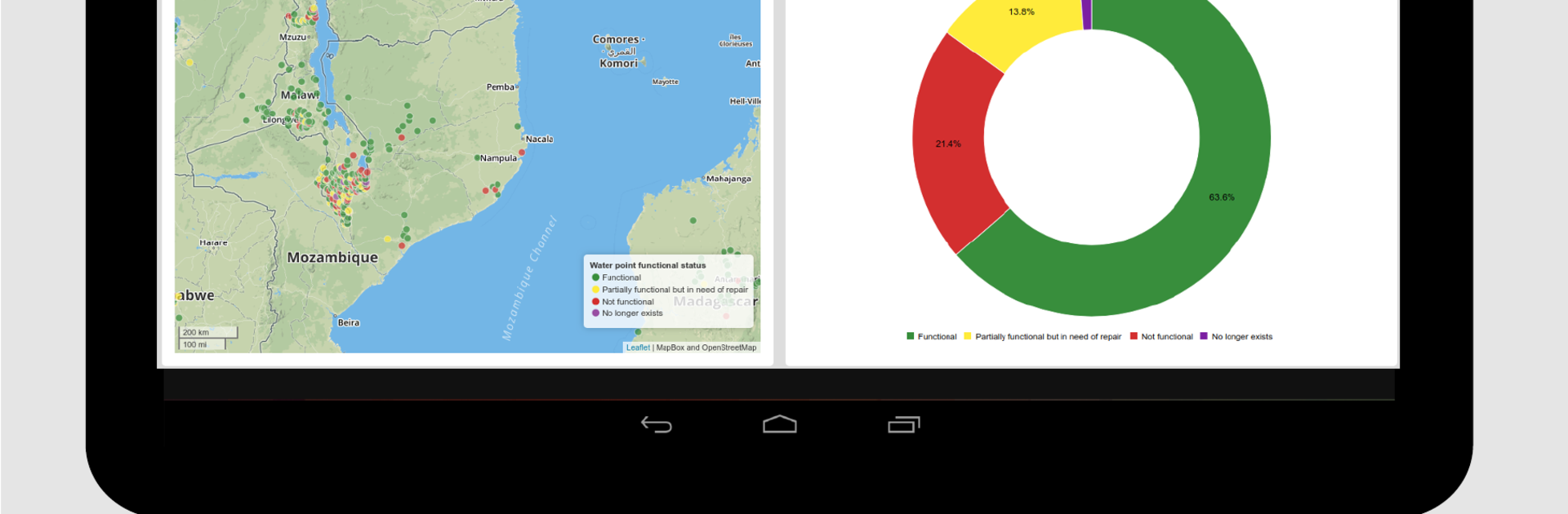
    Map sites as you visit them and keep tabs on every location. See how things change over time with mapped surveys for communities, water points, or health centers.

  • Offline Functionality
    Out of signal range? No problem. Keep working without WiFi—the app saves your entries and syncs everything automatically once you’re back online.

  • Task Management
    Stay organized. Assign tasks to team members, see what needs doing, and mark jobs as completed, even on the go.

  • Photo Uploads
    Snap photos as you collect data—attach images to your surveys for richer, more detailed records.

  • Real-Time Insights
    Check your results and spot trends as you go, so you’re always one step ahead with the info you need.

You can also use mWater Surveyor in multiple languages and easily manage your work, whether you’re using your phone on-site or running the app with BlueStacks on your desktop.

Eager to take your app experience to the next level? Start right away by downloading BlueStacks on your PC or Mac.


How to Download and Run mWater Surveyor on PC or Mac

  • Download and install BlueStacks on your PC or Mac

  • Complete Google sign-in to access the Play Store, or do it later

  • Look for mWater Surveyor in the search bar at the top right corner

  • Click to install mWater Surveyor from the search results

  • Complete Google sign-in (if you skipped step 2) to install mWater Surveyor

  • Click the mWater Surveyor icon on the home screen to start playing

video
Watch Video

Minimum System Requirements

With BlueStacks 5, you can get started on a PC that fulfills the following requirements.

  • Operating System

    Microsoft Windows 7 or above, macOS 11 (Big Sur) or above

  • Processor

    Intel, AMD or Apple Silicon Processor

  • RAM

    at least 4GB

  • HDD

    10GB Free Disk Space

Note:

* You must be an Administrator on your PC. Up to date graphics drivers from Microsoft or the chipset vendor.

mWater Surveyor - FAQs

  • How to Run mWater Surveyor on Windows PC & Mac?

    Run mWater Surveyor on your PC or Mac by following these simple steps.

    • Click on ‘Download mWater Surveyor on PC’ to download BlueStacks
    • Install it and log-in to Google Play Store
    • Launch and run the app.
  • Why is BlueStacks the fastest and safest platform to play games on PC?

    BlueStacks respects your privacy and is always safe and secure to use. It does not carry any malware, spyware, or any sort of additional software that could harm your PC.

    It is engineered to optimize speed and performance for a seamless gaming experience.

  • What are mWater Surveyor PC requirements?

    Minimum requirement to run mWater Surveyor on your PC

    • OS: Microsoft Windows 7 and above:
    • Processor: Intel or AMD Processor:
    • RAM: Your PC must have at least 2GB of RAM. (Note that having 2GB or more disk space is not a substitute for RAM):
    • HDD: 5GB Free Disk Space.
    • You must be an Administrator on your PC.